 docs.healthdata.be
Last updated: 2024-11-22 15:24
The Registrations tab shows the user the available registries. A user can start collecting data from this view.
Creating and submitting a registration consists of 4 steps:
- Select the registry for which you want to create a registration.
(The documentation below includes generic sample screens designed solely to illustrate what the process entails, irrespective of the registry involved.)

- Click on "New registration" button.
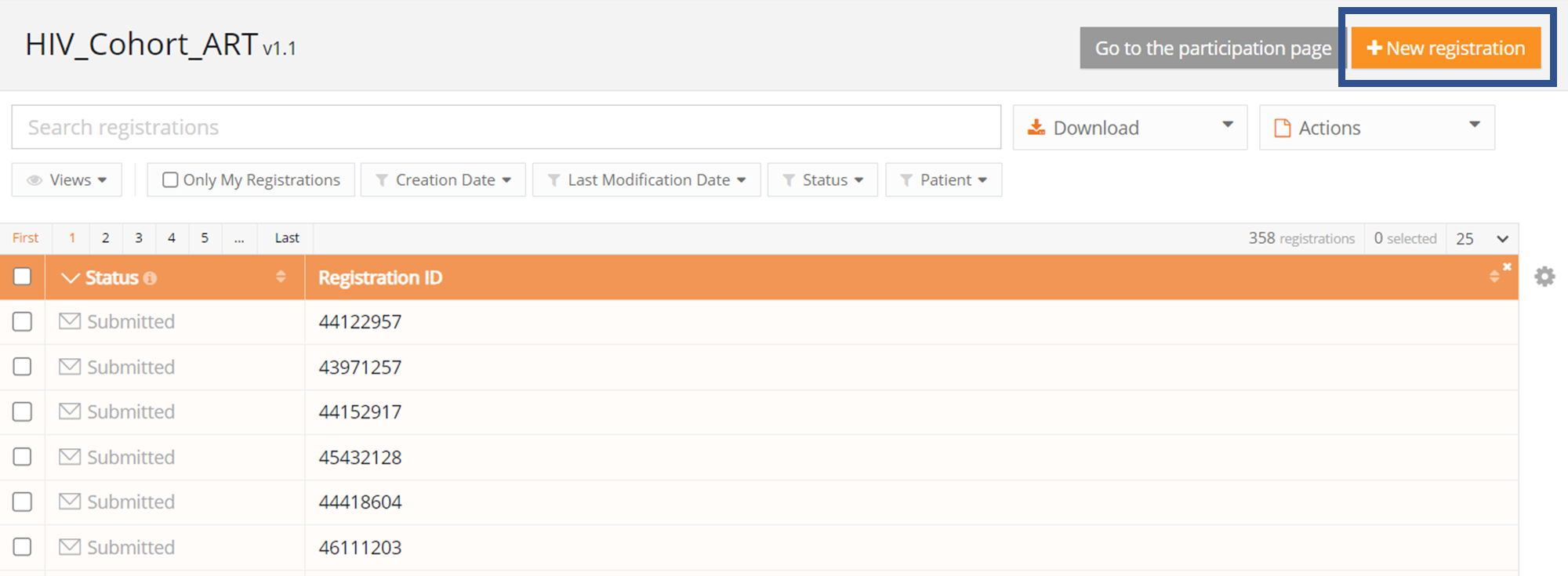
- Fill in the registration form and save or submit the registration with the buttons below.

- Save the registration temporarily if needed. The status of the record will be "Open" for saved registrations.

- Submit the registration if no validation errors present. The status of the registration will change to "Sending".

- When the record has been processed, the status will change to "Submitted".

As soon as a registration is sent, the "status confirmation" column will show "Pending".
- It shows "OK" once the registration has arrived, and "NOK" if the registration did not arrive within 48 hours. If the status is "NOK", the software will automatically try to resend the registration up to 10 days after the initial submission.
- For the statuses "Sending","Corrections needed" and "Approved" the status confirmation will be empty because the registration has not yet been submitted.
- A registration can be "Reopened" if needed as long as the status of the registration is "Submitted".