 docs.healthdata.be
Option 1: The General Practitioner creates and completes account, the Access Manager approves
This option gives the main part of the request for access to healthstat.be in the hands of the General Practitioner. The GP first completes the own user profile, then will set up an EAM account to it and finally adds the grants, denoting the specific registry and the role/data level requested. The General Practitioner then sends the access request for approval to the Access Manager.
Completing the user profile and becoming an Authenticated User
The main My profile page shows the Personal information, gathered during the FAS login procedure, and the list of accounts linked to your profile (Linked accounts section).

Attention: Upon your first login the list with linked accounts will of course be empty.
Now, click on your name and e-mail address on the top left of the screen to toggle a toolbar with a series of tabs: View profile, Edit profile, My Accounts and Log out. The View profile tab directs you to the My profile screen, which is the screen you are viewing now.

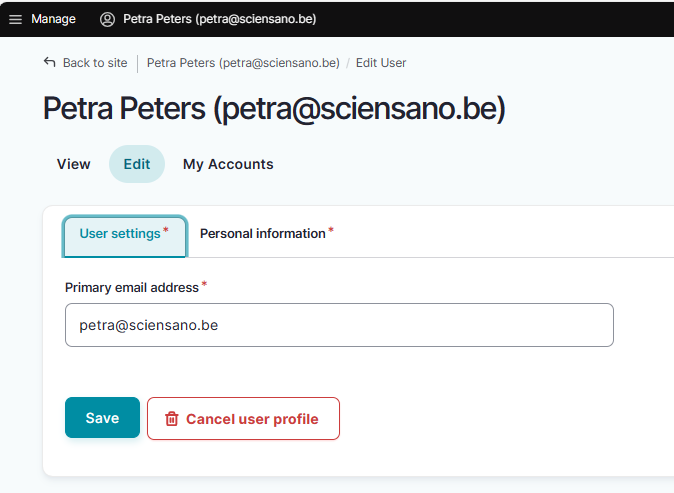
To complete your profile, select the Edit profile tab. The Edit tab contains two subtabs: User settings and Personal information. The red asterisks indicate required fields.
Select the User settings tab.
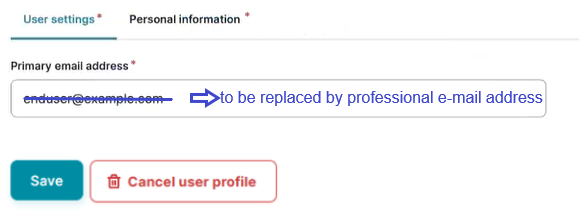
ATTENTION: When logging in for the first time, the User settings tab will feature a primary e-mail address field with a pre-filled default e-mail address, e.g.:

Replace this address with your professional e-mail address. This e-mail address is used to send necessary notifications to you.
DO NOT use public e-mail addresses such as @gmail.com, @live.com, @hotmail.com etc.
Confirm with the Save button.
The Personal information tab contains pre-populated information such as first name, last name and SSIN in greyed out fields. This information can't be changed. Next to this, you can provide a personal NIHDI number, or more than one, if applicable.
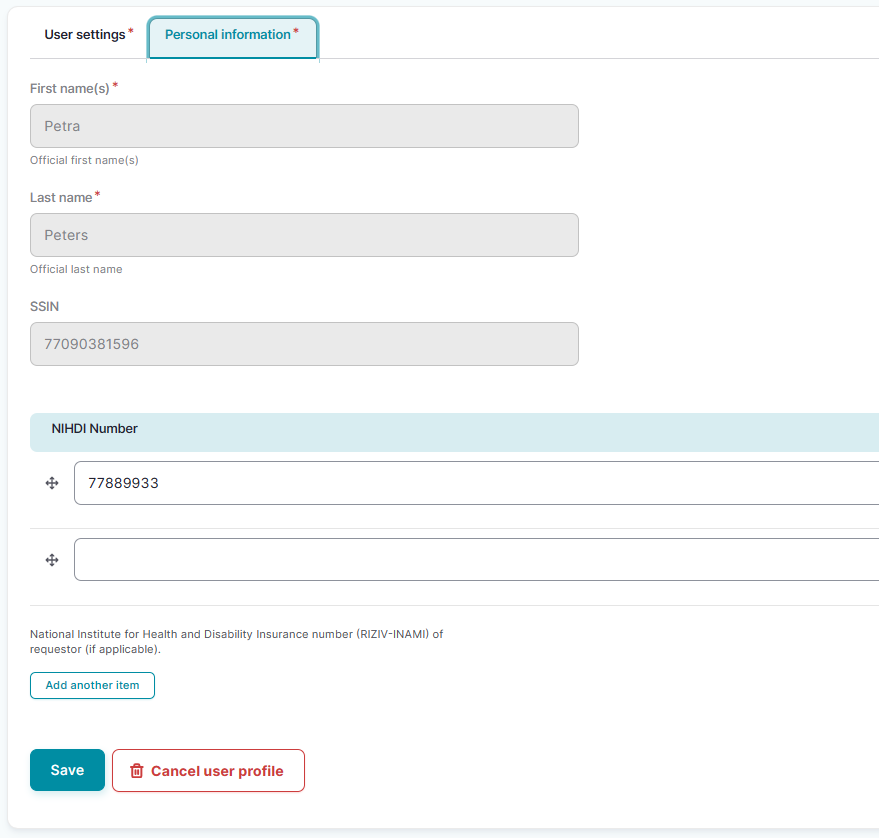
Use the Save button to confirm. You have now completed the fields in both User settings and Personal information tabs, which makes you known to the EAM system as an Authenticated User.
Adding and provisioning an EAM account
Return to the My profile page and select the My accounts tab.

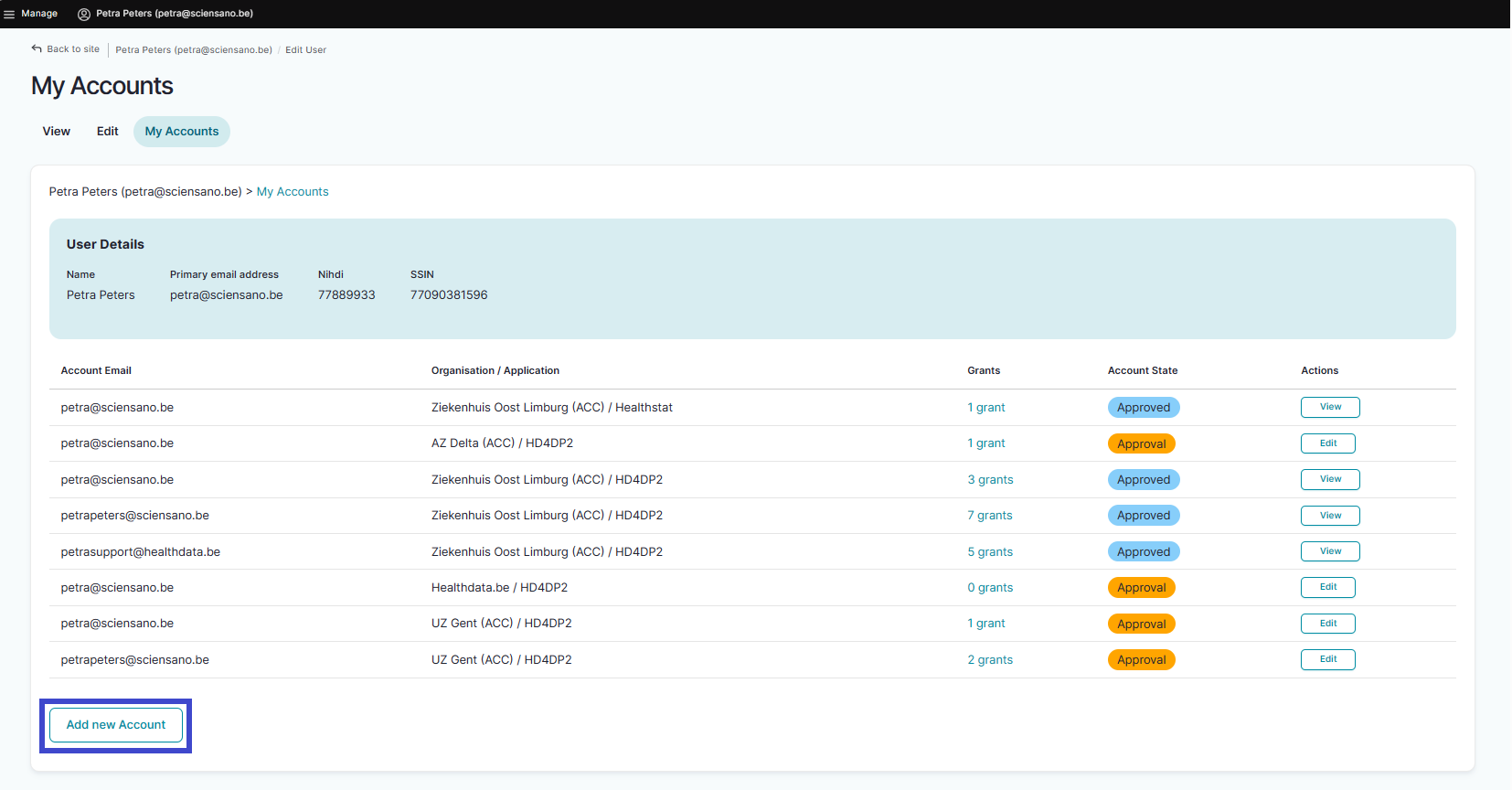
On the My accounts page your personal information is displayed in the blue User details section, followed by a list of accounts you have created.
To add a new account, click on the Add new Account button at the bottom of the page.
The Add a new account window appears.
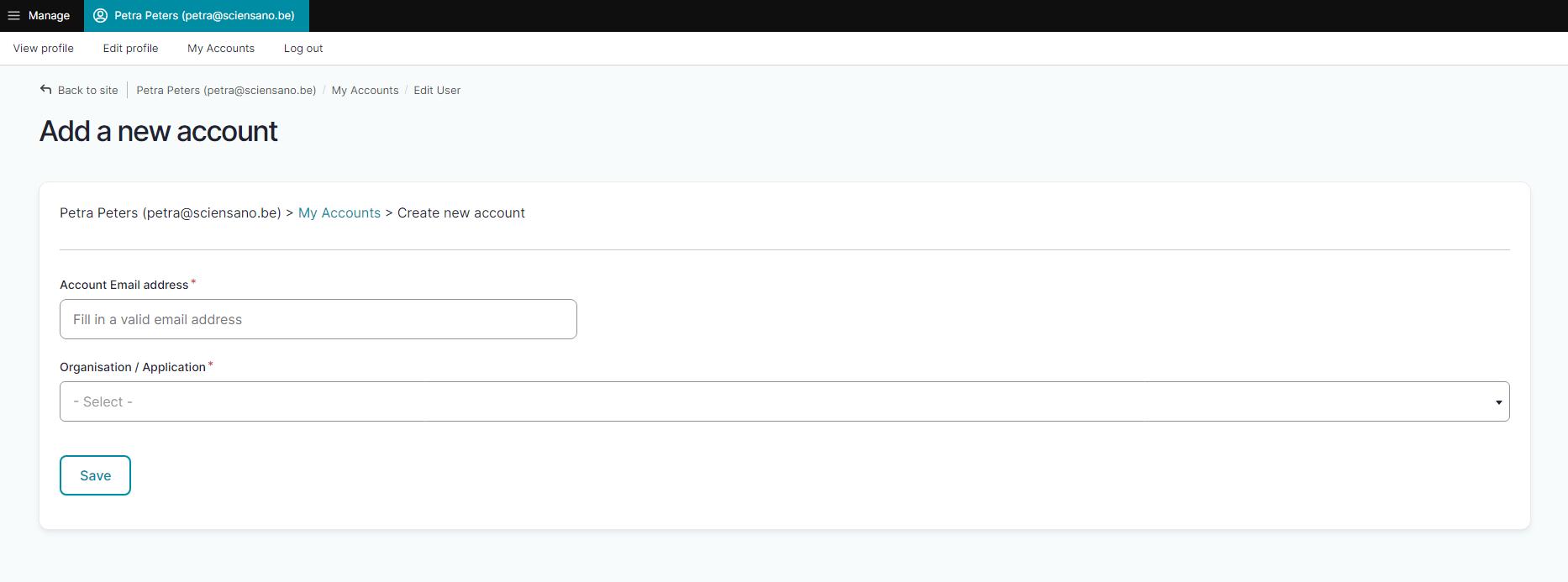
Complete the fields in the Add a new account window with the e-mail address you use for your organization and select the combination of your organization (General Practitioners-333333333) and the application (healthstat.be). This is what we call provisioning of an account.

REPLACE BY CORRECT SCREENSHOT
Click on the Save button.
You will be automatically redirected to the My accounts page that has now been updated with your newly created account added at the bottom of the list. The account has received the status "Draft".

REPLACE BY CORRECT SCREENSHOT