 docs.healthdata.be
Create a Spine Surgery registration
To create a registration for the study project Spine Surgery, select "Surgery" in the dark blue left menu.
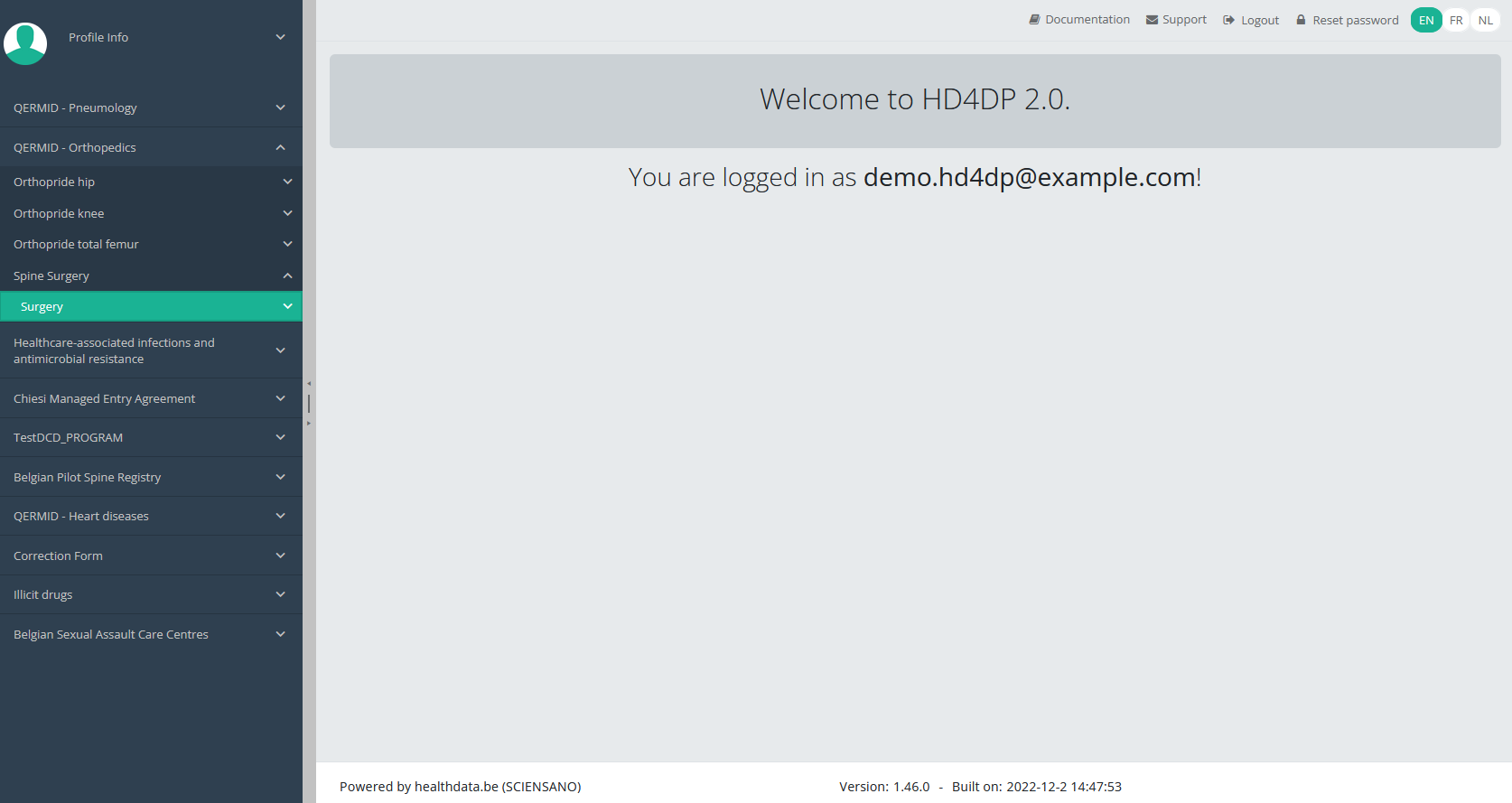
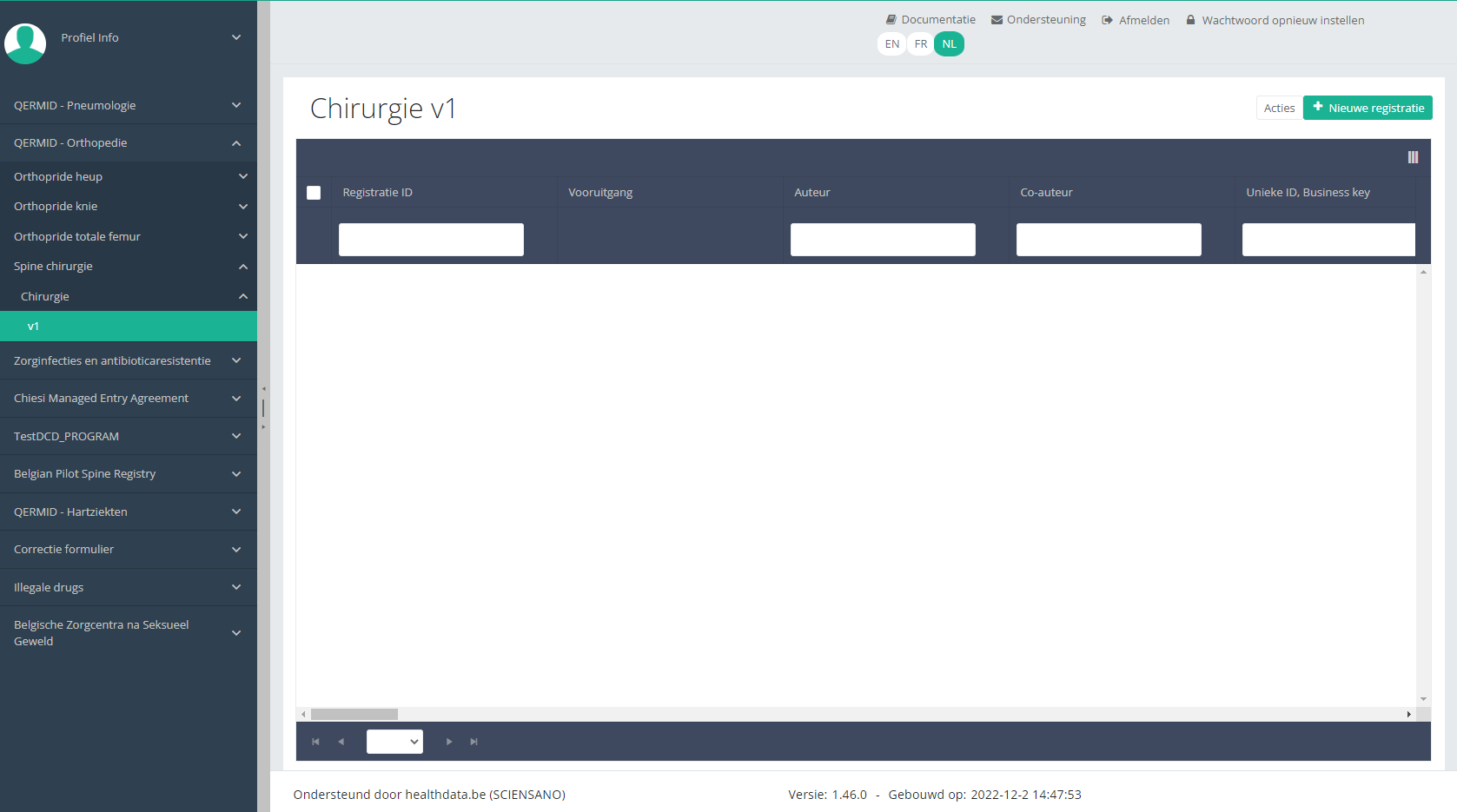
You will see the number of versions of this study section. In this case, there is only one version: v1.

When you select the highest version of this study section for the first time, you will see an empty overview table in the main part of your screen. The table contains, among others, the following items: Registration ID, Progress, Author, Co-author, Unique ID, Business key, Registration code, National registry ID of the patient...
The study section is not always available in all three languages. In that case the following text frame covers the language selection buttons. It automatically disappears after a few seconds.

As the study project Spine Surgery is only available in Dutch and French, select the desired language through the respective language button, NL for Dutch (shown in this documentation) or FR for French.
In the top right corner of the screen you can find a green button "+ New registration". Select this button.
After selection of the "+ New registration" button the main screen will be replaced by 2 sections: a study form in the middle of the screen and a table of contents on the right-hand side of the screen.
By completing the study form you will create a registration for the study project Spine Surgery.
Table of contents
The Table of contents indicates which sections you must complete. You can also use the table of contents to navigate through the study form: clicking on a section in the table of contents will take you to this section in the study form.

(add reusable NL)
Progress
By selecting the tab "Progress" on the right-hand side of the screen, the table of contents will be replaced by a progress bar and a list of open validation errors).
You can use the list of open validation errors to navigate through the study form: selection of a validation error in the list will take you to this section in the study form.

When the study form is completed and there are no validation errors, you can save or submit this registration: Save or Submit. Notice that the Submit button is in clear green.

When the study form is completed but there are validation errors, you can save but not submit this registration: Save but not submit. Notice that the Submit button is in dim green.

When the study form is saved or submitted, the screen switches to the overview table. Now, this table is not empty anymore but shows the saved or submitted registration.
This documentation is being updated regularly. We try to provide as correct, complete and clear as possible information on these pages. Nevertheless, if you see anything in the documentation that is not correct, does not match your experience or requires further clarification, please create a support ticket via our portal Jira Service Management or send us an e-mail via support.hd@hda.fgov.be to report this documentation issue. Please do not forget to mention the URL of the page. We will then adjust the documentation as soon as possible. Thank you!