 docs.healthdata.be
Access Manager actions using CSV Upload
Table of contents
How to create accounts using CSV Upload?
How to approve an account request using CSV Upload?
How to remove an account using CSV Upload?
How to restore an account using CSV Upload?
How to change user type to Access manager using CSV Upload?
How to change user type to Authenticated user using CSV Upload?
How to change user type to Manager using CSV Upload?
How to change user type to Administrator using CSV Upload?
How to reset the password of an account using CSV Upload?
How to create accounts using CSV Upload?
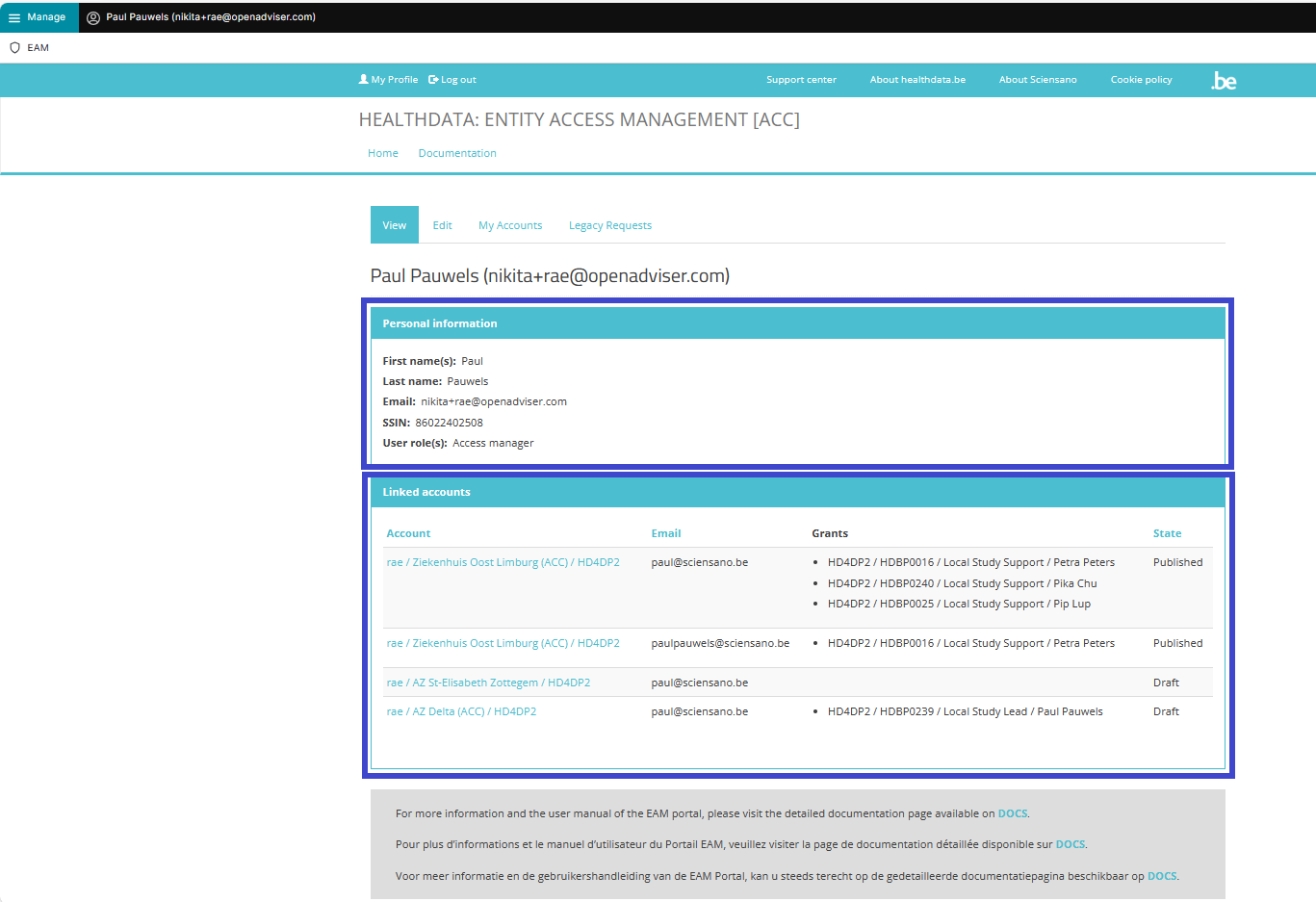
The Access Manager profile page
The main My profile screen that appears after selecting the confirmation button shows the Personal information of the Access Manager as well as the Linked accounts of this profile. The list can be sorted by Account, Email or State.
Attention: The accounts listed in Linked accounts are NOT the accounts of other users you manage as an Access Manager.
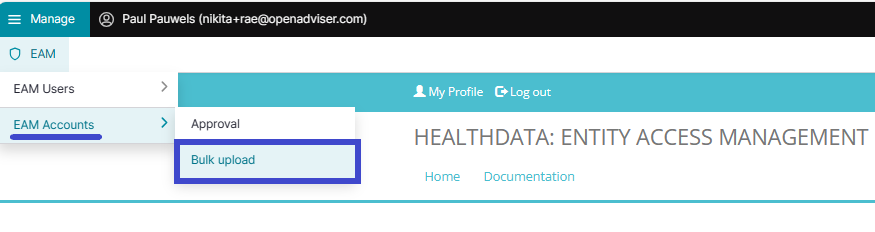
Click on Manage to the top left of the screen, so that EAM appears. When hovering over this, the items EAM Users and EAM Accounts become visible. Click on EAM Accounts and Bulk upload successively.
The Accounts Batch Creation page appears.
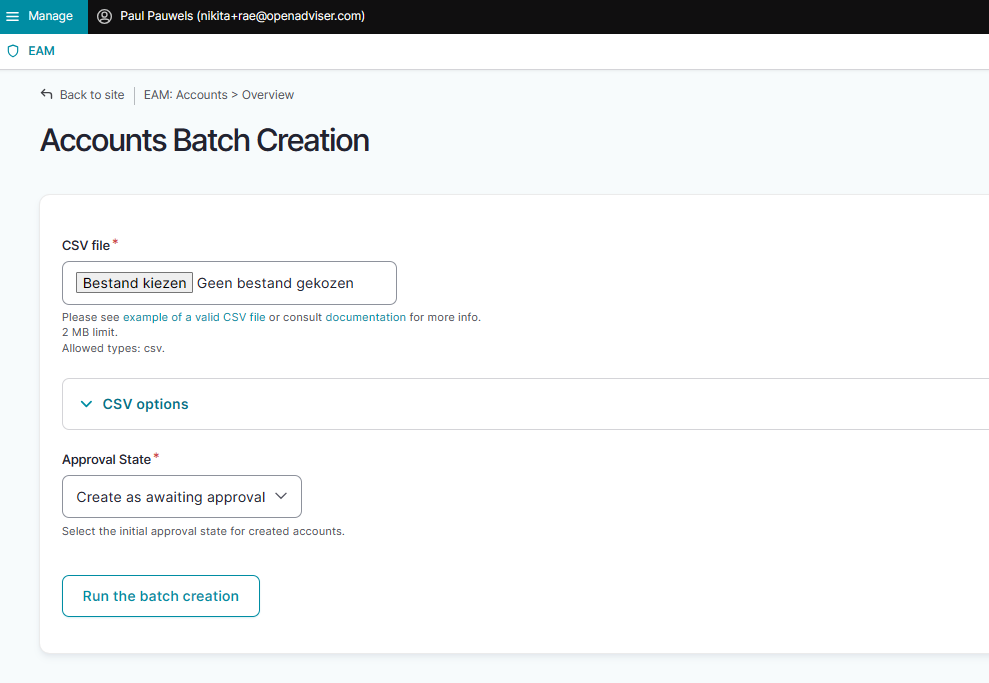
Select a valid .csv file on your system to upload or use the following example file:
Use the schema file to validate the csv:
Then, select the Approval State in the toggle underneath.
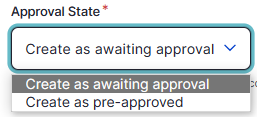
- Create as awaiting approval: With this option the accounts will receive the status Approval and will be set ready for the Access Manager to be Approved.
- Create as pre-approved: With this option the accounts will receive the status Approved and will be uploaded directly without further interference by the Access Manager (e.g. confidence in content quality is very high)
Finally, run the batch creation by clicking on the corresponding button.
How to approve an account request using CSV Upload?
How to remove an account using CSV Upload?
How to restore an account using CSV Upload?
An Authenticated User is not able to carry out this action.
How to change user type to Access manager using CSV Upload?
The Access Manager profile page
The main My profile screen that appears after selecting the confirmation button shows the Personal information of the Access Manager as well as the Linked accounts of this profile. The list can be sorted by Account, Email or State.
Attention: The accounts listed in Linked accounts are NOT the accounts of other users you manage as an Access Manager.
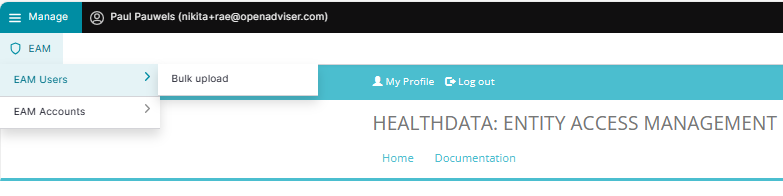
Click on Manage to the top left of the screen, so that EAM appears. When hovering over this, the items EAM Users and EAM Accounts become visible. Click on EAM Users and Bulk upload successively.
How to change user type to Authenticated user using CSV Upload?
An Authenticated User is not able to carry out this action.
How to change user type to Manager using CSV Upload?
An Authenticated User is not able to carry out this action.
How to change user type to Administrator using CSV Upload?
An Authenticated User is not able to carry out this action.
How to reset the password of an account using CSV Upload?
An Authenticated User is not able to carry out this action.