 docs.healthdata.be
HD4DP2 user actions in EAM
Table of contents
How to request access to a project in HD4DP2 with the role of "Local Study Lead" in EAM?
How to request access to a project in HD4DP2 with the role of "Local Study Associate" in EAM?
How to request access to a project in HD4DP2 with the role of "Local Study Support" for the author group "Author Group" in EAM?
How to create an account for a project in HD4DP2 with the role of "Local Study Lead" in EAM?
How to create an account for a project in HD4DP2 with the role of "Local Study Associate" in EAM?
How to create an account for a project in HD4DP2 with the role of "Local Study Support" for the author group "Author Group" in EAM?
How to approve an account for a project in HD4DP2 with the role of "Local Study Lead" in EAM?
How to approve an account for a project in HD4DP2 with the role of "Local Study Associate" in EAM?
How to approve an account for a project in HD4DP2 with the role of "Local Study Support" for the author group "Author Group" in EAM?
How to remove an account for a project in HD4DP2 in EAM?
How to restore an account for a project in HD4DP2 in EAM?
How to reset a password of an account for a project in HD4DP2 in EAM?
How to request an account for a project in HD4DP2 with a change to the role of "Local Study Lead" in EAM?
How to request an account for a project in HD4DP2 with a change to the role of "Local study Associate" in EAM?
How to request an account for a project in HD4DP2 with a change to the role of "Local Study Support" for the author group "Author Group" in EAM?
How to approve an account for a project in HD4DP2 with a change to the role of "Local Study Lead" in EAM?
How to approve an account for a project in HD4DP2 with a change to the role of "Local Study Associate" in EAM?
How to approve an account for a project in HD4DP2 with a change to the role of "Local Study Support" for the author group "Author Group" in EAM?
How to change an account for a project in HD4DP2 to the role of "Local Study Lead" in EAM?
How to change an account for a project in HD4DP2 to the role of "Local Study Associate" in EAM?
How to change an account for a project in HD4DP2 to the role of "Local Study Support" for the author group "Author Group) in EAM?
How to change an author group of an account for a project in HD4DP2 in EAM?
>>>How to view accounts for projects in HD4DP2 of all participants of own project of own organization in EAM?
>>>How to view accounts for projects in HD4DP2 of all participants of all projects of own organization in EAM?
How to view own accounts for projects in HD4DP2 in EAM?
How to view all accounts for all projects in HD4DP2 of all organizations in EAM?
How to request access to a project in HD4DP2 with the role of "Local Study Lead" in EAM?
Completing the user profile and becoming an Authenticated User
Go here to learn how to complete the user profile and how to become an Authenticated User.
Adding and provisioning an EAM account
Go here to learn how to add and provision an account.
Adding access grants
In the following we will go through the process of adding grants, determining roles and author groups for HD4DP2, changing states and requesting for approval by the Access Manager.
To add access grants to an account you need to return to the Accounts tab of the user profile to consult the overview of your accounts.
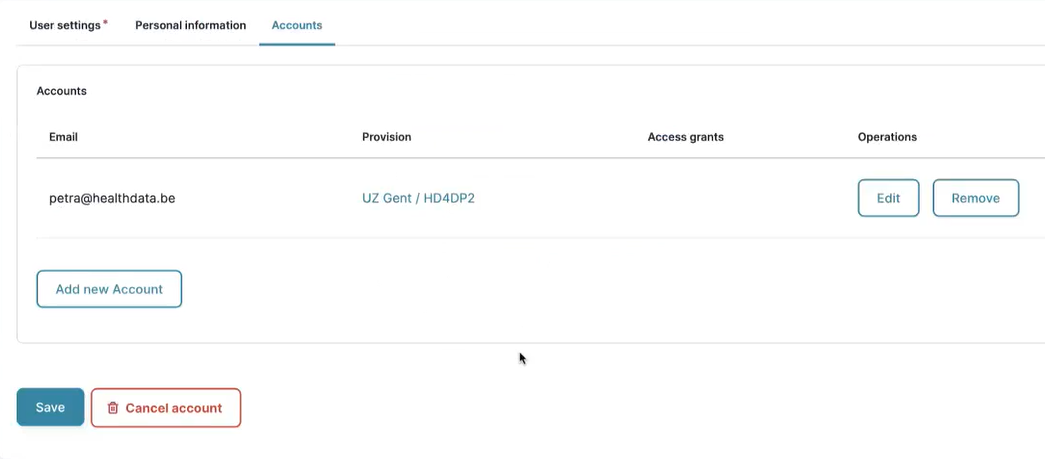
Select the Edit button next to the account for which you want to add access grants.

The Edit Account window reopens.
First, go to the section Grants in the middle of your screen and select the application HD4DP2.

To add access grants you select the Add new Grant button. The Add Grant pop-up window appears.
Define the HD Business Project in the field Project and select Local Study Lead in the field Role using the respective drop-down lists. The prefilled values of the lists prevent from writing mistakes.
 |  |  |
Click on the Create Grant button to register the project and user role information.
Then, select the Update account button in the Edit Account window and return to the Accounts tab to find the added Access grant as follows:
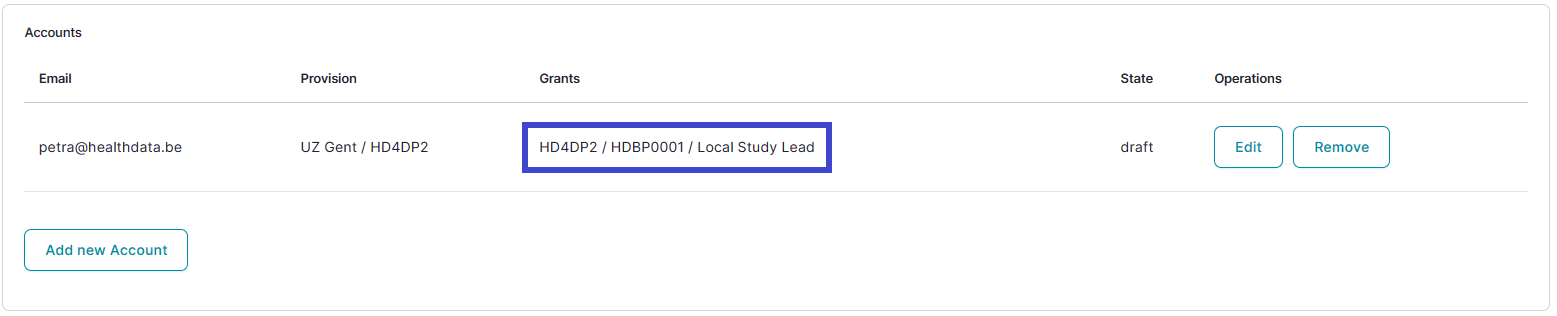
Now you have all information for an account in place, you reselect the Edit button. In the Edit account window, you change the current state of the account from Draft into Approval.
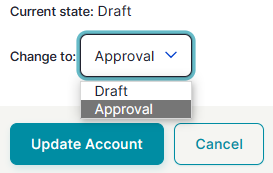
When clicking on the Update account and Save buttons in the successive screens, you confirm this request for approval which is sent to the Access manager. When refreshing the Accounts tab, you will notice that the Edit button is not available anymore. This is to prevent from performing changes in the account to be approved.
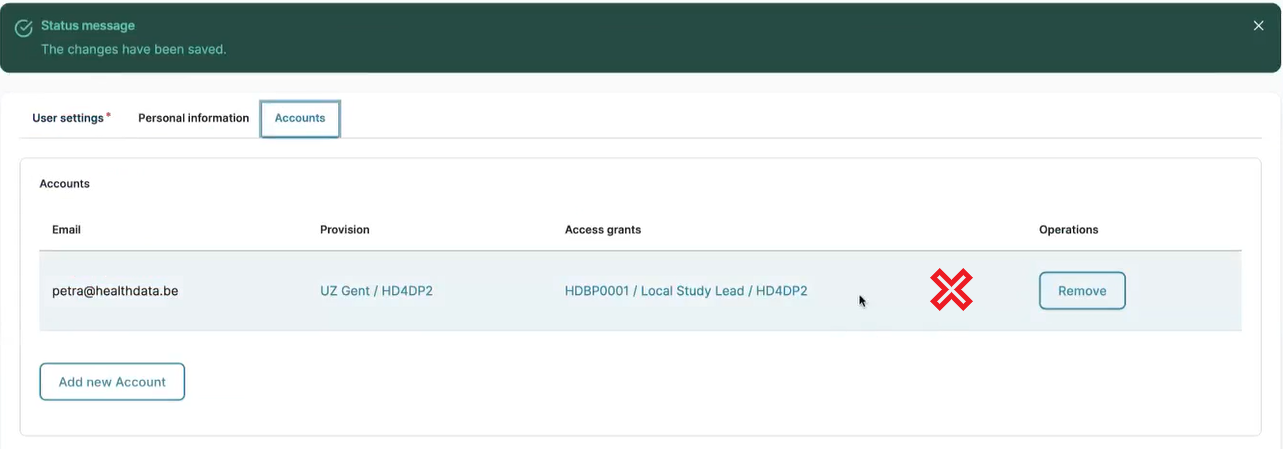
Wait now for the notification e-mail to land in the mailbox of your primary e-mail address. That e-mail will be sent by the Access manager of the organization that was mentioned in the provision.
How to request a project account "Local Study Associate" for HD4DP2 using the EAM Portal?
Completing the user profile and becoming an Authenticated User
Go here to learn how to complete the user profile and how to become an Authenticated User.
Adding and provisioning an EAM account
Go here to learn how to add and provision an account.
Adding access grants
In the following we will go through the process of adding grants, determining roles and author groups for HD4DP2, changing states and requesting for approval by the Access Manager.
To add access grants to an account you need to return to the Accounts tab of the user profile to consult the overview of your accounts.
Select the Edit button next to the account for which you want to add access grants.
The Edit Account window reopens.
First, go to the section Grants in the middle of your screen and select the application HD4DP2.
To add access grants you select the Add new Grant button. The Add Grant pop-up window appears.
Define the HD Business Project in the field Project and select Local Study Associate in the field Role using the respective drop-down lists. The prefilled values of the lists prevent from writing mistakes.
| |  |
Click on the Create Grant button to register the project and user role information.
Then, select the Update account button in the Edit Account window and return to the Accounts tab to find the added Access grant as follows:
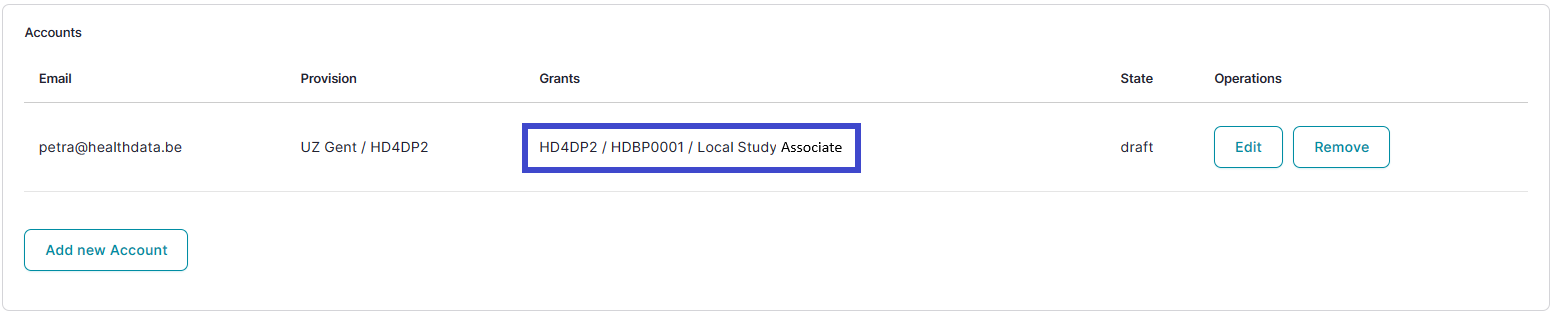
Now you have all information for an account in place, you reselect the Edit button. In the Edit account window, you change the current state of the account from Draft into Approval.
When clicking on the Update account and Save buttons in the successive screens, you confirm this request for approval which is sent to the Access manager. When refreshing the Accounts tab, you will notice that the Edit button is not available anymore. This is to prevent from performing changes in the account to be approved.
Wait now for the notification e-mail to land in the mailbox of your primary e-mail address. That e-mail will be sent by the Access manager of the organization that was mentioned in the provision.
How to request a project account "Local Study Support" for HD4DP2 using the EAM Portal?
Completing the user profile and becoming an Authenticated User
Go here to learn how to complete the user profile and how to become an Authenticated User.
Adding and provisioning an EAM account
Go here to learn how to add and provision an account.
Adding access grants
In the following we will go through the process of adding grants, determining roles and author groups for HD4DP2, changing states and requesting for approval by the Access Manager.
To add access grants to an account you need to return to the Accounts tab of the user profile to consult the overview of your accounts.
Select the Edit button next to the account for which you want to add access grants.
The Edit Account window reopens.
First, go to the section Grants in the middle of your screen and select the application HD4DP2.
To add access grants you select the Add new Grant button. The Add Grant pop-up window appears.
Define the HD Business Project in the field Project and select Local Study Support in the field Role using the respective drop-down lists. Upon selection of the Local Study Support role the Add Grant window will be extended with an Author group field. Herein you have to select the author group from a drop-down list that is prefilled with provided first and last names.
| |  |
Click on the Create Grant button to register the project and user role information.
Then, select the Update account button in the Edit Account window and return to the Accounts tab to find the added Access grant as follows:
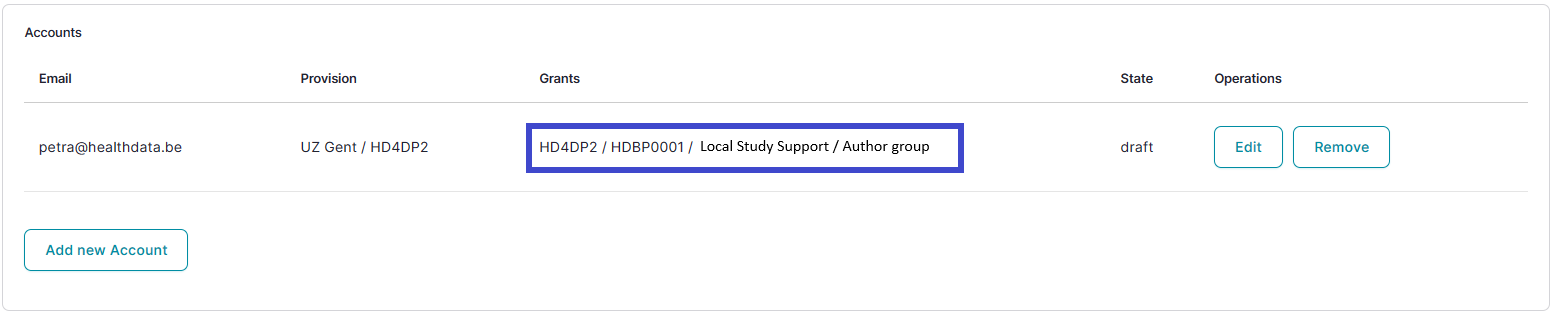
Now you have all information for an account in place, you reselect the Edit button. In the Edit account window, you change the current state of the account from Draft into Approval.
When clicking on the Update account and Save buttons in the successive screens, you confirm this request for approval which is sent to the Access manager. When refreshing the Accounts tab, you will notice that the Edit button is not available anymore. This is to prevent from performing changes in the account to be approved.
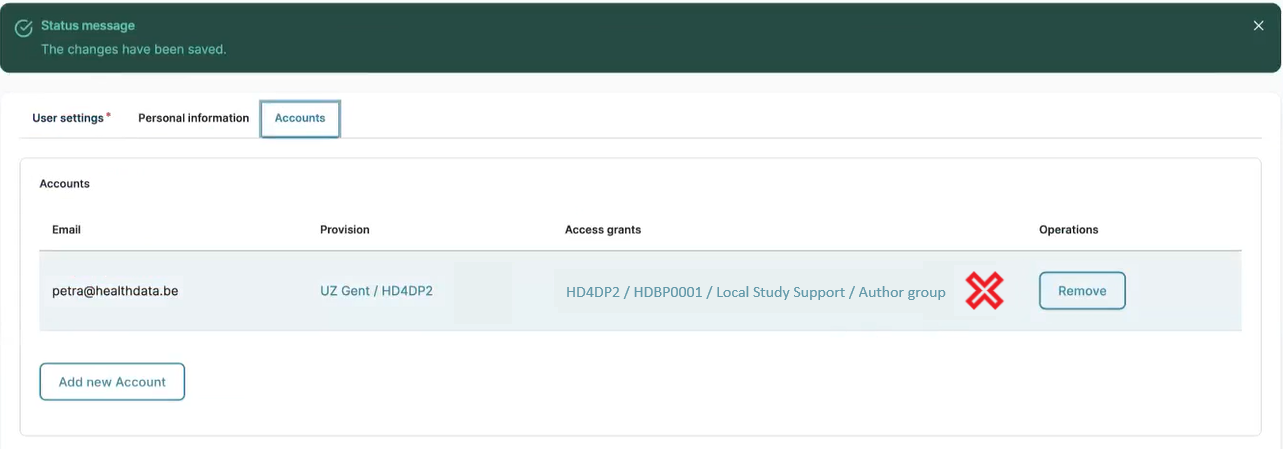
Wait now for the notification e-mail to land in the mailbox of your primary e-mail address. That e-mail will be sent by the Access manager of the organization that was mentioned in the provision.
How to create a project account "Local Study Lead" for HD4DP2 using the EAM Portal?
Completing the user profile and becoming an Authenticated User
Go here to learn how to complete the user profile and how to become an Authenticated User.
Adding and provisioning an EAM account
Go here to learn how to add and provision an account.
Adding access grants
In the following we will go through the process of adding grants, determining roles and author groups for HD4DP2, changing states and requesting for approval by the Access Manager.
To add access grants to an account you need to return to the Accounts tab of the user profile to consult the overview of your accounts.
Select the Edit button next to the account for which you want to add access grants.
The Edit Account window reopens.
First, go to the section Grants in the middle of your screen and select the application HD4DP2.
To add access grants you select the Add new Grant button. The Add Grant pop-up window appears.
Define the HD Business Project in the field Project and select Local Study Lead in the field Role via the respective drop-down lists. The prefilled values of the lists prevent from writing mistakes.
| | |
Click on the Create Grant button to register the project and user role information.
Then, select the Update account button in the Edit Account window and return to the Accounts tab to find the added Access grant as follows:
You now have created an HD4DP2 account for the role "Local Study Lead".
How to create a project account "Local Study Associate" for HD4DP2 using the EAM Portal?
Completing the user profile and becoming an Authenticated User
Go here to learn how to complete the user profile and how to become an Authenticated User.
Adding and provisioning an EAM account
Go here to learn how to add and provision an account.
Adding access grants
In the following we will go through the process of adding grants, determining roles and author groups for HD4DP2, changing states and requesting for approval by the Access Manager.
To add access grants to an account you need to return to the Accounts tab of the user profile to consult the overview of your accounts.
Select the Edit button next to the account for which you want to add access grants.
The Edit Account window reopens.
First, go to the section Grants in the middle of your screen and select the application HD4DP2.
To add access grants you select the Add new Grant button. The Add Grant pop-up window appears.
Define the HD Business Project in the field Project and select Local Study Associate in the field Role using the respective drop-down lists. The prefilled values of the lists prevent from writing mistakes.
| |  |
Click on the Create Grant button to register the project and user role information.
Then, select the Update account button in the Edit Account window and return to the Accounts tab to find the added Access grant as follows:
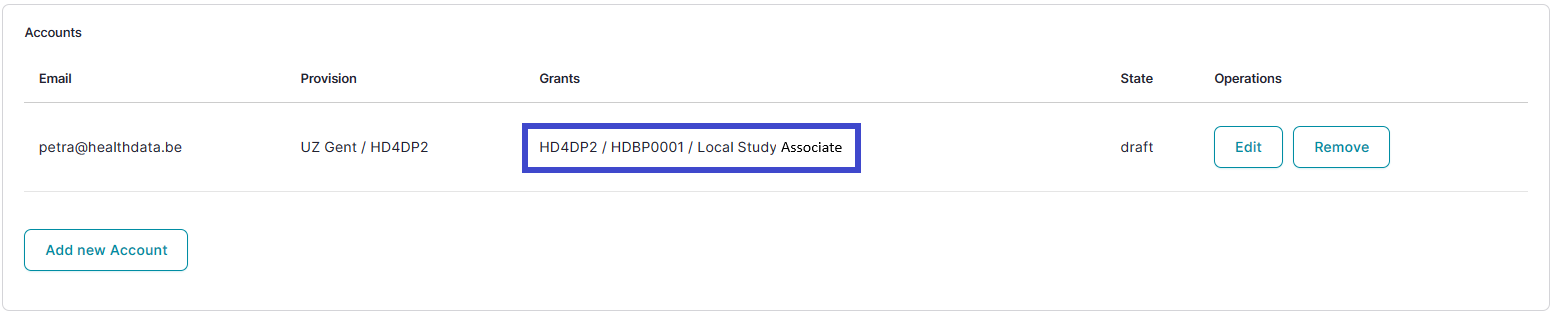
You now have created an HD4DP2 account for the role "Local Study Associate".
How to create a project account "Local Study Support" for HD4DP2 using the EAM Portal?
Completing the user profile and becoming an Authenticated User
Go here to learn how to complete the user profile and how to become an Authenticated User.
Adding and provisioning an EAM account
Go here to learn how to add and provision an account.
Adding access grants
In the following we will go through the process of adding grants, determining roles and author groups for HD4DP2, changing states and requesting for approval by the Access Manager.
To add access grants to an account you need to return to the Accounts tab of the user profile to consult the overview of your accounts.
Select the Edit button next to the account for which you want to add access grants.
The Edit Account window reopens.
First, go to the section Grants in the middle of your screen and select the application HD4DP2.
To add access grants you select the Add new Grant button. The Add Grant pop-up window appears.
Define the HD Business Project in the field Project and select Local Study Support in the field Role using the respective drop-down lists. Upon selection of the Local Study Support role the Add Grant window will be extended with an Author group field. Herein you have to select the author group from a drop-down list that is prefilled with provided first and last names.
| | |
Click on the Create Grant button to register the project and user role information.
Then, select the Update account button in the Edit Account window and return to the Accounts tab to find the added Access grant as follows:
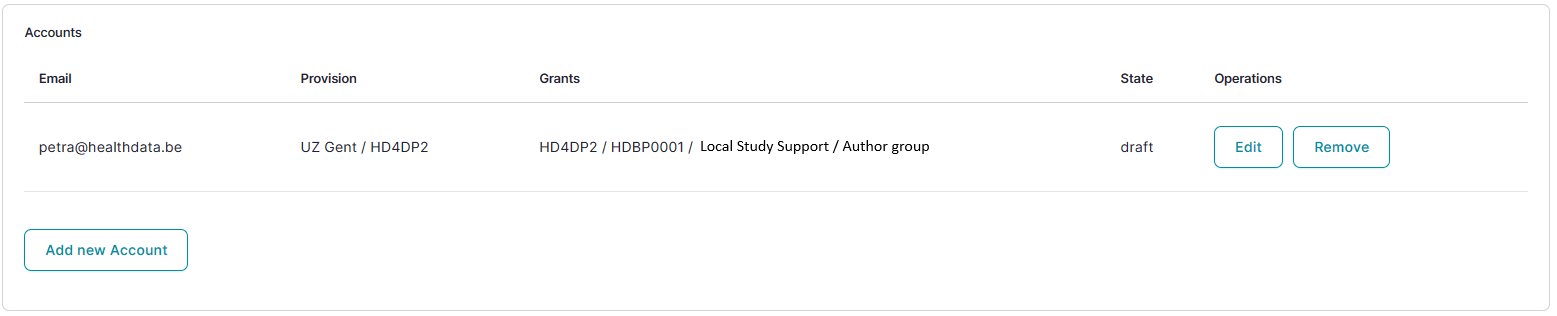
You now have created an HD4DP2 account for the role "Local Study Support".
How to approve a project account "Local Study Lead" for HD4DP2 using the EAM Portal?
An Authenticated User is not able to carry out this action.
How to approve a project account "Local Study Associate" for HD4DP2 using the EAM Portal?
An Authenticated User is not able to carry out this action.
How to approve a project account "Local Study Support" for HD4DP2 using the EAM Portal?
An Authenticated User is not able to carry out this action.
How to remove a project account for HD4DP2 using the EAM Portal?
Completing the user profile and becoming an Authenticated User
Go here to learn how to complete the user profile and how to become an Authenticated User.
Adding and provisioning an EAM account
Go here to learn how to add and provision an account.
Adding access grants
In the following we will go through the process of adding grants, determining roles and author groups for HD4DP2, changing states and requesting for approval by the Access Manager.
To add access grants to an account you need to return to the Accounts tab of the user profile to consult the overview of your accounts.
Select the Edit button next to the account for which you want to add access grants.
The Edit Account window reopens.
First, go to the section Grants in the middle of your screen and select the application HD4DP2.
To add access grants you select the Add new Grant button. The Add Grant pop-up window appears.
Define the HD Business Project in the field Project and select Local Study Lead in the field Role using the respective drop-down lists. The prefilled values of the lists prevent from writing mistakes.
| | |
Click on the Create Grant button to register the project and user role information.
Then, select the Update account button in the Edit Account window and return to the Accounts tab to find the added Access grant as follows:
Now you have all information for an account in place, you reselect the Edit button. In the Edit account window, you change the current state of the account from Draft into Approval.
When clicking on the Update account and Save buttons in the successive screens, you confirm this request for approval which is sent to the Access manager. When refreshing the Accounts tab, you will notice that the Edit button is not available anymore. This is to prevent from performing changes in the account to be approved.
Wait now for the notification e-mail to land in the mailbox of your primary e-mail address. That e-mail will be sent by the Access manager of the organization that was mentioned in the provision.
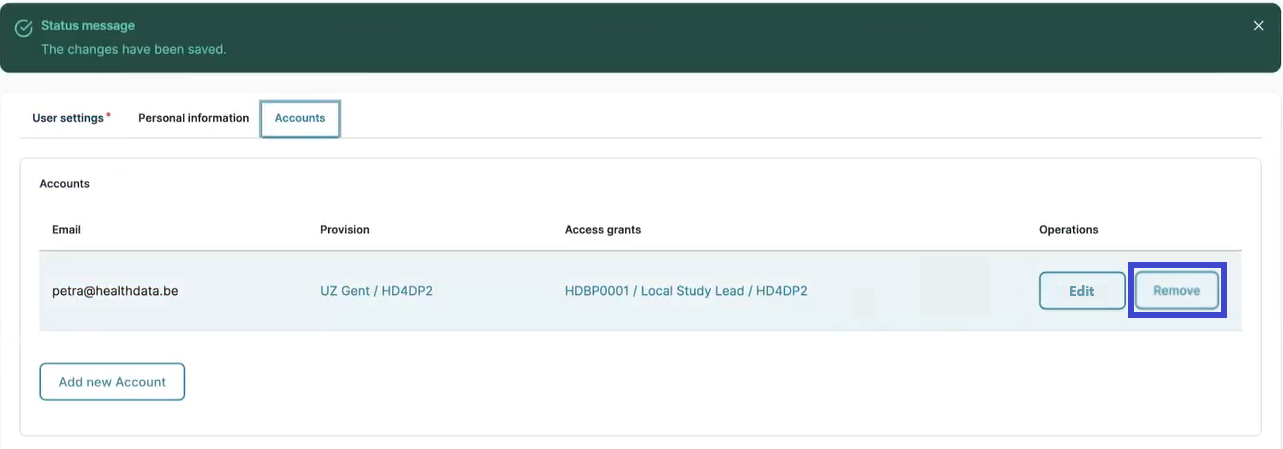
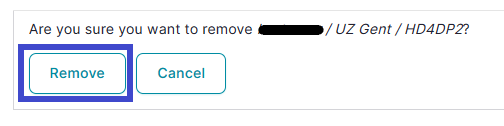
When you afterwards decide that the approved account is not relevant for a reason, you can remove it by clicking on the Remove button twice in a row.
And to confirm:
How to restore a project account for HD4DP2 using the EAM Portal?
An Authenticated User is not able to carry out this action.
How to reset a password of a project account for HD4DP2 using the EAM Portal?
(password is per account)
How to request a project account change to "Local Study Lead" using the EAM Portal?
Completing the user profile and becoming an Authenticated User
Go here to learn how to complete the user profile and how to become an Authenticated User.
Adding and provisioning an EAM account
Go here to learn how to add and provision an account.
Adding access grants
In the following we will go through the process of adding grants, determining roles and author groups for HD4DP2, changing states and requesting for approval by the Access Manager.
To add access grants to an account you need to return to the Accounts tab of the user profile to consult the overview of your accounts.
Select the Edit button next to the account for which you want to add access grants.
The Edit Account window reopens.
First, go to the section Grants in the middle of your screen and select the application HD4DP2.
To add access grants you select the Add new Grant button. The Add Grant pop-up window appears.
Define the HD Business Project in the field Project and select Local Study Lead in the field Role using the respective drop-down lists. The prefilled values of the lists prevent from writing mistakes.
| | |
Click on the Create Grant button to register the project and user role information.
Then, select the Update account button in the Edit Account window and return to the Accounts tab to find the added Access grant as follows:
Now you have all information for an account in place, you reselect the Edit button. In the Edit account window, you change the current state of the account from Draft into Approval.
When clicking on the Update account and Save buttons in the successive screens, you confirm this request for approval which is sent to the Access manager. When refreshing the Accounts tab, you will notice that the Edit button is not available anymore. This is to prevent from performing changes in the account to be approved.
Wait now for the notification e-mail to land in the mailbox of your primary e-mail address. That e-mail will be sent by the Access manager of the organization that was mentioned in the provision.
Request change of roles in an HD4DP2 project
When you want to change to another role in an HD4DP2 project for your account, select the Edit button to return to the Edit Account window.
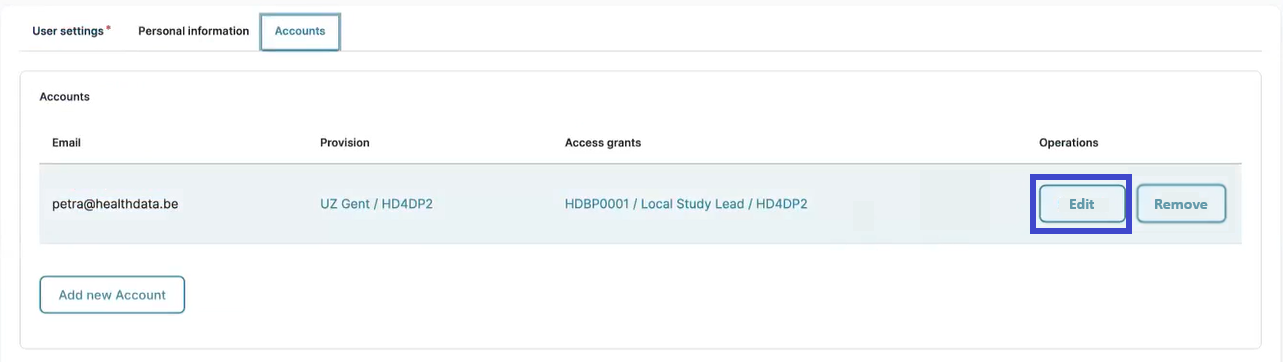
You will now be redirected to the Edit Account window.
Select the Add new Grant button and perform the new desired settings via the respective drop-down lists.
| |  |
When changing to the Local Study Support role the Add Grant window will be extended with an Author group field. In this field you have to select the author group from a list that is prefilled with information from the provision.
Select the Update account button in the Edit Account window and return to the Accounts tab to find the added Access grant as follows, with the three blue dots (...) indicating the new setting.
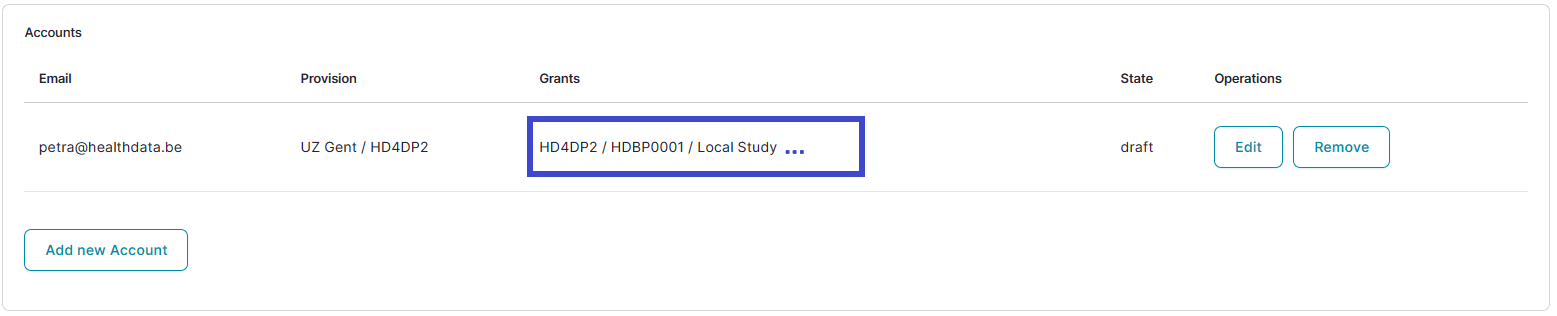
Now you have all information for an account in place, you reselect the Edit button. In the Edit account window, you change the current state of the account from Draft into Approval.
When clicking on the Update account and Save buttons in the successive screens, you confirm this request for approval. When refreshing the Accounts tab, you will notice that the Edit button is not available anymore. The request has been sent to the Access manager.
How to request a project account change to "Local Study Associate" using the EAM Portal?
Completing the user profile and becoming an Authenticated User
Go here to learn how to complete the user profile and how to become an Authenticated User.
Adding and provisioning an EAM account
Go here to learn how to add and provision an account.
Adding access grants
In the following we will go through the process of adding grants, determining roles and author groups for HD4DP2, changing states and requesting for approval by the Access Manager.
To add access grants to an account you need to return to the Accounts tab of the user profile to consult the overview of your accounts.
Select the Edit button next to the account for which you want to add access grants.
The Edit Account window reopens.
First, go to the section Grants in the middle of your screen and select the application HD4DP2.
To add access grants you select the Add new Grant button. The Add Grant pop-up window appears.
Define the HD Business Project in the field Project and select Local Study Lead in the field Role using the respective drop-down lists. The prefilled values of the lists prevent from writing mistakes.
| | |
Click on the Create Grant button to register the project and user role information.
Then, select the Update account button in the Edit Account window and return to the Accounts tab to find the added Access grant as follows:
Now you have all information for an account in place, you reselect the Edit button. In the Edit account window, you change the current state of the account from Draft into Approval.
When clicking on the Update account and Save buttons in the successive screens, you confirm this request for approval which is sent to the Access manager. When refreshing the Accounts tab, you will notice that the Edit button is not available anymore. This is to prevent from performing changes in the account to be approved.
Wait now for the notification e-mail to land in the mailbox of your primary e-mail address. That e-mail will be sent by the Access manager of the organization that was mentioned in the provision.
Request change of roles in an HD4DP2 project
When you want to change to another role in an HD4DP2 project for your account, select the Edit button to return to the Edit Account window.
You will now be redirected to the Edit Account window.
Select the Add new Grant button and perform the new desired settings via the respective drop-down lists.
| | |
When changing to the Local Study Support role the Add Grant window will be extended with an Author group field. In this field you have to select the author group from a list that is prefilled with information from the provision.
Select the Update account button in the Edit Account window and return to the Accounts tab to find the added Access grant as follows, with the three blue dots (...) indicating the new setting.
Now you have all information for an account in place, you reselect the Edit button. In the Edit account window, you change the current state of the account from Draft into Approval.
When clicking on the Update account and Save buttons in the successive screens, you confirm this request for approval. When refreshing the Accounts tab, you will notice that the Edit button is not available anymore. The request has been sent to the Access manager.
How to request a project account change to "Local Study Support" using the EAM Portal?
Completing the user profile and becoming an Authenticated User
Go here to learn how to complete the user profile and how to become an Authenticated User.
Adding and provisioning an EAM account
Go here to learn how to add and provision an account.
Adding access grants
In the following we will go through the process of adding grants, determining roles and author groups for HD4DP2, changing states and requesting for approval by the Access Manager.
To add access grants to an account you need to return to the Accounts tab of the user profile to consult the overview of your accounts.
Select the Edit button next to the account for which you want to add access grants.
The Edit Account window reopens.
First, go to the section Grants in the middle of your screen and select the application HD4DP2.
To add access grants you select the Add new Grant button. The Add Grant pop-up window appears.
Define the HD Business Project in the field Project and select Local Study Lead in the field Role using the respective drop-down lists. The prefilled values of the lists prevent from writing mistakes.
| | |
Click on the Create Grant button to register the project and user role information.
Then, select the Update account button in the Edit Account window and return to the Accounts tab to find the added Access grant as follows:
Now you have all information for an account in place, you reselect the Edit button. In the Edit account window, you change the current state of the account from Draft into Approval.
When clicking on the Update account and Save buttons in the successive screens, you confirm this request for approval which is sent to the Access manager. When refreshing the Accounts tab, you will notice that the Edit button is not available anymore. This is to prevent from performing changes in the account to be approved.
Wait now for the notification e-mail to land in the mailbox of your primary e-mail address. That e-mail will be sent by the Access manager of the organization that was mentioned in the provision.
Request change of roles in an HD4DP2 project
When you want to change to another role in an HD4DP2 project for your account, select the Edit button to return to the Edit Account window.
You will now be redirected to the Edit Account window.
Select the Add new Grant button and perform the new desired settings via the respective drop-down lists.
| | |
When changing to the Local Study Support role the Add Grant window will be extended with an Author group field. In this field you have to select the author group from a list that is prefilled with information from the provision.
Select the Update account button in the Edit Account window and return to the Accounts tab to find the added Access grant as follows, with the three blue dots (...) indicating the new setting.
Now you have all information for an account in place, you reselect the Edit button. In the Edit account window, you change the current state of the account from Draft into Approval.
When clicking on the Update account and Save buttons in the successive screens, you confirm this request for approval. When refreshing the Accounts tab, you will notice that the Edit button is not available anymore. The request has been sent to the Access manager.
How to approve a project account change to "Local Study Lead" for HD4DP2 using the EAM Portal?
An Authenticated User is not able to carry out this action.
How to approve a project account change to "Local Study Associate" for HD4DP2 using the EAM Portal?
An Authenticated User is not able to carry out this action.
How to approve a project account change to "Local Study Support" for HD4DP2 using the EAM Portal?
An Authenticated User is not able to carry out this action.
How to change a project account to "Local Study Lead" for HD4DP2 using the EAM Portal?
Completing the user profile and becoming an Authenticated User
Go here to learn how to complete the user profile and how to become an Authenticated User.
Adding and provisioning an EAM account
Go here to learn how to add and provision an account.
Adding access grants
In the following we will go through the process of adding grants, determining roles and author groups for HD4DP2, changing states and requesting for approval by the Access Manager.
To add access grants to an account you need to return to the Accounts tab of the user profile to consult the overview of your accounts.
Select the Edit button next to the account for which you want to add access grants.
The Edit Account window reopens.
First, go to the section Grants in the middle of your screen and select the application HD4DP2.
To add access grants you select the Add new Grant button. The Add Grant pop-up window appears.
Define the HD Business Project in the field Project and select Local Study Lead in the field Role using the respective drop-down lists. The prefilled values of the lists prevent from writing mistakes.
| | |
Click on the Create Grant button to register the project and user role information.
Then, select the Update account button in the Edit Account window and return to the Accounts tab to find the added Access grant as follows:
Now you have all information for an account in place, you reselect the Edit button. In the Edit account window, you change the current state of the account from Draft into Approval.
When clicking on the Update account and Save buttons in the successive screens, you confirm this request for approval which is sent to the Access manager. When refreshing the Accounts tab, you will notice that the Edit button is not available anymore. This is to prevent from performing changes in the account to be approved.
Wait now for the notification e-mail to land in the mailbox of your primary e-mail address. That e-mail will be sent by the Access manager of the organization that was mentioned in the provision.
Request change of roles in an HD4DP2 project
When you want to change to another role in an HD4DP2 project for your account, select the Edit button to return to the Edit Account window.
You will now be redirected to the Edit Account window.
Select the Add new Grant button and perform the new desired settings via the respective drop-down lists.
| | |
When changing to the Local Study Support role the Add Grant window will be extended with an Author group field. In this field you have to select the author group from a list that is prefilled with information from the provision.
Select the Update account button in the Edit Account window and return to the Accounts tab to find the added Access grant as follows, with the three blue dots (...) indicating the new setting.
How to change a project account to "Local Study Associate" for HD4DP2 using the EAM Portal?
Completing the user profile and becoming an Authenticated User
Go here to learn how to complete the user profile and how to become an Authenticated User.
Adding and provisioning an EAM account
Go here to learn how to add and provision an account.
Adding access grants
In the following we will go through the process of adding grants, determining roles and author groups for HD4DP2, changing states and requesting for approval by the Access Manager.
To add access grants to an account you need to return to the Accounts tab of the user profile to consult the overview of your accounts.
Select the Edit button next to the account for which you want to add access grants.
The Edit Account window reopens.
First, go to the section Grants in the middle of your screen and select the application HD4DP2.
To add access grants you select the Add new Grant button. The Add Grant pop-up window appears.
Define the HD Business Project in the field Project and select Local Study Lead in the field Role using the respective drop-down lists. The prefilled values of the lists prevent from writing mistakes.
| | |
Click on the Create Grant button to register the project and user role information.
Then, select the Update account button in the Edit Account window and return to the Accounts tab to find the added Access grant as follows:
Now you have all information for an account in place, you reselect the Edit button. In the Edit account window, you change the current state of the account from Draft into Approval.
When clicking on the Update account and Save buttons in the successive screens, you confirm this request for approval which is sent to the Access manager. When refreshing the Accounts tab, you will notice that the Edit button is not available anymore. This is to prevent from performing changes in the account to be approved.
Wait now for the notification e-mail to land in the mailbox of your primary e-mail address. That e-mail will be sent by the Access manager of the organization that was mentioned in the provision.
Request change of roles in an HD4DP2 project
When you want to change to another role in an HD4DP2 project for your account, select the Edit button to return to the Edit Account window.
You will now be redirected to the Edit Account window.
Select the Add new Grant button and perform the new desired settings via the respective drop-down lists.
| | |
When changing to the Local Study Support role the Add Grant window will be extended with an Author group field. In this field you have to select the author group from a list that is prefilled with information from the provision.
Select the Update account button in the Edit Account window and return to the Accounts tab to find the added Access grant as follows, with the three blue dots (...) indicating the new setting.
How to change a project account to "Local Study Support" for HD4DP2 using the EAM Portal?
Completing the user profile and becoming an Authenticated User
Go here to learn how to complete the user profile and how to become an Authenticated User.
Adding and provisioning an EAM account
Go here to learn how to add and provision an account.
Adding access grants
In the following we will go through the process of adding grants, determining roles and author groups for HD4DP2, changing states and requesting for approval by the Access Manager.
To add access grants to an account you need to return to the Accounts tab of the user profile to consult the overview of your accounts.
Select the Edit button next to the account for which you want to add access grants.
The Edit Account window reopens.
First, go to the section Grants in the middle of your screen and select the application HD4DP2.
To add access grants you select the Add new Grant button. The Add Grant pop-up window appears.
Define the HD Business Project in the field Project and select Local Study Lead in the field Role using the respective drop-down lists. The prefilled values of the lists prevent from writing mistakes.
| | |
Click on the Create Grant button to register the project and user role information.
Then, select the Update account button in the Edit Account window and return to the Accounts tab to find the added Access grant as follows:
Now you have all information for an account in place, you reselect the Edit button. In the Edit account window, you change the current state of the account from Draft into Approval.
When clicking on the Update account and Save buttons in the successive screens, you confirm this request for approval which is sent to the Access manager. When refreshing the Accounts tab, you will notice that the Edit button is not available anymore. This is to prevent from performing changes in the account to be approved.
Wait now for the notification e-mail to land in the mailbox of your primary e-mail address. That e-mail will be sent by the Access manager of the organization that was mentioned in the provision.
Request change of roles in an HD4DP2 project
When you want to change to another role in an HD4DP2 project for your account, select the Edit button to return to the Edit Account window.
You will now be redirected to the Edit Account window.
Select the Add new Grant button and perform the new desired settings via the respective drop-down lists.
| | |
When changing to the Local Study Support role the Add Grant window will be extended with an Author group field. In this field you have to select the author group from a list that is prefilled with information from the provision.
Select the Update account button in the Edit Account window and return to the Accounts tab to find the added Access grant as follows, with the three blue dots (...) indicating the new setting.
How to change an author group for HD4DP2 using the EAM Portal?
How to view projects accounts of all participants of own project of own organization for HD4DP2 using the EAM Portal?
There is currently no concept "own project"
How to view projects accounts of all participants of all projects of own organization for HD4DP2 using the EAM Portal?
An Authenticated User is not able to carry out this action.
How to view own project accounts for HD4DP2 using the EAM Portal?
How to view all project accounts of all projects of all organizations for HD4DP2 using the EAM Portal?
An Authenticated User is not able to carry out this action.