 docs.healthdata.be
EAM actions using the EAM website
Table of contents
Intro
How to request an account using the EAM website?
How to approve an account request using the EAM website?
How to remove an account using the EAM website?
How to restore an account using the EAM website?
How to change the user type to Access manager using the EAM website?
How to change the user type to Authenticated user using the EAM website?
How to change the user type to Manager using the EAM website?
How to change the user type to Administrator using the EAM website?
How to reset password of an account using the EAM website?
How to view the accounts of all participants of an own project of the own organization using the EAM website?
How to view the accounts of all participants of all projects of own organizations using the EAM website?
How to view the own project accounts using the EAM website?
How to view all accounts of all projects of all organizations using the EAM website?
Intro
In the following we describe the process of how to become an Authenticated User by completing your profile after having logged into the HD EAM Portal.
To the top left of your screen you will discover a tool bar with three tabs: View profile, Edit profile and Log out.
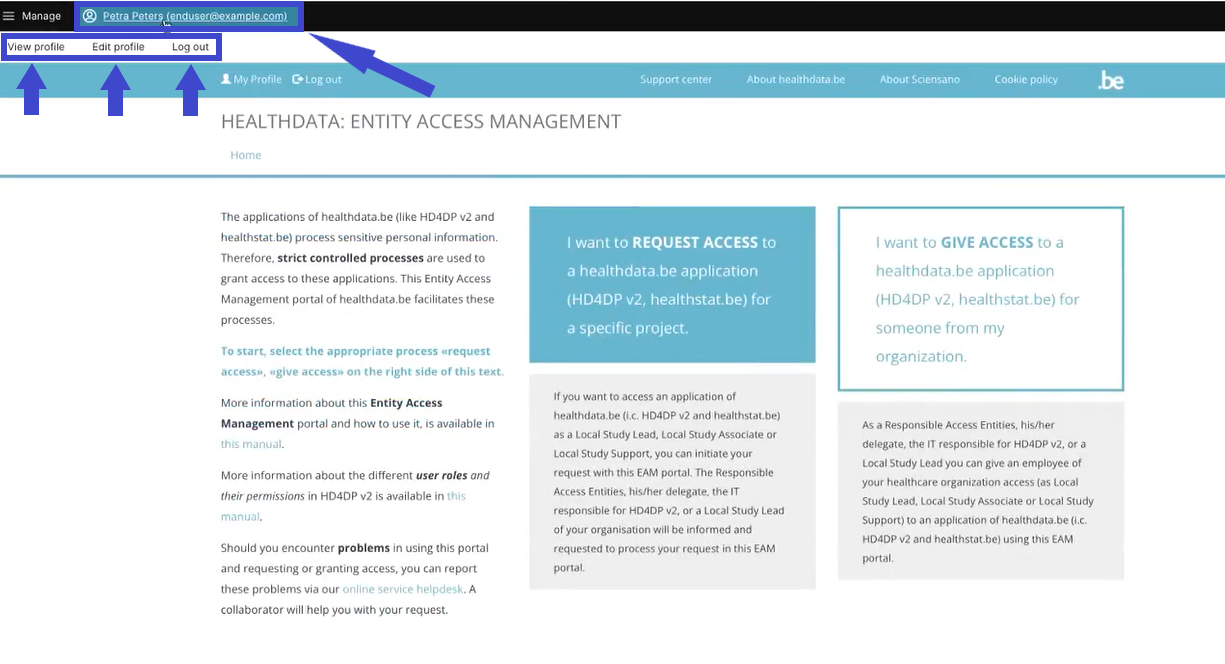
First, select the tab Edit profile to complete your profile information. Here again, you will find three tabs:
User settings, Personal information and Accounts.
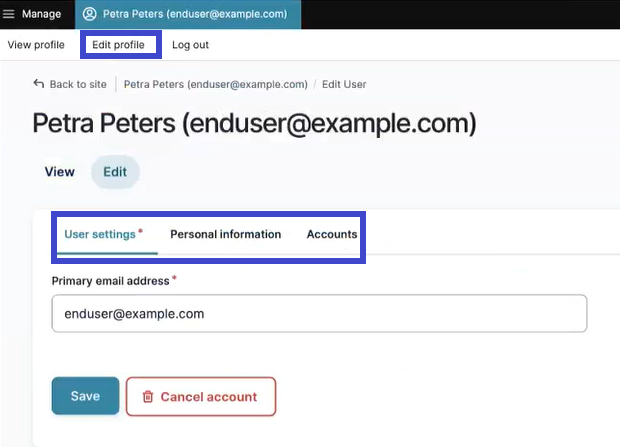
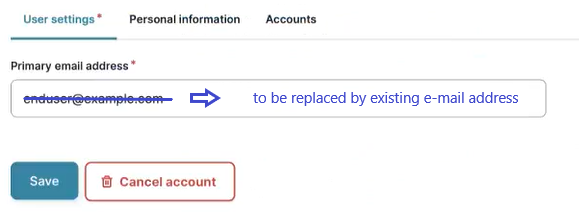
The tab User settings features a primary e-mail address field, which is automatically prefilled with a specimen e-mail address when logging in via eID or itsme. You need to replace this address by an existing one (to be checked by the Access Manager). The primary e-mail address is used to send the necessary notifications to the user. Confirm with the Save button.
The tab Personal information contains automatically populated information such as first name, last name and SSIN. Furthermore, you can provide your NIHDI numbers, or even more than one, if necessary.
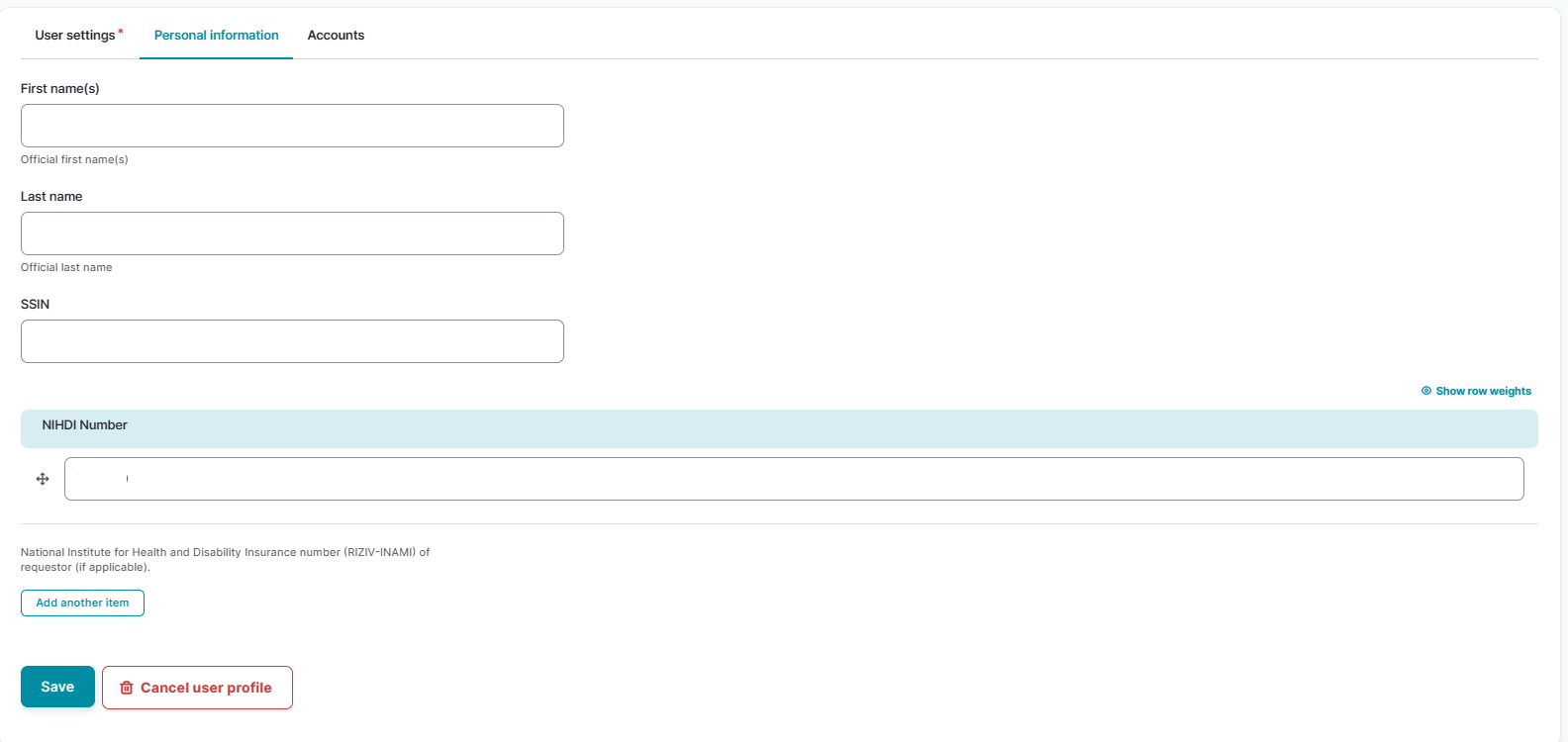
Again, confirm with the Save button. You have now completed your User settings and Personal information tabs, making you an Authenticated User. Select the Account tab for further actions.
How to request an account using the EAM website?
How to approve an account request using the EAM website?
An Authenticated User is not able to carry out this action.
How to remove an account using the EAM website? (remove = disable)
How to restore an account using the EAM website?
An Authenticated User is not able to carry out this action.
How to change the user type to Access manager using the EAM website?
An Authenticated User is not able to carry out this action.
How to change the user type to Authenticated user using the EAM website?
- yes (autom on login)
How to change the user type to Manager using the EAM website?
An Authenticated User is not able to carry out this action.
How to change the user type to Administrator using the EAM website?
An Authenticated User is not able to carry out this action.
How to reset password of an account using the EAM website?
An Authenticated User is not able to carry out this action.
How to view the accounts of all participants of an own project of the own organization using the EAM website?
There is currently no concept "own project"
How to view the accounts of all participants of all projects of own organizations using the EAM website?
An Authenticated User is not able to carry out this action.
How to view the own project accounts using the EAM website?
There is currently no concept "own project"
How to view all accounts of all projects of all organizations using the EAM website?
An Authenticated User is not able to carry out this action.