 docs.healthdata.be
Access Manager actions in Healthstat using the EAM interface
Table of contents
How to request access to a project in Healthstat using the EAM interface?
How to approve an account for a project in Healthstat using the EAM interface?
How to disable an account for a project in Healthstat using the EAM interface?
How to restore an account for a project in Healthstat using the EAM interface?
How to reset a password of an account for a project in Healthstat using the EAM interface?
How to view the accounts of all participants to an own project in Healthstat of the own organization using the EAM interface?
How to view the accounts of all participants to all projects in Healthstat of the own organization using the EAM interface?
How to view the accounts of an own project in Healthstat using the EAM interface?
How to view all accounts of all projects in Healthstat of all organizations using the EAM interface?
How to request access to a project in Healthstat using the EAM interface?
The Access Manager profile page
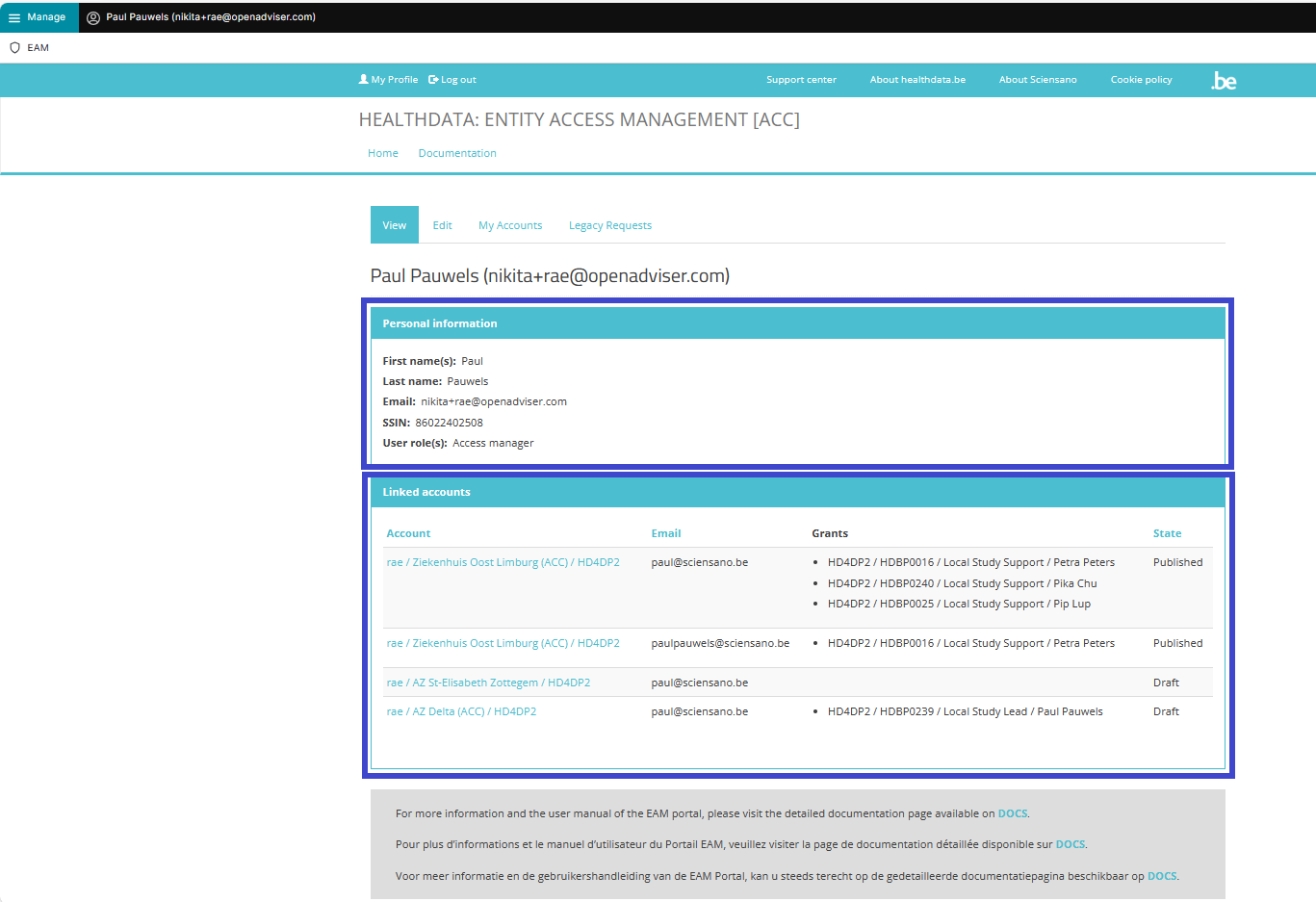
The main My profile screen that appears after selecting the confirmation button shows the Personal information of the Access Manager as well as the Linked accounts of this profile. The list can be sorted by Account, Email or State.
Attention: The accounts listed in Linked accounts are NOT the accounts of other users you manage as an Access Manager.
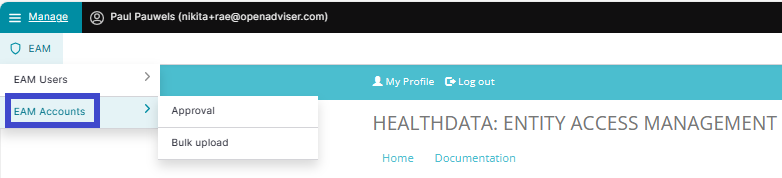
Click on Manage to the top left of the screen, so that EAM appears. When hovering over this menu item, the subitems EAM Users and EAM Accounts become visible. Select EAM Accounts.
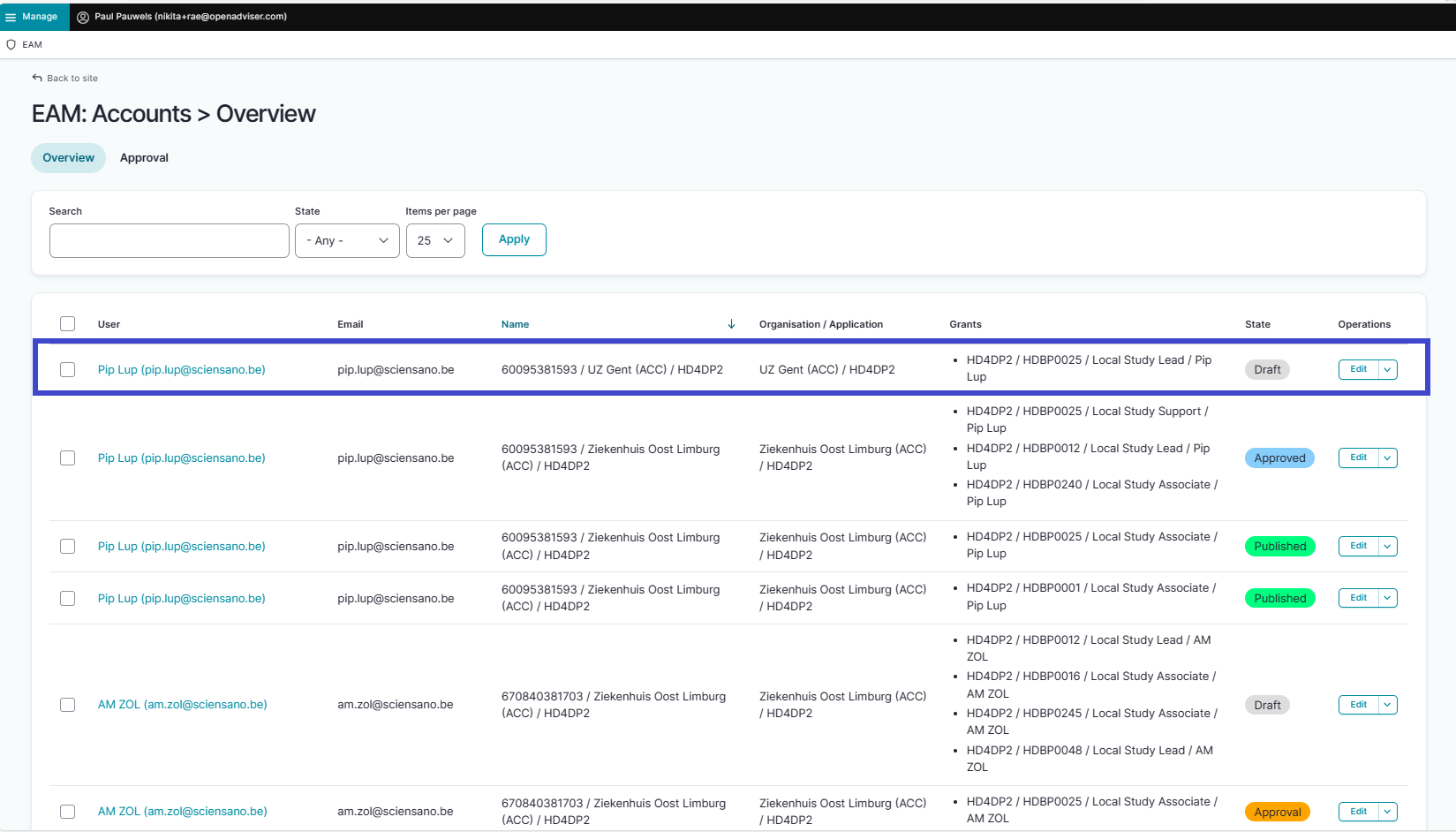
The following page with an overview of the different EAM Accounts appears. You want to select an account of a user for whom you want to request access to a project, and thus need to create an account with provisioning and grants. Click on the corresponding User (e-mail address).
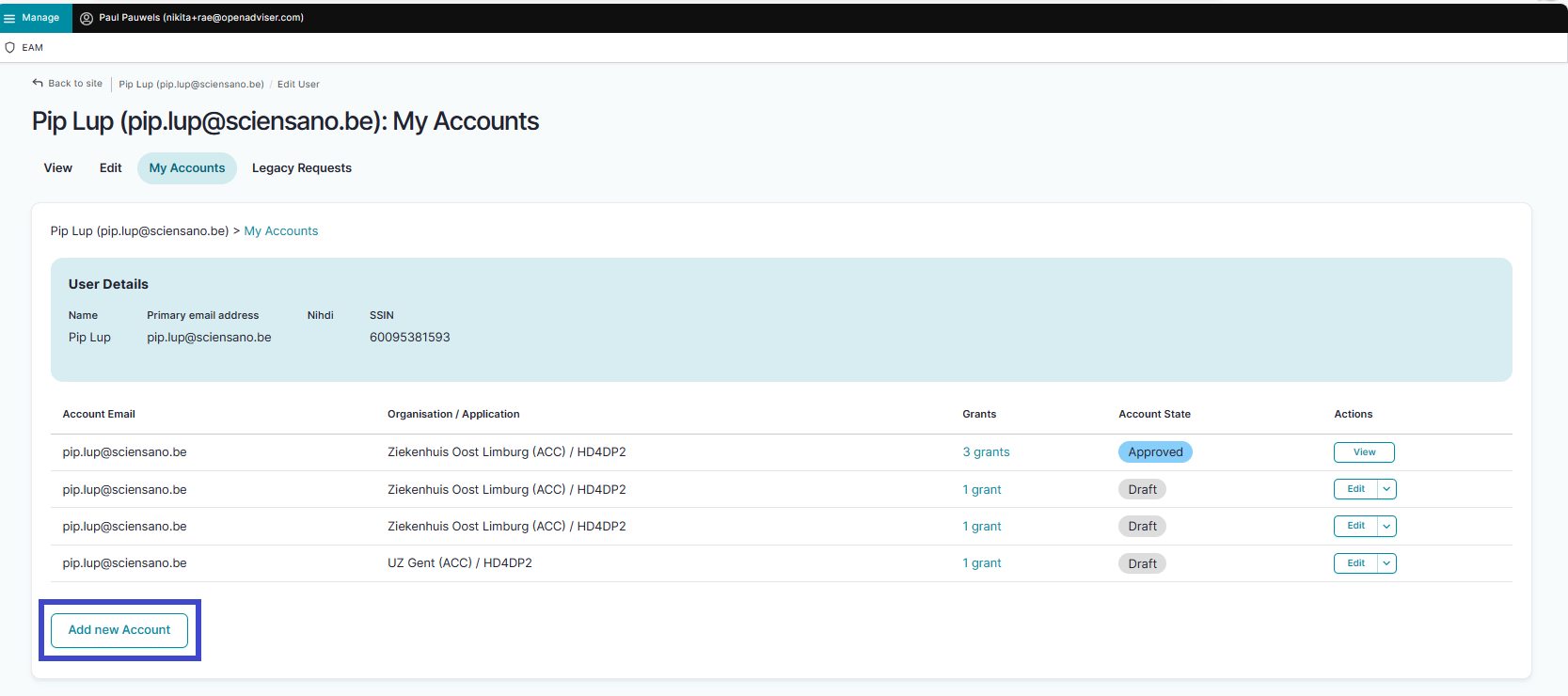
The My Accounts page appears. Click on the Add new Account button.
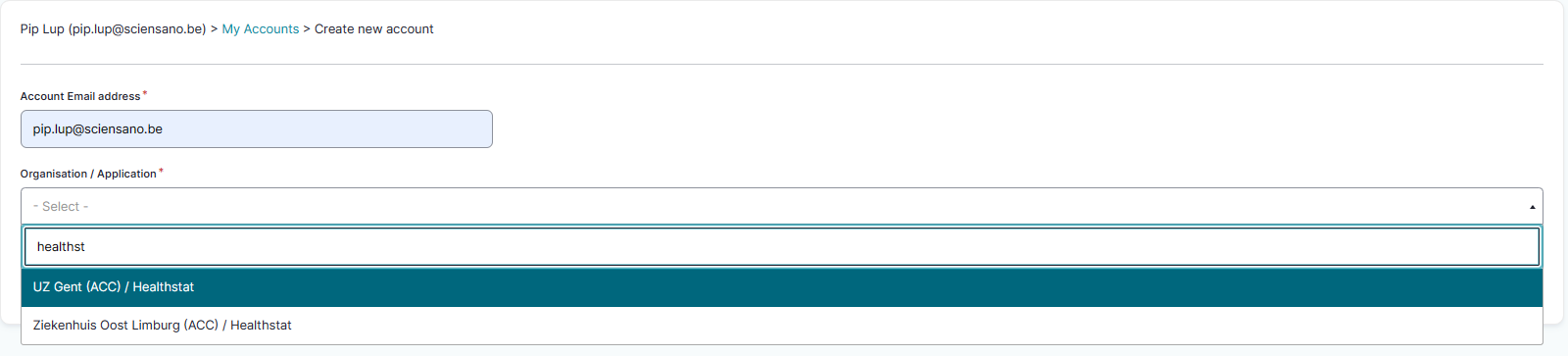
Fill out a valid e-mail address and select the provision (Organization/Healthstat) from the drop-down list. Click on the Save button.
The new account is ready and is added to the list of accounts. Now, add the grants.
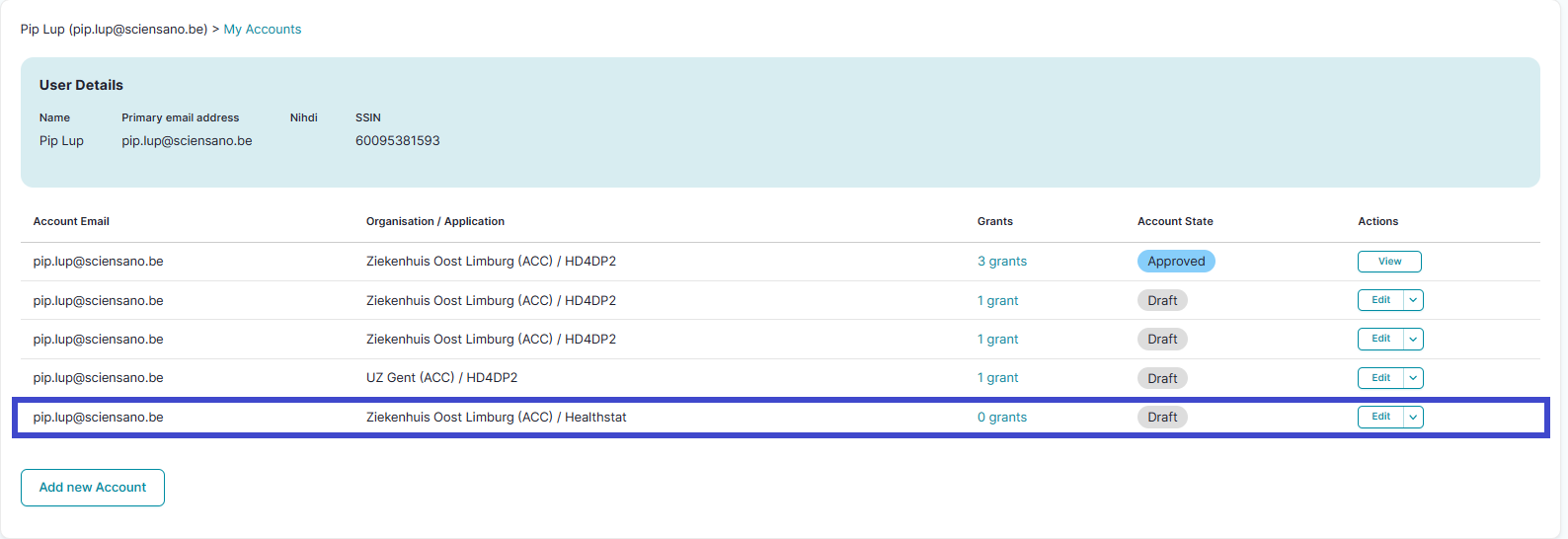
Selecting "n grant(s)" in the Grants column leads to the Manage grants page. Click on the Add new Grant button.

The Add a new grant window pops up. Select the desired project and the role of Local Study Lead, Local Study Associate or Local Study Support.

When returning to the Account: Manage grants page you will notice that the grant is added to your account, which is still in the Draft state.
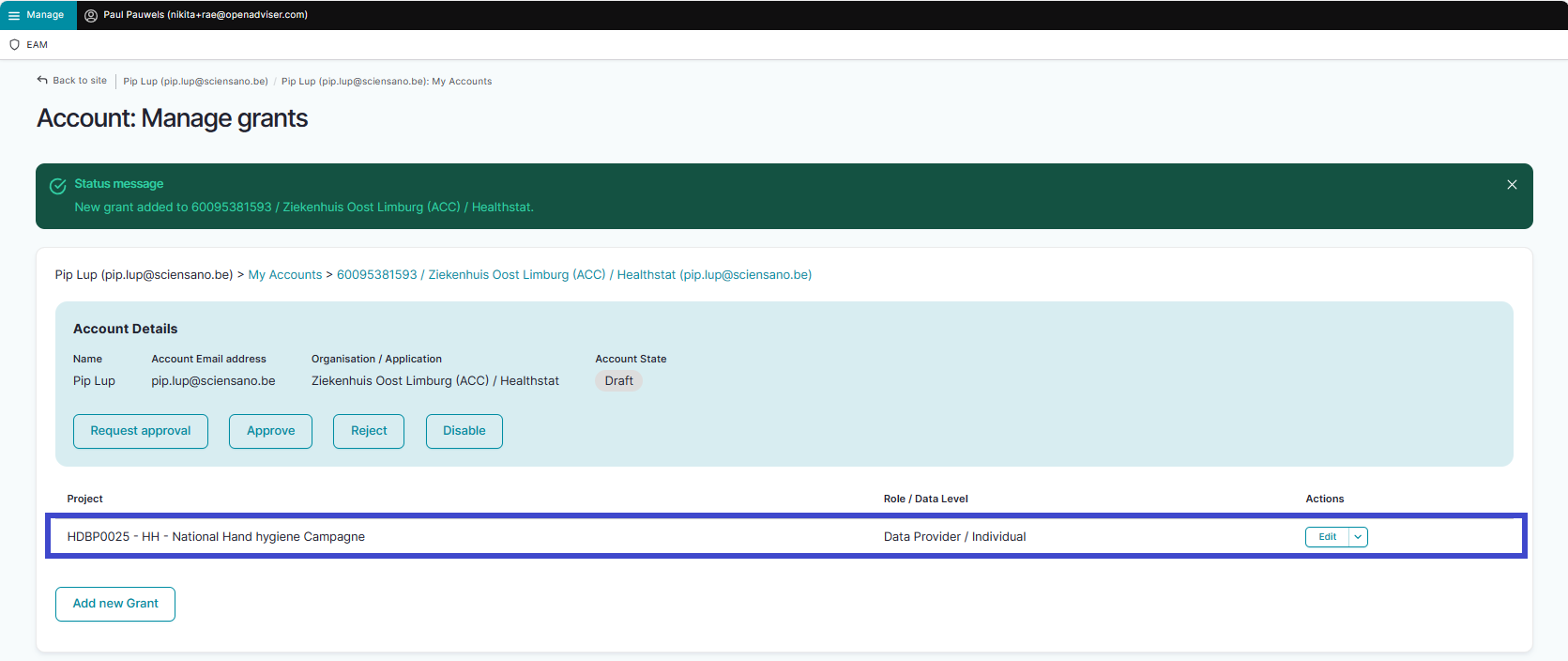
Click on the Request approval button.
How to approve an account for a project in Healthstat using the EAM interface?
How to disable an account for a project in Healthstat using the EAM interface?
How to restore an account for a project in Healthstat using the EAM interface?
How to reset a password of an account for a project in Healthstat using the EAM interface?
How to view the accounts of all participants to an own project in Healthstat of the own organization using the EAM interface?
There is currently no concept "own project"
How to view the accounts of all participants to all projects in Healthstat of the own organization using the EAM interface?
How to view the accounts for an own project in Healthstat using the EAM interface?
How to view all accounts of all projects in Healthstat of all organizations using the EAM interface?
An Authenticated User is not able to carry out this action.
This documentation is being updated regularly. We try to provide as correct, complete and clear as possible information on these pages. Nevertheless, if you see anything in the documentation that is not correct, does not match your experience or requires further clarification, please create a support ticket via our portal Jira Service Management or send us an e-mail via support.hd@hda.fgov.be to report this documentation issue. Please do not forget to mention the URL of the page. We will then adjust the documentation as soon as possible. Thank you!