 docs.healthdata.be
Access Manager actions using CSV Upload
Table of contents
How to create accounts using CSV Upload?
How to approve an account request using CSV Upload?
How to remove an account using CSV Upload?
How to restore an account using CSV Upload?
How to change user type to Access manager using CSV Upload?
How to change user type to Authenticated user using CSV Upload?
How to change user type to Manager using CSV Upload?
How to change user type to Administrator using CSV Upload?
How to reset the password of an account using CSV Upload?
How to create accounts using CSV Upload?
The Access Manager profile page
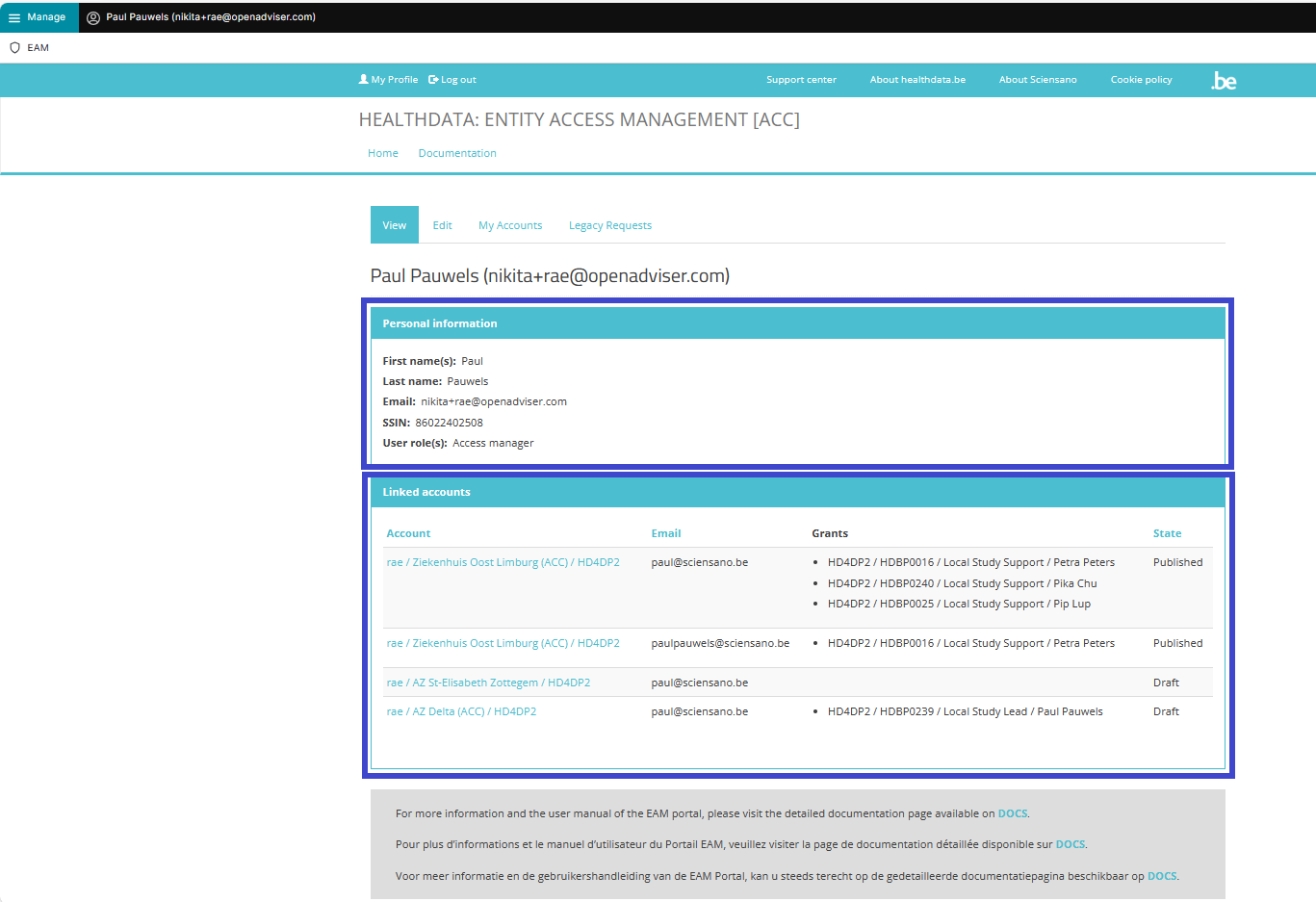
The main My profile screen that appears after selecting the confirmation button shows the Personal information of the Access Manager as well as the Linked accounts of this profile. The list can be sorted by Account, Email or State.
Attention: The accounts listed in Linked accounts are NOT the accounts of other users you manage as an Access Manager.
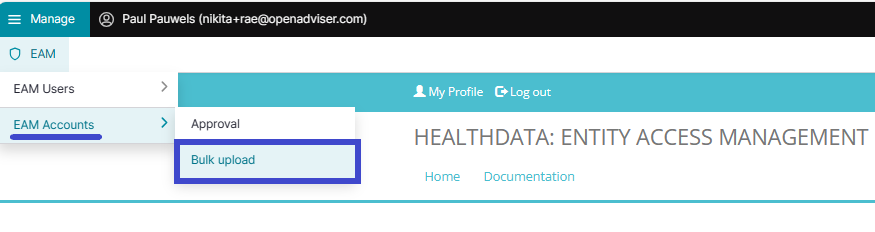
Click on Manage to the top left of the screen, so that EAM appears. When hovering over this, the items EAM Users and EAM Accounts become visible. Click on EAM Accounts and Bulk upload successively.
The Accounts Batch Creation page appears.
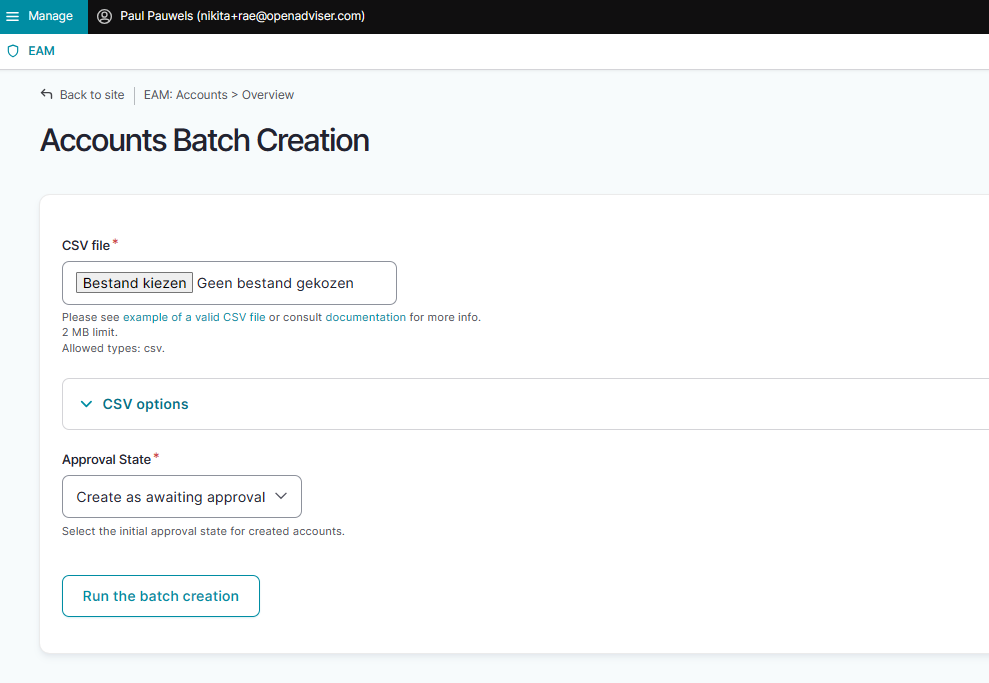
Select a valid .csv file on your system to upload or use the following example file:
Use the schema file to validate the csv:
ATTENTION: User roles and corresponding values
To complete the “role”, 3 different choices are possible:
- 1= Local Study Lead: Only 1 Local Study Lead can be created by healthdata.be (Sciensano) for each registry within each organization.
- 2= Local Study Associate (= author). This will be the default role a user will receive, the reason why it was prefilled with “2”.
- 3= Local Study Support (= co-author). This role can be given if it is more suitable for the user. A Support will always need an Associate to which he/she will be assigned.
When selecting role 1 and 2 (= Local Study Lead and Local Study Associate), the name of the ‘Local Study Lead or Associate’ is expected in the field “author_group”. To be filled in in the format <first_name last_name> of the Associate, with just 1 space (tab) between the two names).
When selecting role 3 (= Local Study Support), the name of the ‘Local Study Associate’ is expected in the field “author_group”. To be filled in in the format <first_name last_name> of the Associate, with just 1 space (tab) between the two names).
Then, select the Approval State in the toggle underneath.
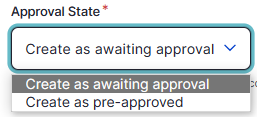
- Create as awaiting approval: With this option the accounts will receive the status Approval and will be set ready for the Access Manager to be Approved.
- Create as pre-approved: With this option the accounts will receive the status Approved and will be uploaded directly without further interference by the Access Manager (e.g. confidence in content quality is very high)
Finally, run the batch creation by clicking on the corresponding button.
How to approve an account request using CSV Upload?
How to remove an account using CSV Upload?
How to restore an account using CSV Upload?
An Authenticated User is not able to carry out this action.
How to change user type to Access manager using CSV Upload?
The Access Manager profile page
The main My profile screen that appears after selecting the confirmation button shows the Personal information of the Access Manager as well as the Linked accounts of this profile. The list can be sorted by Account, Email or State.
Attention: The accounts listed in Linked accounts are NOT the accounts of other users you manage as an Access Manager.
Click on Manage to the top left of the screen, so that EAM appears. When hovering over this, the items EAM Users and EAM Accounts become visible. Click on EAM Users and Bulk upload successively.
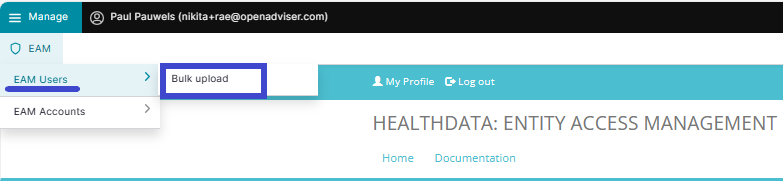
The Users Batch Creation page appears.
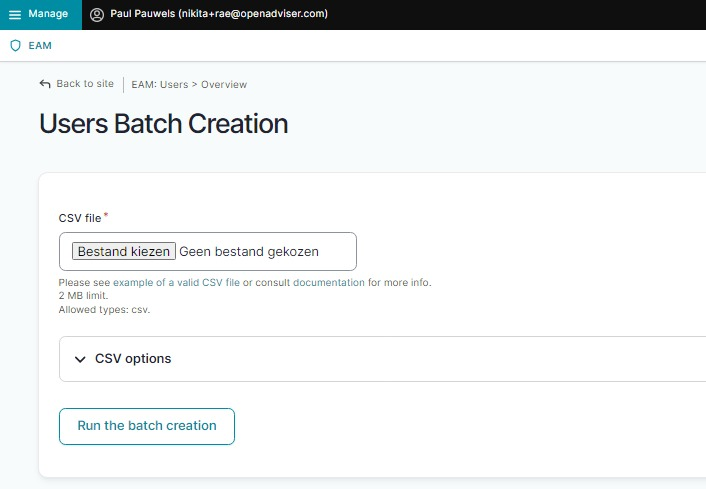
Select a valid .csv file on your system to upload or use the following example file:
Use the schema file to validate the csv example file:
ATTENTION: User roles and corresponding values
To complete the “role”, 3 different choices are possible:
- 1= Local Study Lead: Only 1 Local Study Lead can be created by healthdata.be (Sciensano) for each registry within each organization.
- 2= Local Study Associate (= author). This will be the default role a user will receive, the reason why it was prefilled with “2”.
- 3= Local Study Support (= co-author). This role can be given if it is more suitable for the user. A Support will always need an Associate to which he/she will be assigned.
When selecting role 1 and 2 (= Local Study Lead and Local Study Associate), the name of the ‘Local Study Lead or Associate’ is expected in the field “author_group”. To be filled in in the format <first_name last_name> of the Associate, with just 1 space (tab) between the two names).
When selecting role 3 (= Local Study Support), the name of the ‘Local Study Associate’ is expected in the field “author_group”. To be filled in in the format <first_name last_name> of the Associate, with just 1 space (tab) between the two names).
Now, run the batch creation by clicking on the corresponding button.
How to change user type to Authenticated user using CSV Upload?
An Authenticated User is not able to carry out this action.
How to change user type to Manager using CSV Upload?
An Authenticated User is not able to carry out this action.
How to change user type to Administrator using CSV Upload?
An Authenticated User is not able to carry out this action.
How to reset the password of an account using CSV Upload?
An Authenticated User is not able to carry out this action.
This documentation is being updated regularly. We try to provide as correct, complete and clear as possible information on these pages. Nevertheless, if you see anything in the documentation that is not correct, does not match your experience or requires further clarification, please create a support ticket via our portal Jira Service Management or send us an e-mail via support.hd@hda.fgov.be to report this documentation issue. Please do not forget to mention the URL of the page. We will then adjust the documentation as soon as possible. Thank you!