 docs.healthdata.be
Authenticated user actions for a project in Healthstat.be using the EAM interface
Table of contents
How to add access grants for a project in Healthstat.be with the role of Data Provider/Hospital, Data Provider/Individual, Sponsor/Sponsor, Sponsor/Individual using the EAM interface?
How to request approval of access grants for a project in Healthstat.be with the role of Data Provider/Hospital, Data Provider/Individual, Sponsor/Sponsor, Sponsor/Individual using the EAM interface?
How to view own accounts for Healthstat.be using the EAM interface?
This documentation is being updated regularly. We try to provide as correct, complete and clear as possible information on these pages. Nevertheless, if you see anything in the documentation that is not correct, does not match your experience or requires further clarification, please create a support ticket via our portal Jira Service Management or send us an e-mail via support.hd@hda.fgov.be to report this documentation issue. Please do not forget to mention the URL of the page. We will then adjust the documentation as soon as possible. Thank you!How to add access grants for a project in Healthstat.be with the role of Data provider/Hospital, Data Provider/Individual, Sponsor/Sponsor or Sponsor/Individual using the EAM interface?
End-to-end process:
Navigating to the HD EAM Portal page
Go here to learn how to login via the Federal Authentication Service (FAS) with eID or itsme.
Completing the user profile and becoming an Authenticated User
Go here to learn how to complete the user profile and how to become an Authenticated User.
Adding and provisioning an EAM account
Return to the My Profile page and select the My Accounts tab.

On the My Accounts page your personal information is displayed in the blue User details section, followed by a list of accounts you have created.
To add a new account, click on the Add new Account button at the bottom of the page.
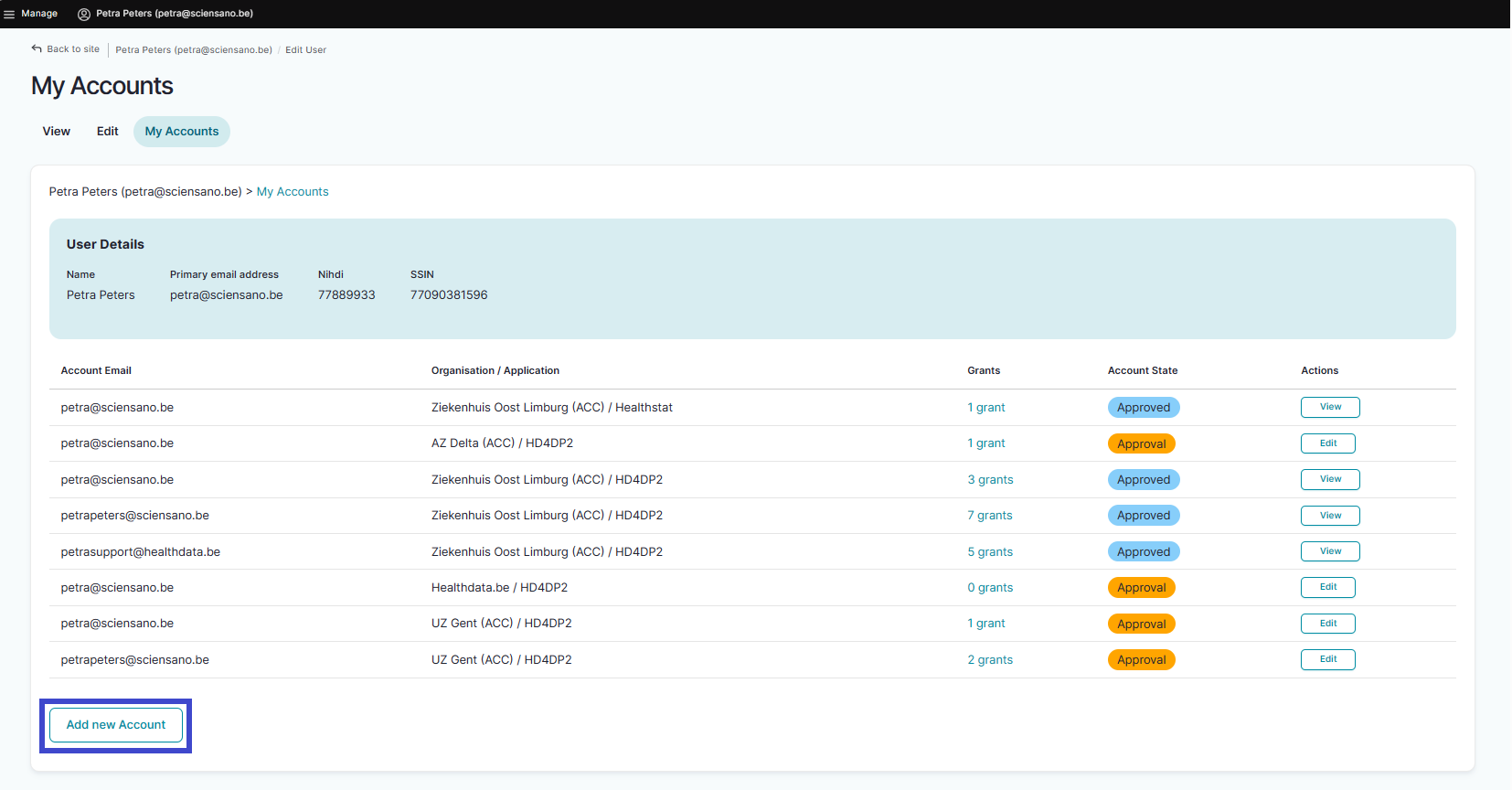
Complete the fields in the Add a new account window with the email address for your organization and select a combination of an organization (availabe in a drop-down list with an auto-completion function as shown below) and an application (HD4DP2, Healthstat ...). This is called provisioning of an account.
Tip: If possible, avoid the use of a public e-mail address such as @gmail.com, @hotmail.com, @yahoo.com etc.

Click on the Save button.
You will be automatically redirected to the My Accounts page that has now been updated with your newly created account added at the bottom of the list. The account has received the status "Draft".

How to request approval of access grants for a project in Healthstat.be with the role of Data Provider/Hospital, Data Provider/Individual, Sponsor/Sponsor, Sponsor/Individual using the EAM interface?
End-to-end process:
Navigating to the HD EAM Portal page
Go here to learn how to login via the Federal Authentication Service (FAS) with eID or itsme.
Completing the user profile and becoming an Authenticated User
Go here to learn how to complete the user profile and how to become an Authenticated User.
Adding and provisioning an EAM account
Return to the My Profile page and select the My Accounts tab.
On the My Accounts page your personal information is displayed in the blue User details section, followed by a list of accounts you have created.
To add a new account, click on the Add new Account button at the bottom of the page.
Complete the fields in the Add a new account window with the email address for your organization and select a combination of an organization (availabe in a drop-down list with an auto-completion function as shown below) and an application (HD4DP2, Healthstat ...). This is called provisioning of an account.
Tip: If possible, avoid the use of a public e-mail address such as @gmail.com, @hotmail.com, @yahoo.com etc.
Click on the Save button.
You will be automatically redirected to the My Accounts page that has now been updated with your newly created account added at the bottom of the list. The account has received the status "Draft".
Adding access grants
At this point you can start the process of adding grants, i.e. determining roles and data level for a project in healthstat.be, adapting the EAM account status and requesting for approval by the Access Manager.
Select "0 grants" in the Grants column.

In the Account: Manage grants screen you add new grants to an account by clicking on the Add new Grant button.

In the Add a new grant pop-up window select the desired project and the role of Data Provider / Hospital, Data Provider / Individual, Sponsor or Sponsor / Individual.

When you return to the My accounts page, you will see that the accounts list has been updated with the selected grant:

This concludes the procedure to create an account with its corresponding role for a project in healthstat.be.
Next step: Request Access Manager's approval of the access grants as described here.
How to request approval of access grants for a project in Healthstat.be using the EAM interface?
End-to-end process:
Navigating to the HD EAM Portal page
Go here to learn how to login via the Federal Authentication Service (FAS) with eID or itsme.
Completing the user profile and becoming an Authenticated User
Go here to learn how to complete the user profile and how to become an Authenticated User.
Adding and provisioning an EAM account
Return to the My Profile page and select the My Accounts tab.
On the My Accounts page your personal information is displayed in the blue User details section, followed by a list of accounts you have created.
To add a new account, click on the Add new Account button at the bottom of the page.
Complete the fields in the Add a new account window with the email address for your organization and select a combination of an organization (availabe in a drop-down list with an auto-completion function as shown below) and an application (HD4DP2, Healthstat ...). This is called provisioning of an account.
Tip: If possible, avoid the use of a public e-mail address such as @gmail.com, @hotmail.com, @yahoo.com etc.
Click on the Save button.
You will be automatically redirected to the My Accounts page that has now been updated with your newly created account added at the bottom of the list. The account has received the status "Draft".
Adding access grants
At this point you can start the process of adding grants, i.e. determining roles and data level for a project in healthstat.be, adapting the EAM account status and requesting for approval by the Access Manager.
Select "0 grants" in the Grants column.
In the Account: Manage grants screen you add new grants to an account by clicking on the Add new Grant button.
In the Add a new grant pop-up window select the desired project and the role of Data Provider / Hospital, Data Provider / Individual, Sponsor or Sponsor / Individual.
When you return to the My accounts page, you will see that the accounts list has been updated with the selected grant:
This concludes the procedure to create an account with its corresponding role for a project in healthstat.be.
Next step: Request Access Manager's approval of the access grants as described here.
Requesting approval
To request approval of this account you need to click on "n grant(s)" in the Grants column to open the Account: Manage grants page. You either can add a new grant or request for approval. To do so, click on the Request approval button.

The Account State is updated to Approval in the Account Details section.

Upon returning to the My Accounts page you'll notice that the Account State has changed into Approval.

The Access Manager will be notified of your request via e-mail and prompted to take action. Upon confirmation the Account state will change to Approved.
Next step: Access Manager's approval of the access grants as described here.
How to view accounts for own projects in Healthstat.be using the EAM interface?
End-to-end process:
Navigating to the HD EAM Portal page
Go here to learn how to login via the Federal Authentication Service (FAS) with eID or itsme.
Viewing own accounts for the different applications
Go to the Linked accounts section on your My Profile page to view your own accounts for the different applications.

Filtering accounts for Healthstat.be
Use "CTRL+F" and enter "Healthstat.be" in order to find the accounts for the application Healthstat.be.
This documentation is being updated regularly. We try to provide as correct, complete and clear as possible information on these pages. Nevertheless, if you see anything in the documentation that is not correct, does not match your experience or requires further clarification, please create a support ticket via our portal Jira Service Management or send us an e-mail via support.hd@hda.fgov.be to report this documentation issue. Please do not forget to mention the URL of the page. We will then adjust the documentation as soon as possible. Thank you!