 docs.healthdata.be
EAM actions using the EAM Portal
Table of contents
How to request an account using the EAM Portal?
How to approve an account request using the EAM Portal?
How to remove an account using the EAM Portal?
How to restore an account using the EAM Portal?
How to change the user type to Access manager using the EAM Portal?
How to change the user type to Authenticated user using the EAM Portal?
How to change the user type to Manager using the EAM Portal?
How to change the user type to Administrator using the EAM Portal?
How to reset the password of an account using the EAM Portal?
How to view the accounts of all participants of an own project of the own organization using the EAM Portal?
How to view the accounts of all participants of all projects of own organizations using the EAM Portal?
How to view the own project accounts using the EAM Portal?
How to view all accounts of all projects of all organizations using the EAM Portal?
How to request an account using the EAM Portal?
Navigating to the HD EAM Portal page
In order to log into our Entity Access Management system, you need to navigate in your internet browser to the URL https://eam.healthdata.be. The healthdata.be Entity Access Management (HD EAM) Portal page appears on your screen.

Logging in with itsme, eID
To login into the HD EAM Portal you need to click on the login symbol at the top left of your screen.
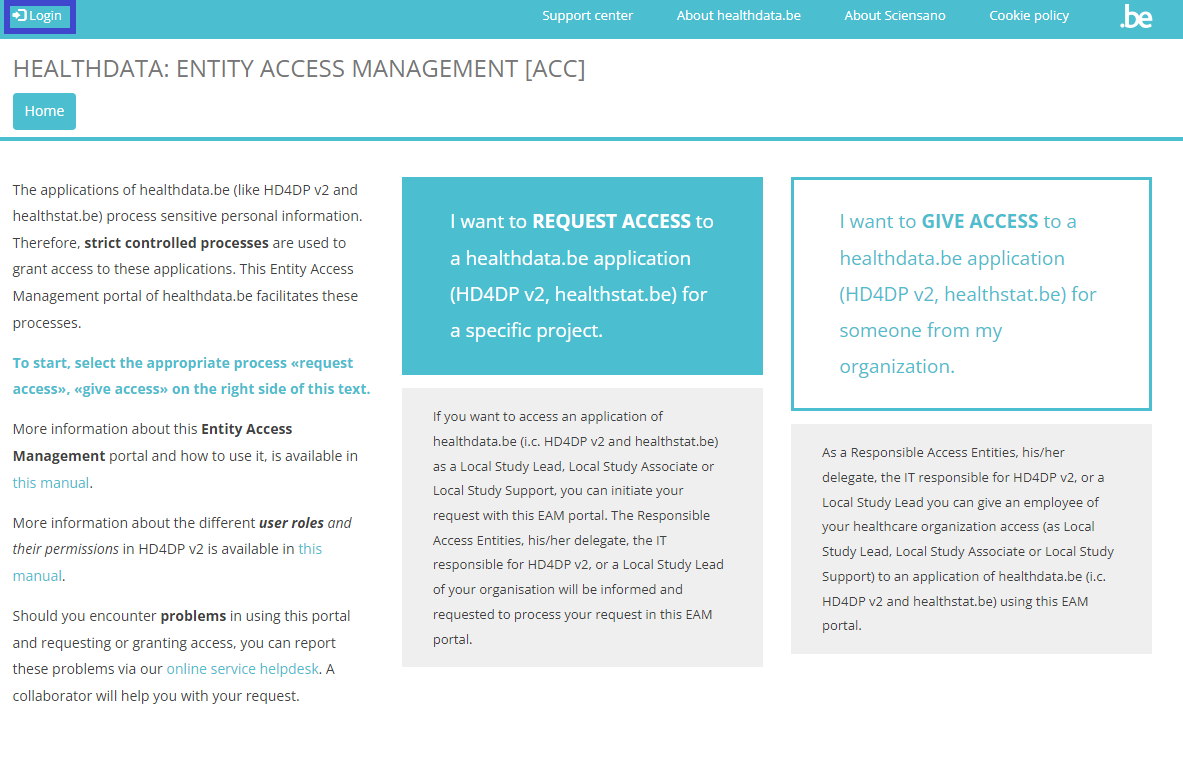
You will be directed to the following screen, where you select the button Log in with eID.
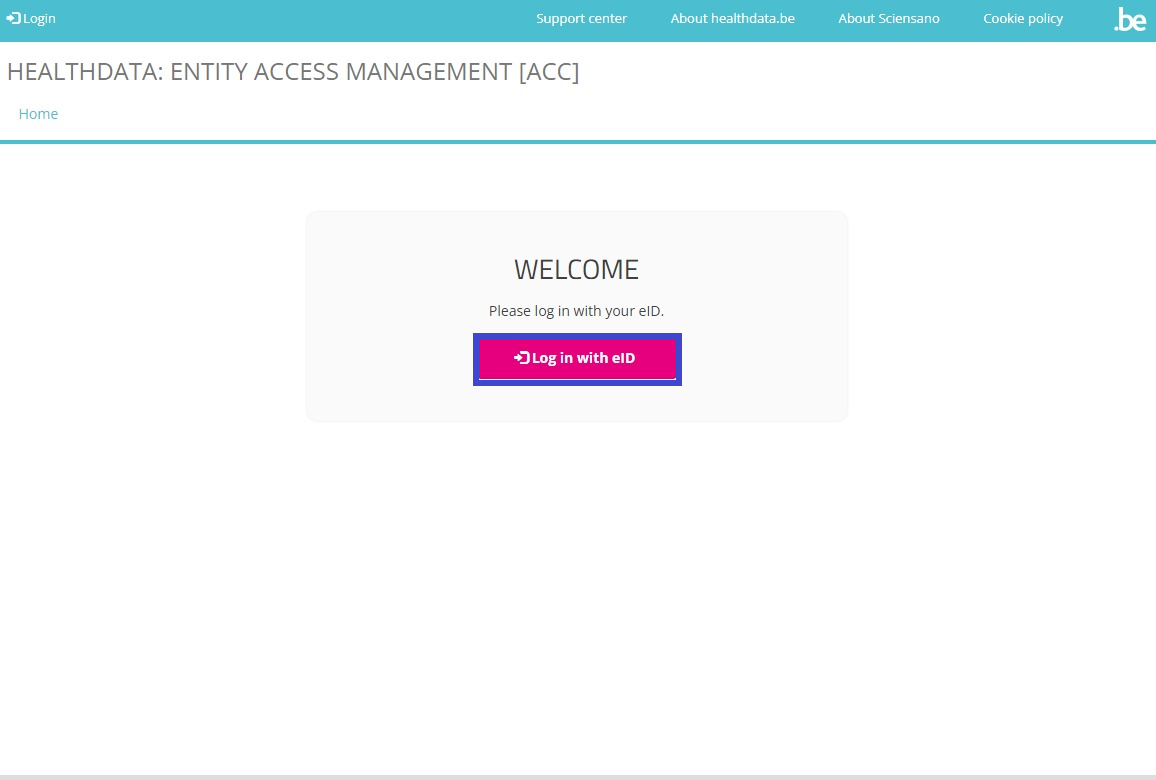
Clicking on this button leads you to the government's Federal Authentication Service (FAS), where you can log in with multiple digital keys with eID or digital identity.

If you choose to connect via itsme, you can enter your cell phone number.
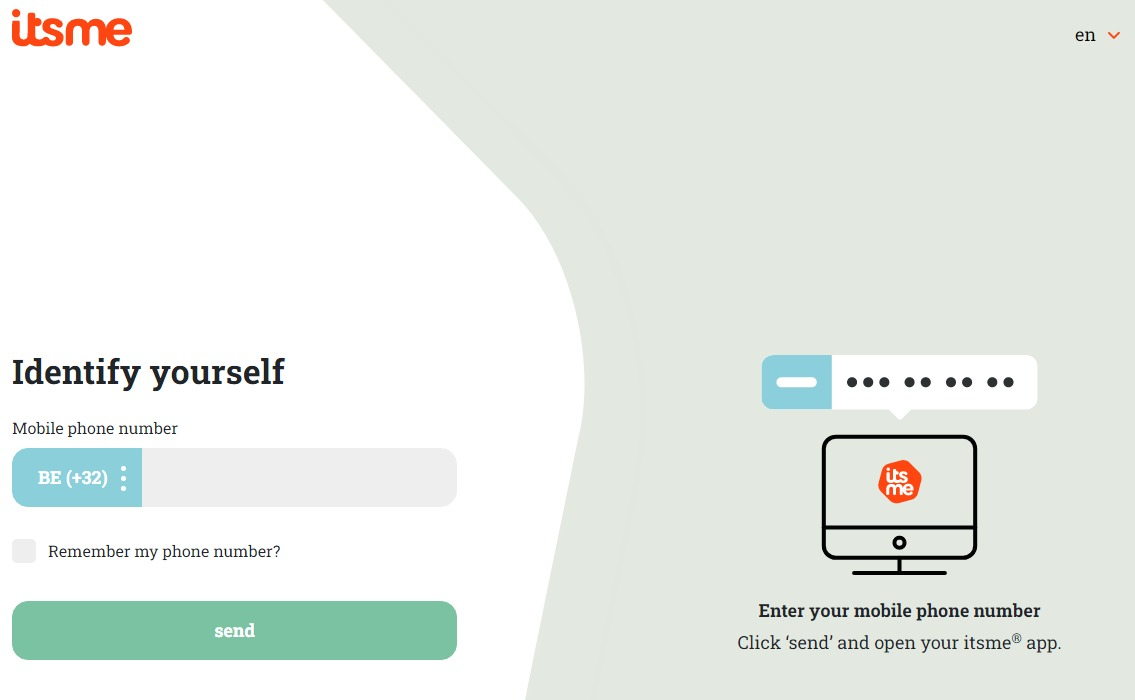
Follow the instructions on your mobile device via the ItsMe application.

Once you have gone through the itsme login procedure, you need to select the green confirmation button (available in FR and NL) in the screen below to access the Sciensano environment.

When selecting the green confirmation button, you log in into the HD EAM system.
Completing the Authenticated User profile
In the following we describe the process of how to become an Authenticated User by completing your user profile and thus preparing for creating an account and carrying out specific actions.
To the top left of your screen you will discover a tool bar with three tabs: View profile, Edit profile and Log out.
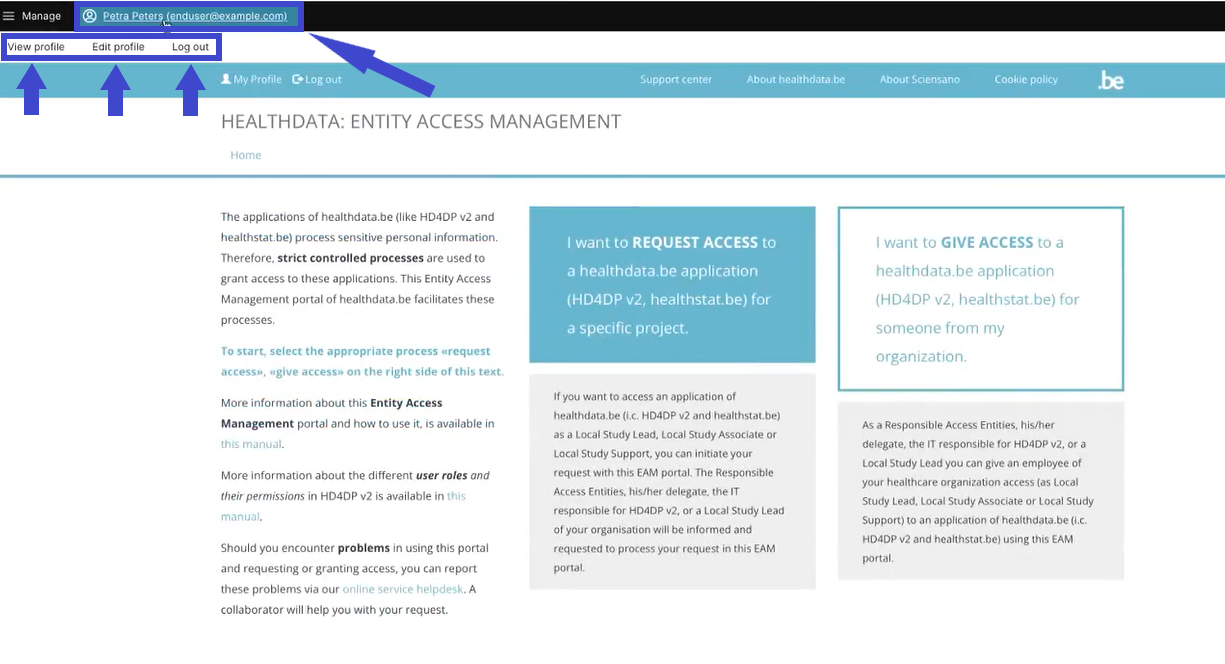
In the View tab you will see the information you have already shared with the EAM system, mostly your first name, last name and NISS code. And a NIHDI number if available.
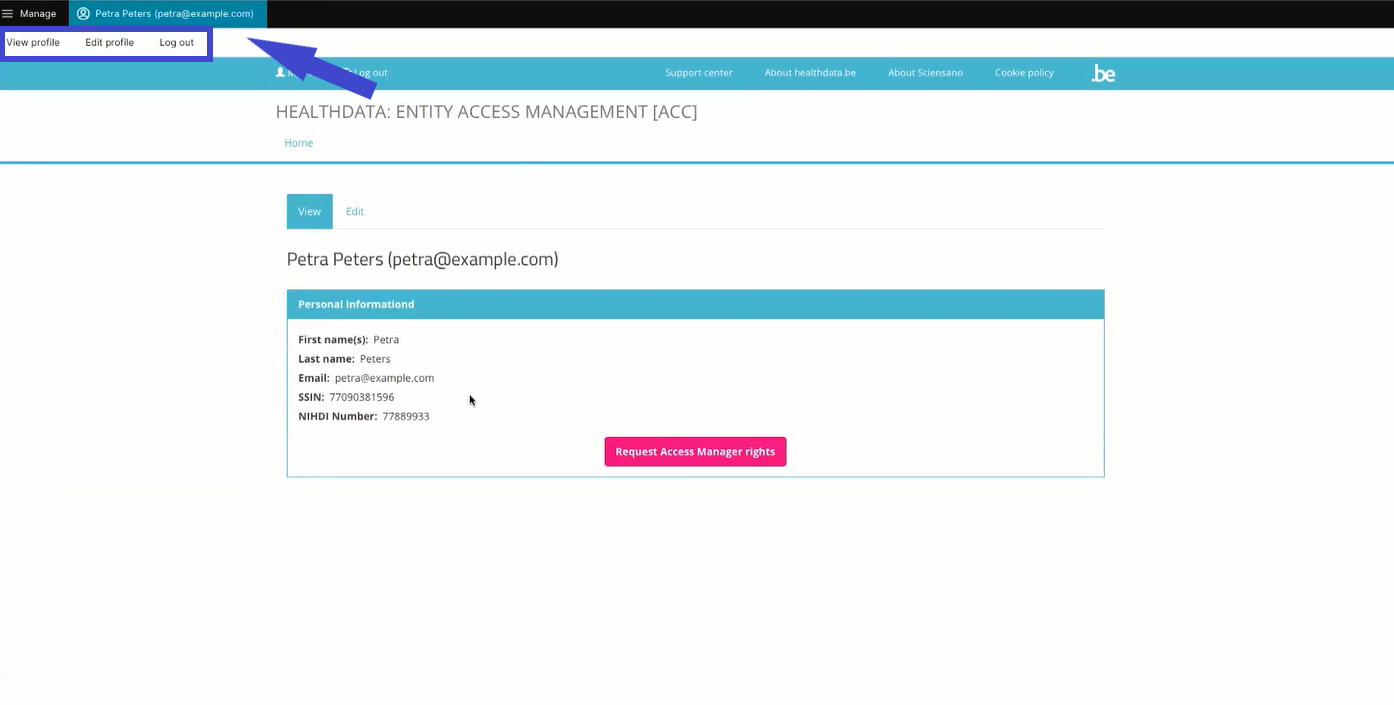
Select the tab Edit profile to complete your profile information. Here again, you will find three tabs:
User settings, Personal information and Accounts.
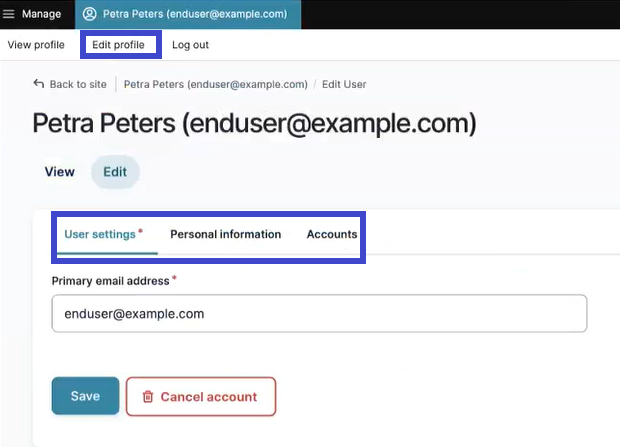
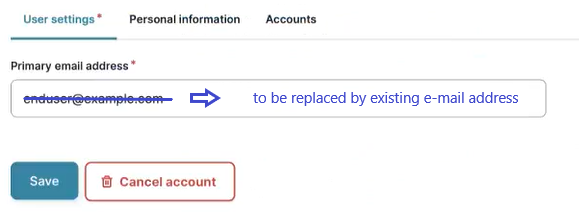
The tab User settings features a primary e-mail address field, which is automatically prefilled with a specimen e-mail address when logging in via eID or itsme. You need to replace this address by an existing one (to be checked by the Access Manager). The primary e-mail address is used to send the necessary notifications to the user. Confirm with the Save button.
The tab Personal information contains automatically populated information such as first name, last name and SSIN. Furthermore, you can provide your NIHDI numbers, or even more than one, if necessary.
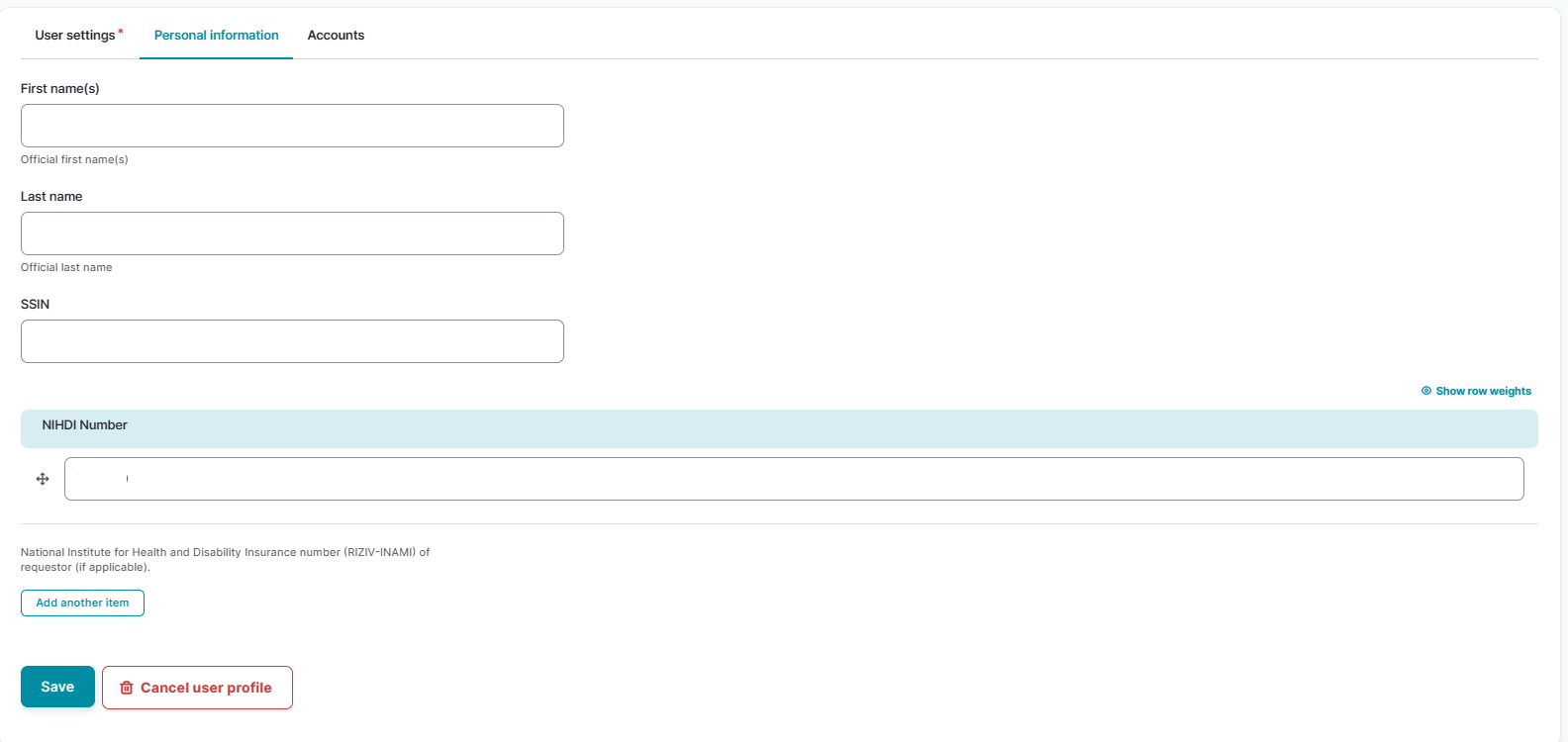
Again, confirm with the Save button. You have now completed the User settings and Personal information tabs, making you an Authenticated User. Select the Account tab for further actions.
Creating an account
In the following we will go through the process of creating an account by the Authenticated User, including selecting a provision and requesting for approval of the account.
Go to your user profile, click on Edit for the user editing screen and subsequently select the tab Accounts.
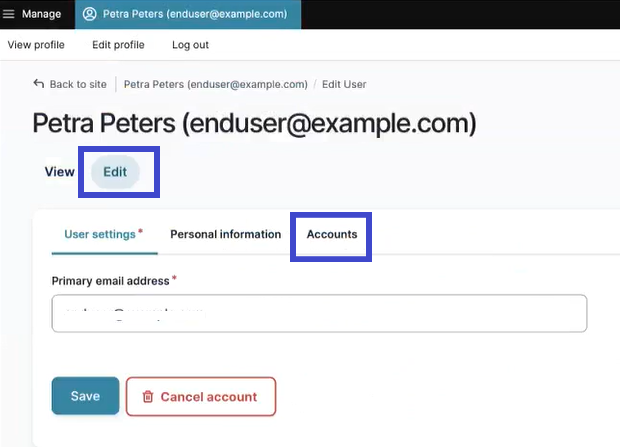
The tab Accounts allows you to add one or more accounts in case you require the registration of data for a single or different organizations. You will finally send them as account requests to the Access Manager for approval. To do so, click on the Add new Account button.
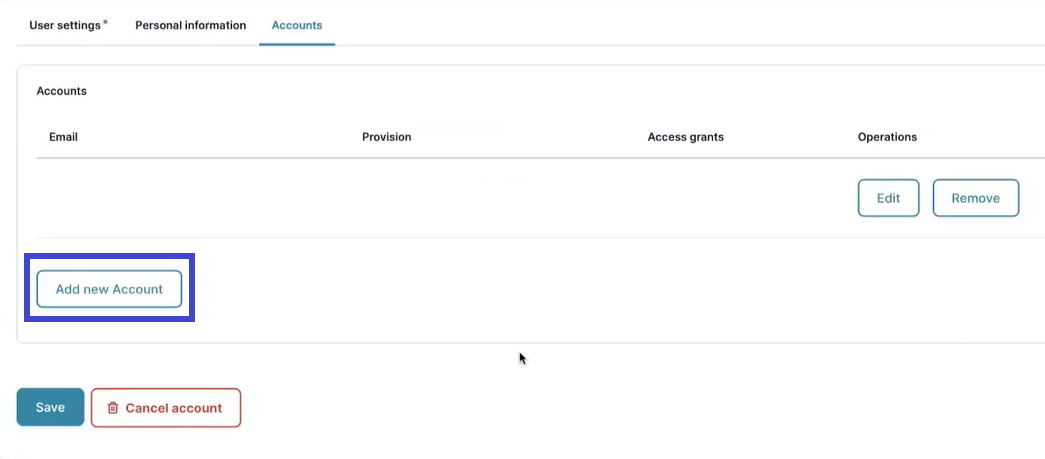
The Add Account window pops up (see "Select a provision").
Selecting a provision
Complete the fields of the Add Account window with your e-mail address for your organization and select a provision. For the latter, you can search by organization name or application in a drop-down list.
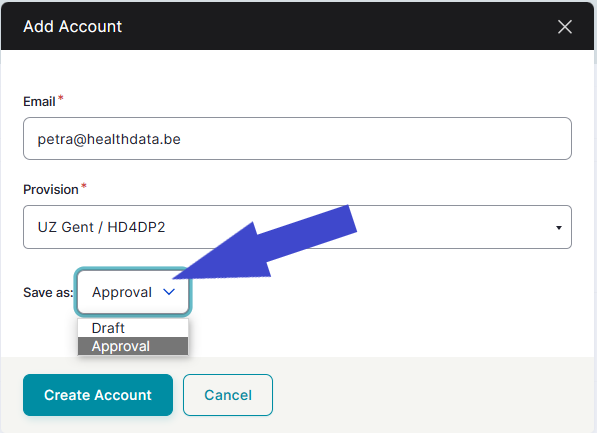
Note: If you want to save the account at this point as Draft, you can edit the status at a later point. When saving the account as Approval you send a request for approval of the account by the Access manager.
Bear in mind that you still have to add access grants after the approval by the Access Manager, otherwise you won't be able to access any projects.
Click on the Create Account button and subsequently on the Save button to effectively add the account (!). The newly created account is displayed in the Accounts section in the middle of the screen. When creating more accounts,
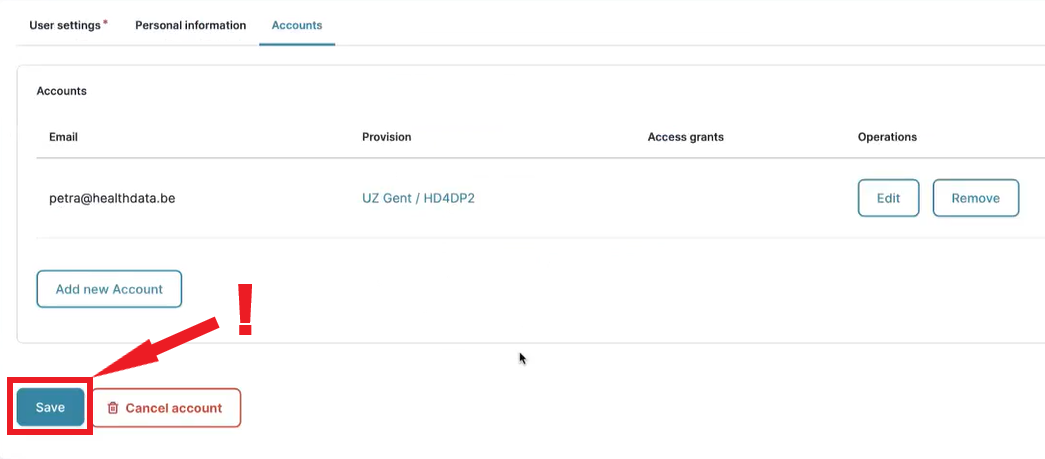
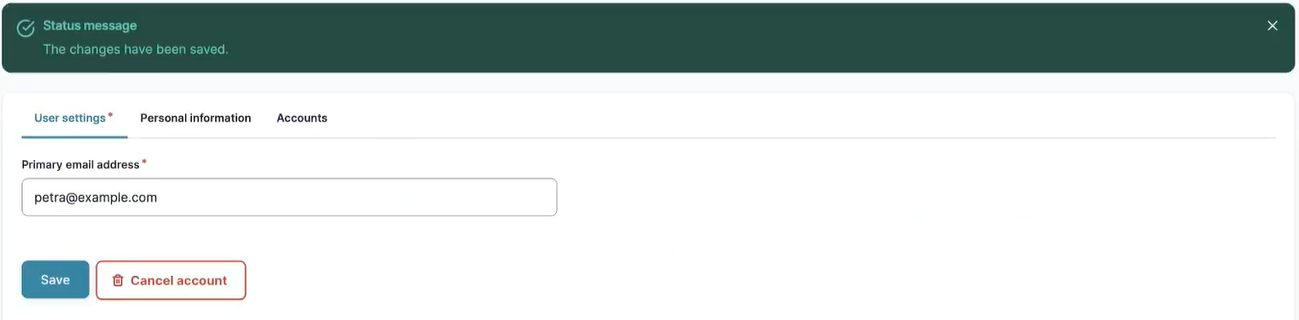
Succesfully saved changes will be confirmed with the status message below.
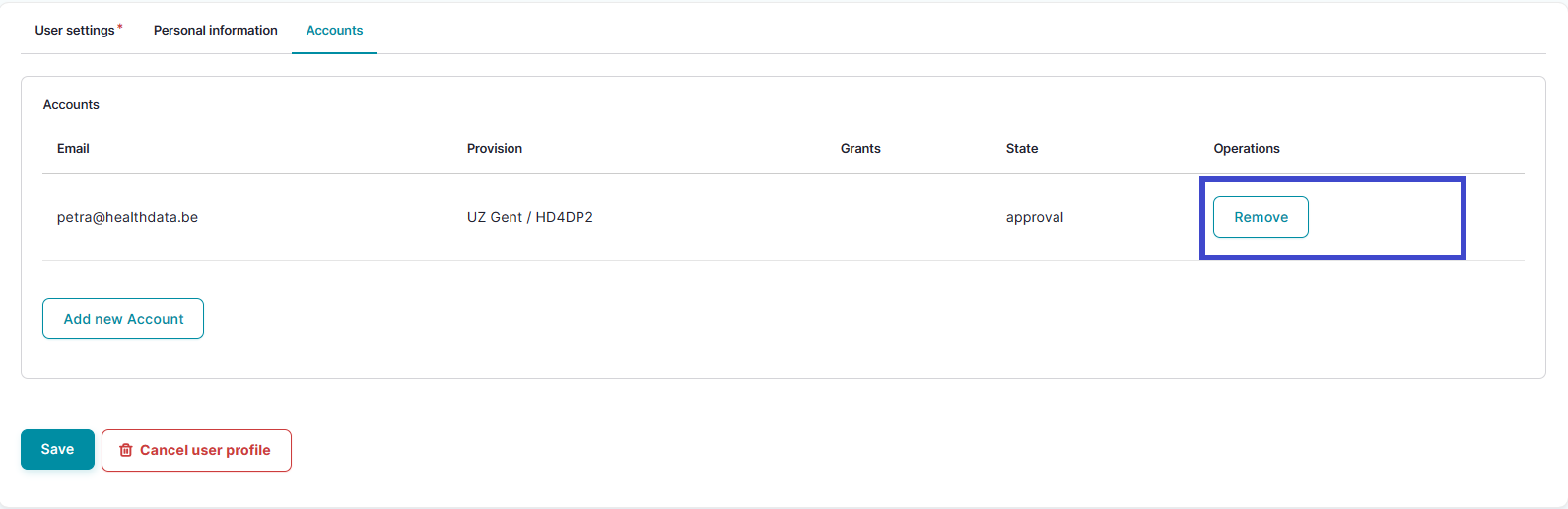
When returning to the Accounts tab you will notice that the Edit button under Operations has disappeared.
How to approve an account request using the EAM Portal?
An Authenticated User is not able to carry out this action.
How to remove an account using the EAM Portal?
- Logging into the HD EAM Portal
- Becoming an Authenticated User
- Creating an account
- Selecting a provision
Logging into the HD EAM Portal
Navigating to the EAM Portal
In order to log into our Entity Access Management system, you need to navigate in your internet browser to the URL https://eam.healthdata.be. The healthdata.be Entity Access Management (HD EAM) Portal page appears on your screen.
Logging in with itsme, eID
To login into the HD EAM Portal you need to click on the login symbol at the top left of your screen.
You will be directed to the following screen, where you select the button Log in with eID.
Clicking on this button leads you to the government's Federal Authentication Service (FAS), where you can log in with multiple digital keys with eID or digital identity.
If you choose to connect via itsme, you can enter your cell phone number.
Follow the instructions on your mobile device via the ItsMe application.
Once you have gone through the itsme login procedure, you need to select the green confirmation button (available in FR and NL) in the screen below to access the Sciensano environment.
When selecting the green confirmation button, you log in into the HD EAM system.
Becoming an Authenticated User
In the following we describe the process of how to become an Authenticated User by completing your user profile and thus preparing for creating an account and carrying out specific actions.
Completing your user profile
To the top left of your screen you will discover a tool bar with three tabs: View profile, Edit profile and Log out.
In the View tab you will see the information you have already shared with the EAM system, mostly your first name, last name and NISS code. And a NIHDI number if available.
Select the tab Edit profile to complete your profile information. Here again, you will find three tabs:
User settings, Personal information and Accounts.
The tab User settings features a primary e-mail address field, which is automatically prefilled with a specimen e-mail address when logging in via eID or itsme. You need to replace this address by an existing one (to be checked by the Access Manager). The primary e-mail address is used to send the necessary notifications to the user. Confirm with the Save button.
The tab Personal information contains automatically populated information such as first name, last name and SSIN. Furthermore, you can provide your NIHDI numbers, or even more than one, if necessary.
Again, confirm with the Save button. You have now completed the User settings and Personal information tabs, making you an Authenticated User. Select the Account tab for further actions.
Creating an account
In the following we will go through the process of creating an account by the Authenticated User, including selecting a provision and requesting for approval of the account.
Go to your user profile, click on Edit for the user editing screen and subsequently select the tab Accounts.
The tab Accounts allows you to add one or more accounts in case you require the registration of data for a single or different organizations. You will finally send them as account requests to the Access Manager for approval. To do so, click on the Add new Account button.
The Add Account window pops up (see "Select a provision").
Selecting a provision
Complete the fields of the Add Account window with your e-mail address for your organization and select a provision. For the latter, you can search by organization name or application in a drop-down list.
Note: If you want to save the account at this point as Draft, you can edit the status at a later point. When saving the account as Approval you send a request for approval of the account by the Access manager.
Bear in mind that you still have to add access grants after the approval by the Access Manager, otherwise you won't be able to access any projects.
Click on the Create Account button and subsequently on the Save button to effectively add the account (!). The newly created account is displayed in the Accounts section in the middle of the screen. When creating more accounts,
Succesfully saved changes will be confirmed with the status message below.
When returning to the Accounts tab you will notice that the Edit button under Operations has disappeared.
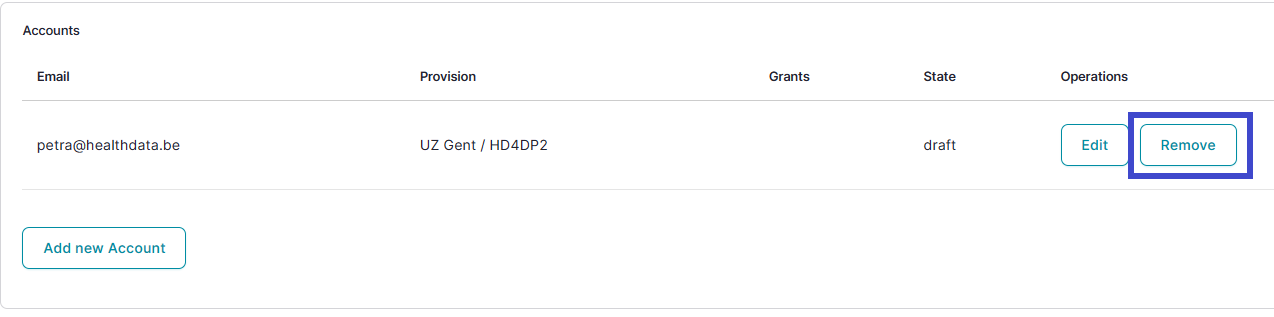
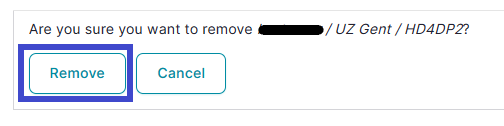
And to confirm:
How to restore an account using the EAM Portal?
An Authenticated User is not able to carry out this action.
How to change the user type to Access manager using the EAM Portal?
An Authenticated User is not able to carry out this action.
How to change the user type to Authenticated user using the EAM Portal?
- yes (autom on login)
How to change the user type to Manager using the EAM Portal?
An Authenticated User is not able to carry out this action.
How to change the user type to Administrator using the EAM Portal?
An Authenticated User is not able to carry out this action.
How to reset password of an account using the EAM Portal?
An Authenticated User is not able to carry out this action.
How to view the accounts of all participants of an own project of the own organization using the EAM Portal?
There is currently no concept "own project"
How to view the accounts of all participants of all projects of own organizations using the EAM Portal?
An Authenticated User is not able to carry out this action.
How to view the own project accounts using the EAM Portal?
There is currently no concept "own project"
How to view all accounts of all projects of all organizations using the EAM Portal?
An Authenticated User is not able to carry out this action.