 docs.healthdata.be
End of year updates (weekly)
At the end of each year, a number of steps need to be taken to ensure the weekly SLA reporting continues to run automatically and uninterrupted during the following year. These steps have already been completed to prepare for the year 2024 but will need to be followed for all subsequent years.
STEP ONE - Create a new folder for the new year
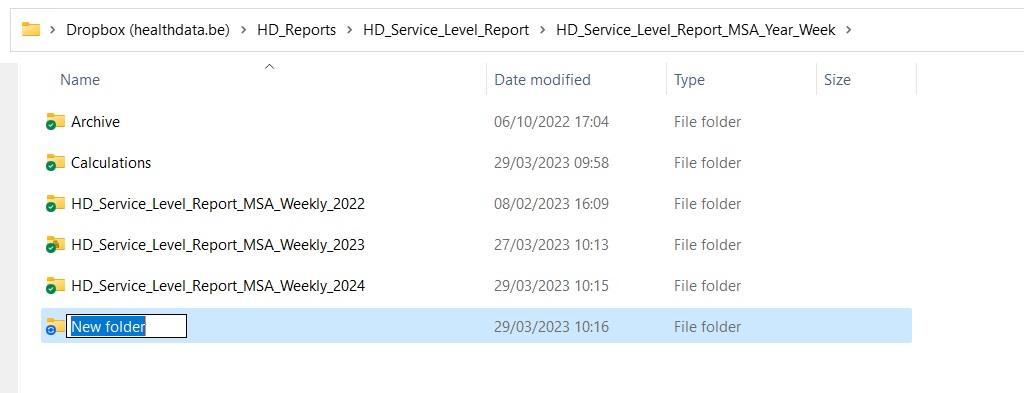
Create a new folder in the following location on Dropbox as shown below:
HD_Reports\HD_Service_Level_Report\HD_Service_Level_Report_MSA_Year_Week
The folder should have the same naming convention as for others.
For example, in 2025 the folder should be named: HD_Service_Level_Report_MSA_Weekly_2025
STEP TWO - Copy and rename Excel and Powerpoint files
Navigate to the following folder on Dropbox:
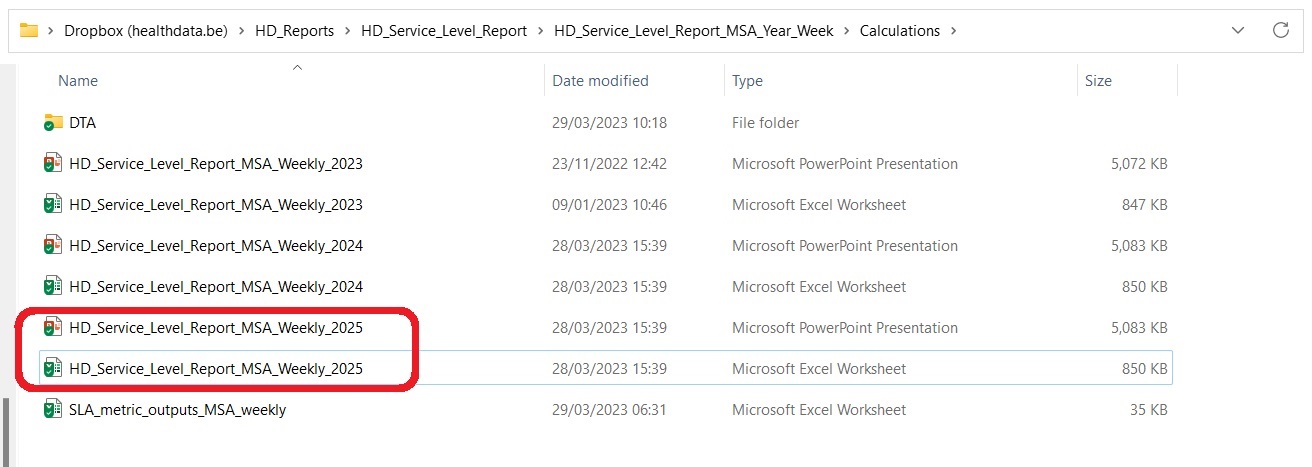
HD_Reports\HD_Service_Level_Report\HD_Service_Level_Report_MSA_Year_Week\Calculations
Copy the Excel and Powerpoint files for the current year.
At the end of 2024 these will be called: HD_Service_Level_Report_MSA_Weekly_2024
Rename these two files by adding a suffix with the following year as shown below.
STEP THREE - Change year names in the newly created Excel file
Open the newly created Excel file.
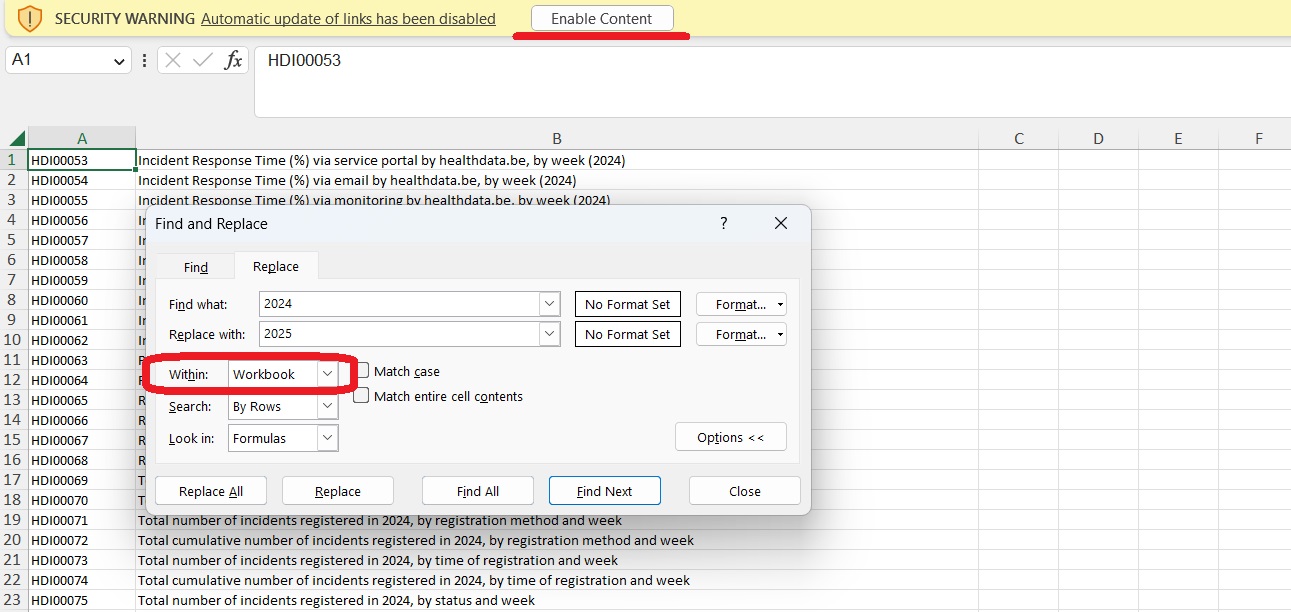
If the security warning shown below is displayed, ensure to click "Enable Content" to preserve the links with the spreadsheet that is automatically generated by SAS.
Now use the find and replace function to change all references to the current year to the following year.
Ensure that the "Within: Workbook" option is selected and click "Replace All". There should be 102 replacements.
When this is done, save and exit the Excel file.
STEP FOUR - Open Powerpoint file and break existing links
Open the newly created Powerpoint file. If prompted to update links, select "Cancel".
We want to break all existing links as they point to the Excel file from the current year.
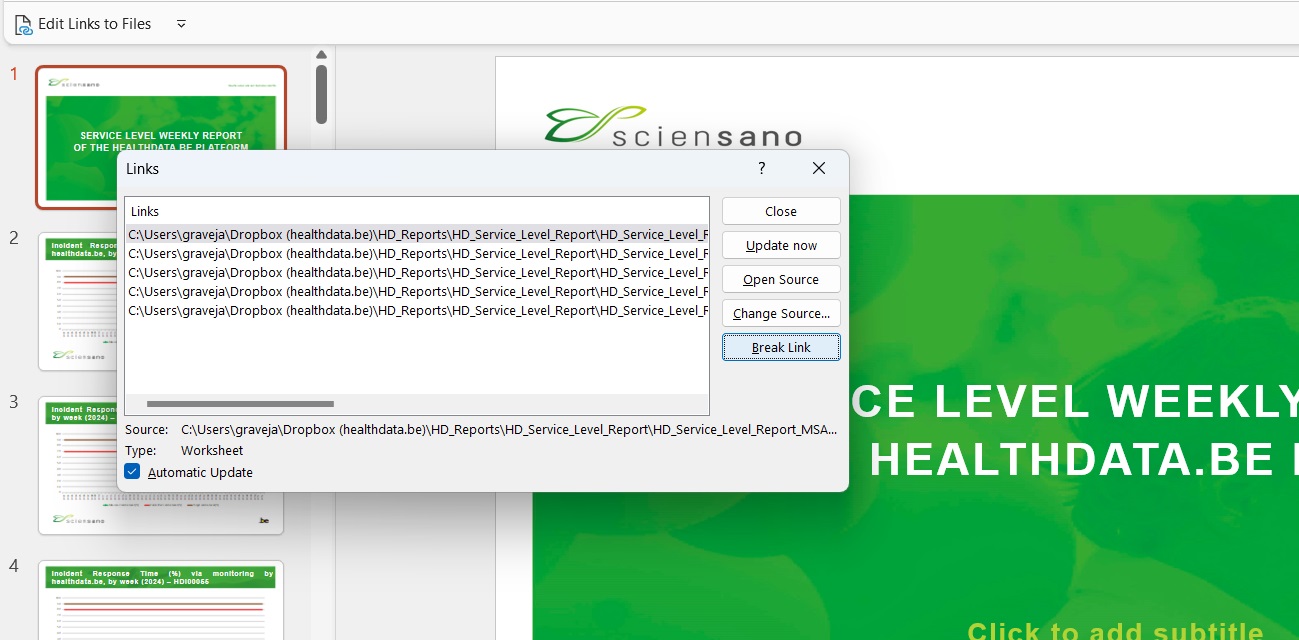
Click the "Edit Links to Files" button displayed under the taskbar. If this button is not immediately visible, you can right-click on the taskbar, click "Customize the Ribbon" and place it these yourself.
In this pop-up, you will see a list of all the external links - this represents every graph and table in the document.
You must break each link individually - approximately 50 in total.
Select the first link and then click "Break Link" consecutively until all the links have disappeared - as shown below.
STEP FIVE -
STEP SIX -
STEP SEVEN -