 docs.healthdata.be
CSV Upload data submission for PITTER registries
General description of CSV Upload
- Go here for a general description of the data submission service via CSV Upload.
Training
- Go here to watch the CSV Upload training organized by healthdata.be.
Data submission procedure in Architecture 2 using CSV Upload
1. Preparing the csv file
- Extract the requested data from the electronic patient files and/or other local databases.
- Map the data according to the fields and formats as described in the DCD specifications of this section and the general code lists.
- Go here for additional information on the codes and the formats used for the Author group, NISS code, Status, "Date" - "Date:Time", Repeatable fields and Multiple choice.
- Make sure the name of the csv test file(s) has the correct format as follows:
HD_DCD_submcsv_HDBPnumber_HDBPabbreviation_versionnumber_versionreleasedate
- An alternative method for migrated projects would be to export the csv file from Architecture 1 and to manually add the additional fields that are required in Architecture 2. (see Additional fields below, if applicable)
PITTER - Main registration
Disclaimer: The example files above are only provided as a guideline and do not contain real life data.
2. Uploading the csv file
Step 1: Open the sftp tool like WinSCP

Step 2: Get the credentials (Host name, Port number, User name and Password) from the IT department of the Data Provider, to log on to the sftp server located on the Data Provider side. In case the credenials are unavailable we advise you to request your credentials through our service portal at https://sciensano.service-now.com/sp via the Request something tab and subsequently the Request for Information box.
Step 3: Fill in the credentials into the Login screen and click on Login to be able to access the different upload folders:
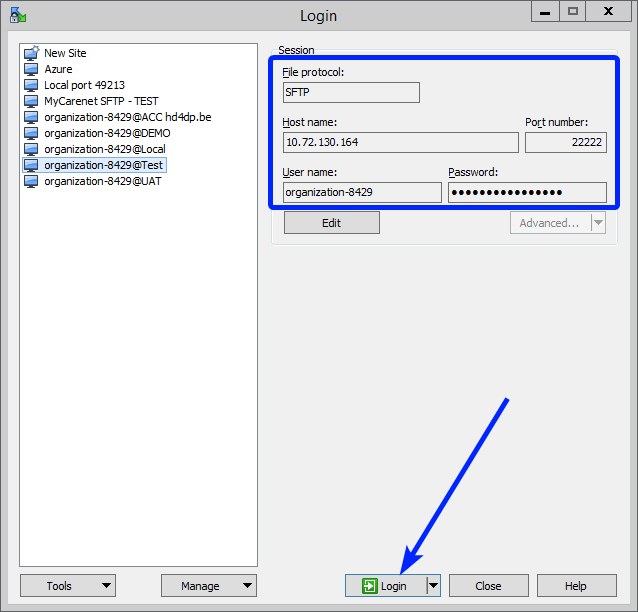
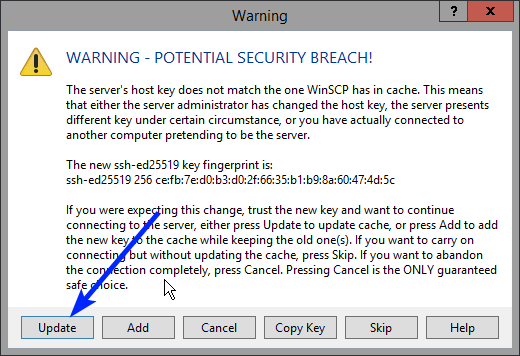
Note: a warning might be given, just click on Update
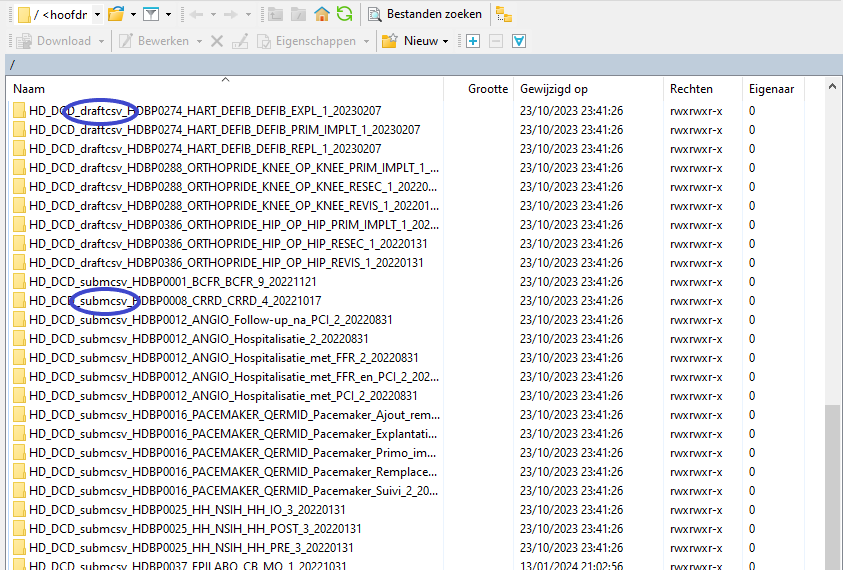
In the CSV Upload folder structure that is displayed on the right-hand side panel, you will notice draftcsv folders and submcsv folders for the diverse HD business projects.
Historically, a directly submitted csv file would end up in the submitted folder (submcsv), whereas a csv file featuring ‘draft’ in the status field would have ended up in the draft folder (draftcsv). At this stage there is no real distinction between both folders, so you can save the csv file in either of them.
Attention: If you wish to create a draft to work on at a later stage, don’t forget to add ‘draft’ in the status column of the csv file.
This documentation is being updated regularly. We try to provide as correct, complete and clear as possible information on these pages. Nevertheless, if you see anything in the documentation that is not correct, does not match your experience or requires further clarification, please create a support ticket via our portal (https://healthdatabe.atlassian.net/servicedesk/customer/portals) or send us an e-mail via support.healthdata@sciensano.be to report this documentation issue. Please, do not forget to mention the URL or web address of the page with the documentation issue. We will then adjust the documentation as soon as possible. Thank you!