 docs.healthdata.be
FormIO how to update DCDs
Summary
This document serves as a guide to help you understand the process flow of FormIO features. By leveraging these features and the GitHub Actions, you can effectively manage various forms/DCDs states and mitigate problems that may occur in current environments ( DTAP ). Whether you're an end user, this document provides the necessary information to streamline the workflow and improve productivity.
Introduction
We're excited to introduce you to a feature within our development process that enhances efficiency and ensures the smooth operation of our application: FormIO's "Save as Draft" feature and the GitHub Actions. While this may sound technical, we'll explain it in a way that's easy to understand, highlighting its importance and how it benefits our team and projects.
Understanding FormIO
Our development team uses FormIO to create and edit dynamic web-based forms/DCDs. These forms/DCDs are essential for users to input data, submit requests, and interact with our systems seamlessly.
The Challenge
Our developers frequently require the modification or fixing of these Forms/DCDs during the development stage. Nonetheless, applying these modifications directly to the live versions of the Forms/DCDs can pose potential risks. Any unintentional errors or incomplete changes may interrupt our applications' user experience or functionality. However, we can't choose which Forms/DCDs could be deployed to the desired environment after the correct version is published or live.
The Solution: FormIO Feature and GitHub Actions
FormIO provides a convenient solution to this challenge through its "Save as Draft" feature. When developers edit or fix existing Forms/DCDs, they can save their progress as a draft rather than immediately deploying the changes to the live environment. They also must make a revision note. After everything is correct and published, the GitHub workflow, the person who will execute, can select which Forms/DCDs will be deployed to a specific environment.
How it Works
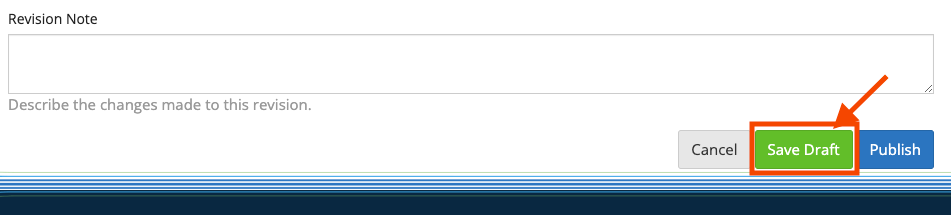
- Saving Progress: When a developer works on a form within FormIO, they can save their changes as a draft. This ensures that the modifications made are stored but not yet applied to the live version of the form.
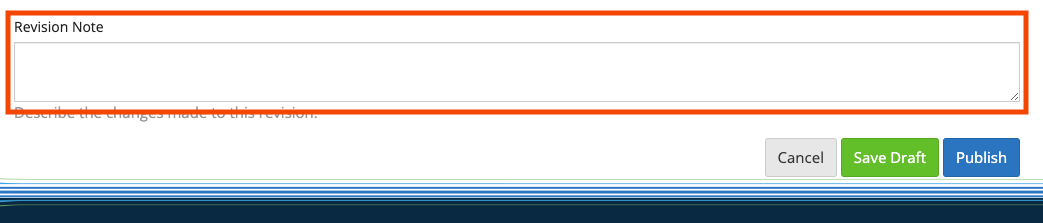
- Revision Notes: Developers must also include notes or comments regarding the changes they've made. These notes are saved alongside the draft, providing valuable context for future reference.
- Preventing Unintended Deployment: By utilizing the "Save as Draft" feature, developers can continue refining the form without the fear of accidentally deploying incomplete or erroneous changes to the production environment.
- Choose the Form/DCDs: With this new option, only the chosen Forms/DCDs will be promoted/deployed/updated based on what should be in Jira or the person responsible for updating the Form. This applies to the current environment and not the next one.
Benefits for all Team
- Enhanced Collaboration: Including revision notes facilitates better communication among team members. Developers can easily understand the changes made by their peers, streamlining collaboration and problem-solving.
- Reduced Risk: By saving changes as drafts, we minimize the risk of introducing errors or disruptions to our applications. This ensures a smoother and more reliable user experience for our clients and customers.
- Improved Efficiency: Developers can now make incremental changes and save them as drafts, which promotes an efficient and iterative development process without the pressure of immediate deployment.
- Dynamic Forms Update: One key benefit is its ability to update forms flexibly and safely. Specifically, each form can be updated in isolation without negatively impacting other forms or customer environments. Additionally, our workflow allows rigorous testing of these updates in specific environments, ensuring they are fully validated before any production deployment occurs.
==========================================================================================================================================================================
Technical Steps and How to Use FormIO
Introduction
This section contains detailed guidelines on adequately utilizing the daily feature in FormIO. It is intended for the Developer team to ensure smooth and efficient performance.
First, after adding, editing, or removing the bottom of the page, you have the revision note that must be added to the notes you have changed.
Second, after adding, editing, or removing the bottom of the page, you have the green button "Save Draft." You have to Save it as a Draft.
Third, after checking if it's correct and updated as desired, you must Publish the versions you made.
