 docs.healthdata.be
Een Spine chirurgie registratie creëren
Om een registratie te creëren voor het studieproject Spine chirurgie, selecteert u "Chirurgie" in het linker donkerblauwe menu.
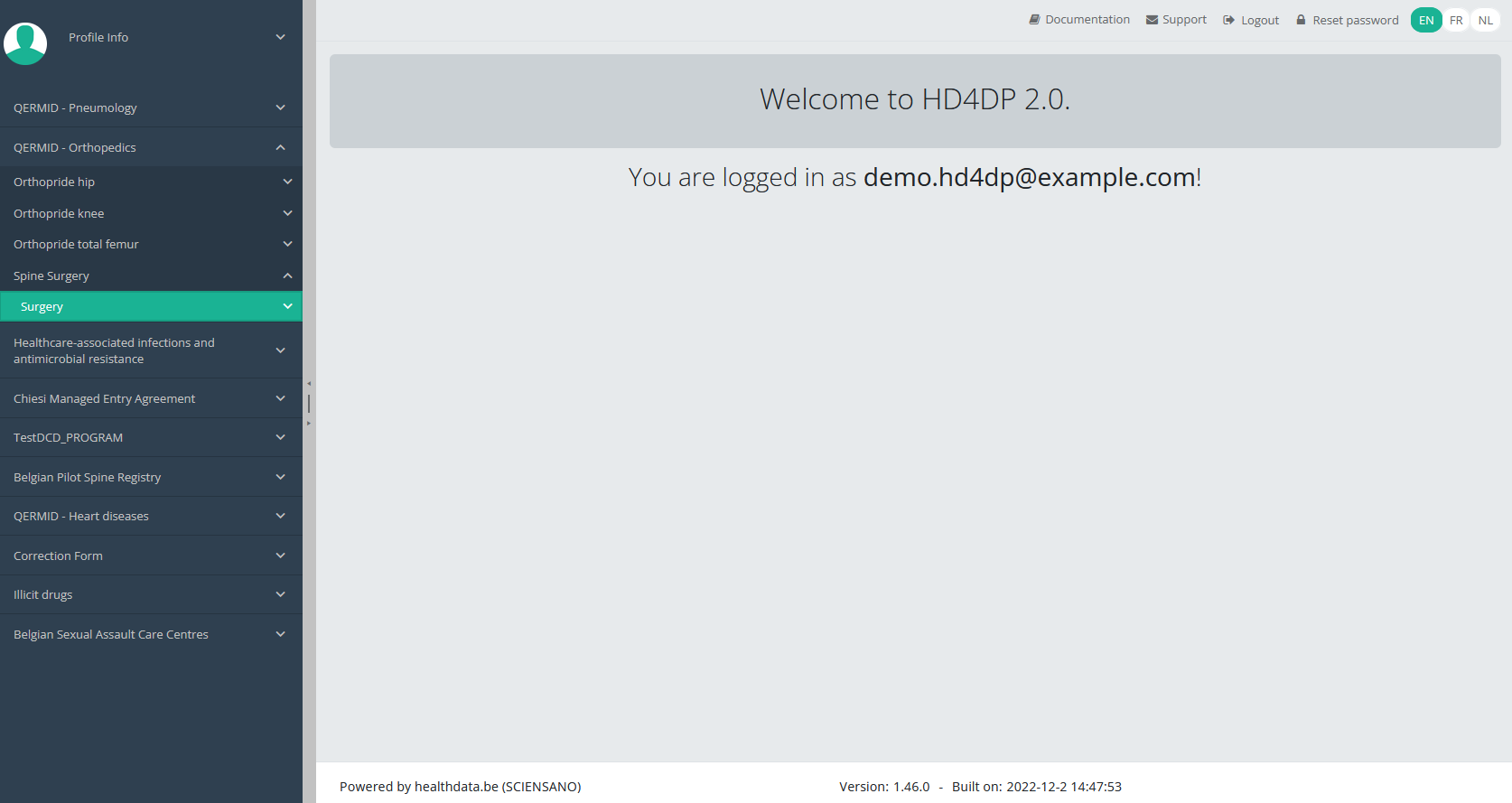
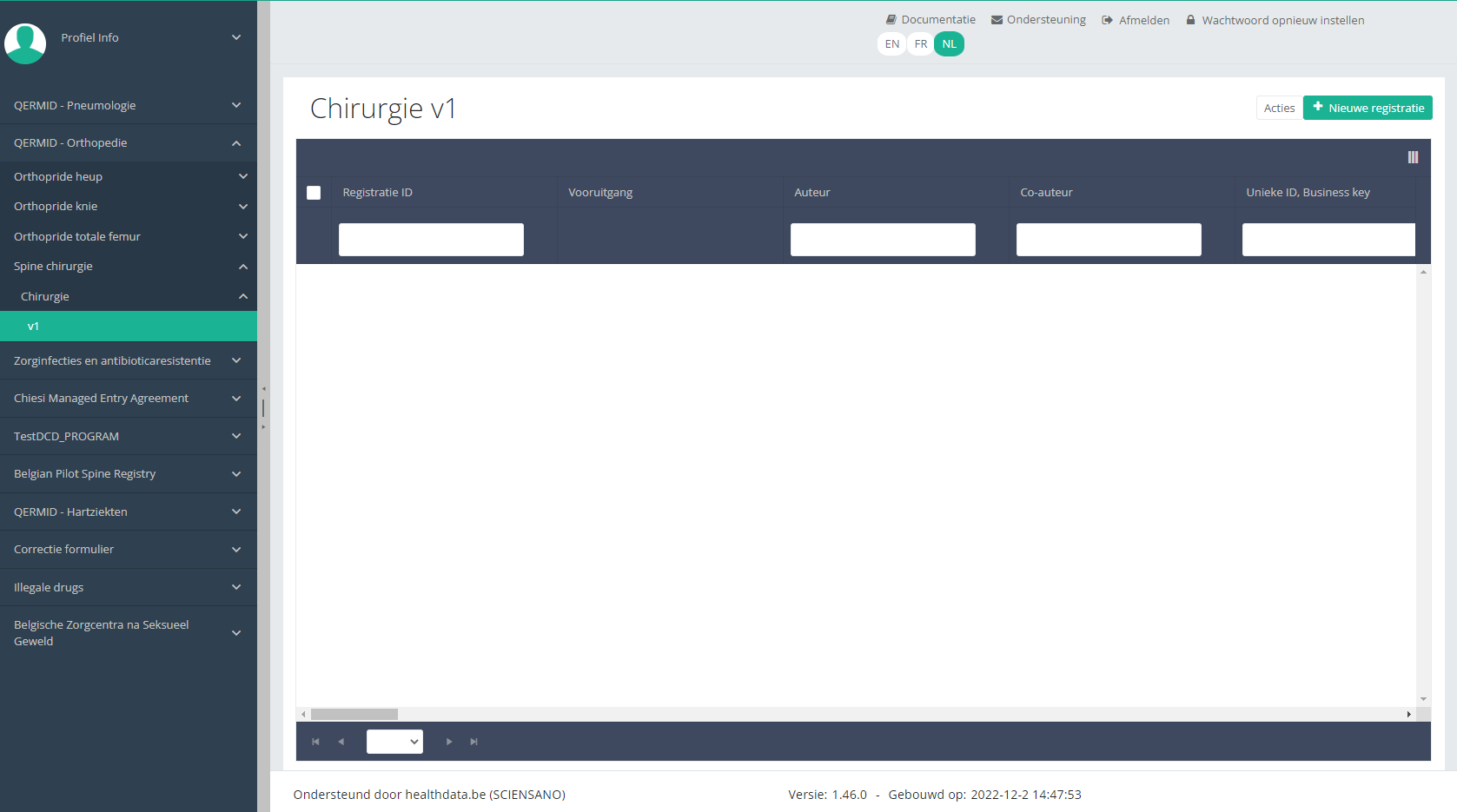
U ziet het aantal versies van die studieonderdeel. In dit geval is er slechts één versie: v1.

Wanneer u voor de eerste keer de hoogste versie van dit studieonderdeel selecteert, ziet u een lege tabel in het hoofdgedeelte van uw scherm. De tabel bevat onder andere de volgende items: Registratie ID, Vooruitgang, Auteur, Co-auteur, Unieke ID, Business Key, Registratiecode, Rijksregisternummer van de patiënt...
Het studieonderdeel is niet steeds beschikbaar in alle drie talen. In dit geval bedekt het onderstaande tekstvak de taalkeuzeknoppen. Het tekstvak verdwijnt na enkele seconden vanzelf.

Omdat het studieonderdeel Chirurgie alleen beschikbaar is in het Nederlands en het Frans, selecteert u de gewenste taal via de respectieve taalkeuzeknop: NL voor Nederlands of FR voor Frans.
In de rechter bovenhoek van het scherm ziet u een groene knop + Nieuwe registratie. Druk op deze knop.
After pressing the button "+ Nieuwe registratie", the main screen will now be replaced with 2 sections: a study form in the middle of the screen and a table of contents on the right side of the screen.
By completing the study form, you will create a registration for the study project Orthopride Spine Surgery.
The Inhoudstafel (table of contents) indicates which sections you must complete. You can also use the table of contents to navigate through the study form: pressing a section in the table of contents will take you to this section in the study form.

By pressing the tab "Vooruitgang" (Progress) on the right side of the screen, the table of contents will be replaced by a progress bar and a list of open Validatiefouten (validation errors).
You can use the list of open validation errors to navigate through the study form: pressing a validation error in the list will take you to this section in the study form.

When the study form is completed and there are no validation errors, you can save or submit this registration: Opslaan of Verzenden. Notice that the Submit button (Verzenden) is in clear green.
When the study form is completed but there are validation errors, you can save but not submit this registration: Opslaan maar niet verzenden. Notice that the Submit button (Verzenden) is in dim green.

When the study form is saved or submitted, the screen switches to the overview table. Now, this table is not empty anymore but shows the saved or submitted registration.
This documentation is being updated regularly. We try to provide as correct, complete and clear as possible information on these pages. Nevertheless, if you see anything in the documentation that is not correct, does not match your experience or requires further clarification, please create a support ticket via our portal Jira Service Management or send us an e-mail via support.hd@hda.fgov.be to report this documentation issue. Please do not forget to mention the URL of the page. We will then adjust the documentation as soon as possible. Thank you!