 docs.healthdata.be
Add members and define roles
On this page we describe how User Managers and DP Managers add members and their role(s) for the relevant Organization(s).
In order to have an overview of all Organizations (Groups), click on Manage, then on the "Groups" tab.
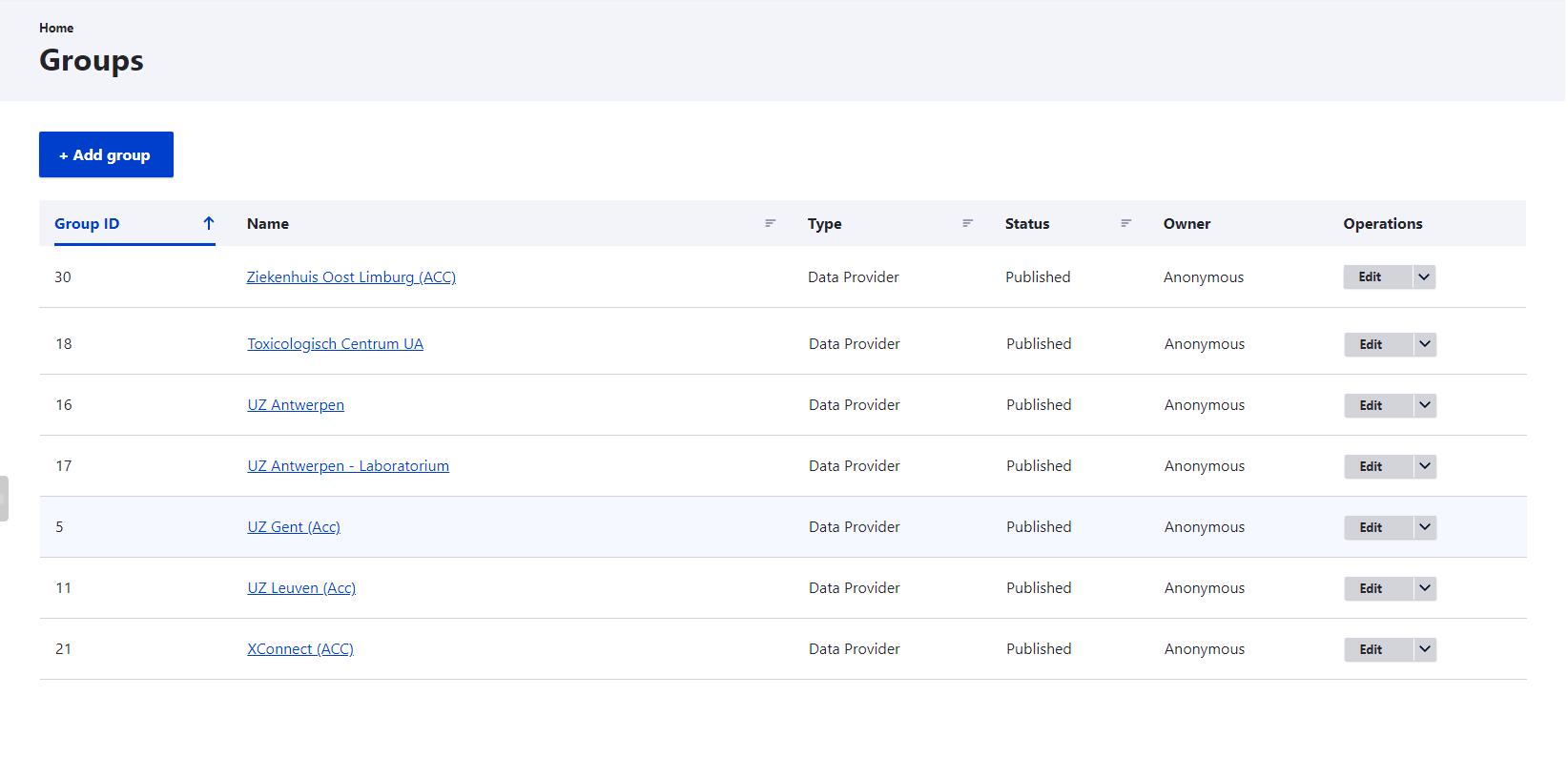
Select an Organization in the list to which members need to be added. The following screen appears:

Go to the Members tab and click on the Add Member button to add a new or existing member to the organization. Adding an existing member means that the member is known to the Self-Service Portal (e.g. member of another Organization), but not added to the list of the current organization.

The next screen shows a simple form in which the member's email address needs to be entered.

Two scenarios are possible:
- If the member already exists, you’ll be shown a form with roles, but without a password field. Check the role you want this member to perform within the organization.

- If the member does not exist yet, you’ll also have to provide a one-time password for this member. Check the box with the role you want this member to perform within the organization.
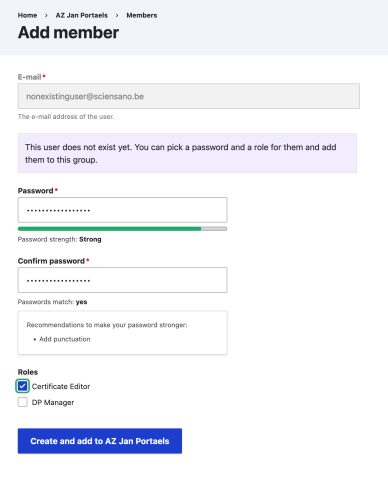
After the creation of the new member, the User Manager or DP Manager will then be redirected to the members overview and can add another member easily.