 docs.healthdata.be
Access Manager actions for a project in HD4DP2 using the EAM interface
Table of contents
How to request access to a project in HD4DP2 with the role of Local Study Lead, Local Study Associate or Local Study Support (for an author group "Author Group") using the EAM interface?
How to create an account for a project in HD4DP2 with the role of Local Study Lead, Local Study Associate or Local Study Support (for an author group "Author Group") using the EAM website?
How to approve an account for a project in HD4DP2 with the role Local Study Lead, Local Study Associate, or Local Study Support (for an author group "Author Group") using the EAM interface?
How to disable an account for a project in HD4DP2 using the EAM interface?
How to restore an account for a project in HD4DP2 using the EAM interface?
How to reset a password of an account for a project in HD4DP2 using the EAM interface?
How to request to change an account for a project in HD4DP2 to the role of Local Study Lead, Local Study Associate or Local Study Support (for an author group "Author Group" using the EAM interface?
How to approve to change an account for a project in HD4DP2 to the role of Local Study Lead, Local Study Associate or Local Study Support (for an author group "Author Group") using the EAM interface?
How to change an account for a project in HD4DP2 to the role of Local Study Lead, Local Study Associate or Local Study Support (for an author group "Author Group") using the EAM interface?
How to remove a role and a project (grant) from a project in HD4DP2 using the EAM interface?
How to change an author group of an account for a project in HD4DP2 using the EAM interface?
How to view accounts for projects in HD4DP2 of all participants to an own project of the own organization using the EAM interface?
How to view accounts of all participants to all projects in HD4DP2 of the own organization using the EAM interface?
How to view accounts for own projects in HD4DP2 using the EAM interface?
How to view all accounts for all projects in HD4DP2 of all organizations using the EAM interface?
This documentation is being updated regularly. We try to provide as correct, complete and clear as possible information on these pages. Nevertheless, if you see anything in the documentation that is not correct, does not match your experience or requires further clarification, please create a support ticket via our portal Jira Service Management or send us an e-mail via support.hd@hda.fgov.be to report this documentation issue. Please do not forget to mention the URL of the page. We will then adjust the documentation as soon as possible. Thank you!How to request access to a project in HD4DP2 with the role of Local Study Lead, Local Study Associate or Local Study Support (for an author group "Author Group") using the EAM interface?
End-to-end process:
Navigating to the HD EAM Portal and Access Manager profile
Go here to learn how to login via the Federal Authentication Service (FAS) with eID or itsme.
Provisioning a new EAM account and adding grants for HD4DP2
Go here to learn how to add an account and add a provision and grants to it via het EAM menu.
Requesting EAM account approval
Next step is to request approval of the newly added account with grants, thus enabling the Authenticated User to access the specified project(s) in a given application (HD4DP2, Healthstat.be ...).
Click on the Request approval button.

The status immediately changes to Approval.

The Access Manager will be notified of your request via e-mail. The Access Manager will then need to take the appropriate action. This can take multiple hours. Upon confirmation the Account state will change to Approved.
Next step: Access Manager's approval of the access grants as described here.
How to create an account for a project in HD4DP2 with the role of Local Study Lead, Local Study Associate and Local Study Support (for an author group "Author Group") using the EAM interface?
End-to-end process:
Navigating to the HD EAM Portal and Access Manager profile
Go here to learn how to login via the Federal Authentication Service (FAS) with eID or itsme.
Provisioning a new EAM account and adding grants for HD4DP2
Click on Manage on the top left of the screen in order to reveal the EAM menu. Select EAM Users.

Select a user from the displayed overview for whom you want to create an account with provisioning and addition of grants. To do so, click on the corresponding First name, Last name or SSIN.
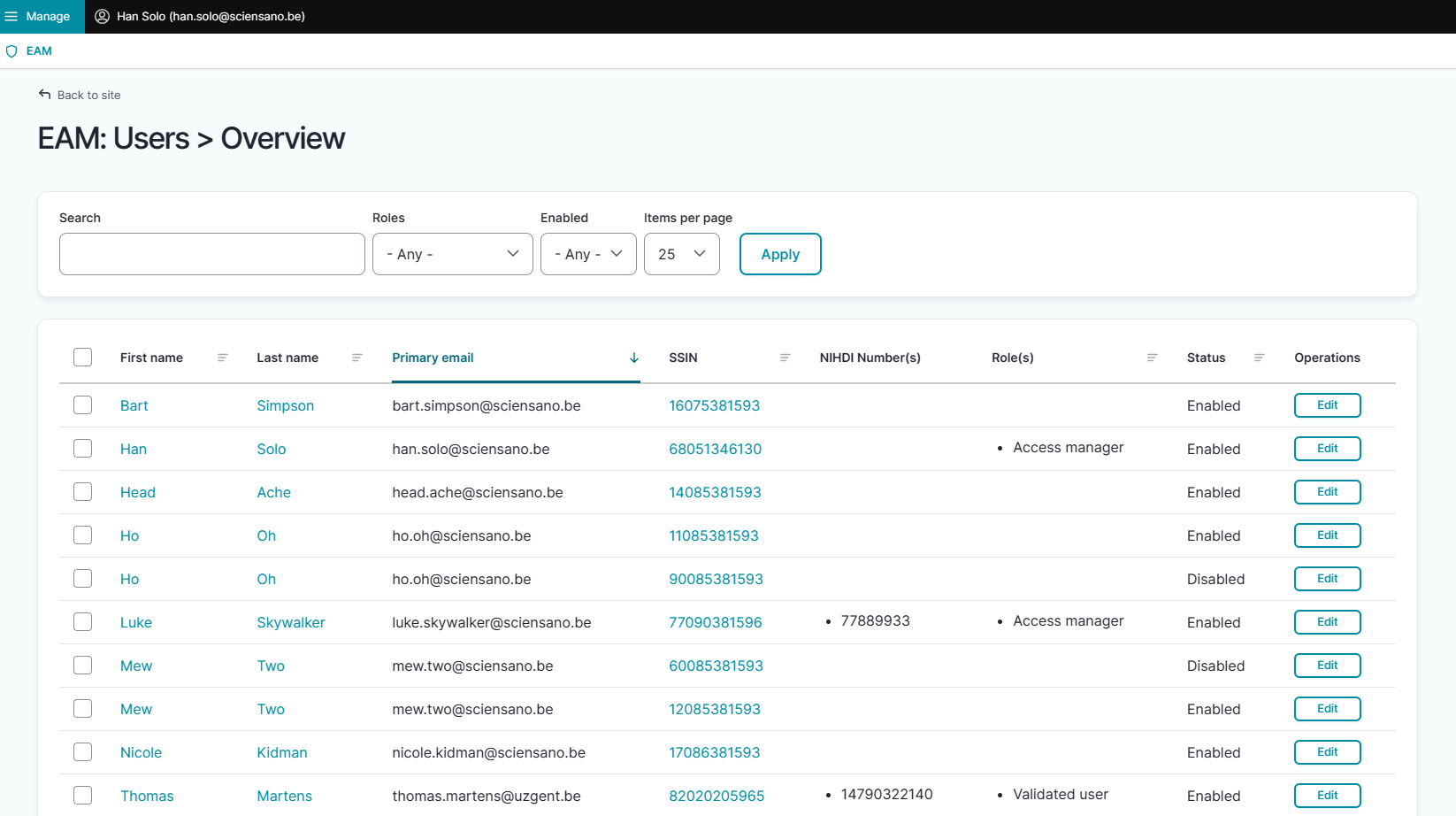
ATTENTION: Authenticated Users that do not yet appear in the list have either to register via the FAS service and create an account (Authenticated User action) or have to be added via Bulk upload (Access Manager action) first.
Select the Add new Account button in the displayed My Accounts page.

Complete the fields in the Add a new account pop-up window and click on the Save button to add the completed account.

To add the grants, select "n grant(s)" for the desired account.

Click on the Add new Grant button.

Select the desired project and the role of Local Study Lead, Local Study Associate or Local Study Support in the Add a new grant pop-up window.

When selecting Local Study Support, you also need to select an Author group. Confirm with the Save button.

Upon returning to the Account: Manage grants page you will notice that the grant is added to your account, which is still in the Draft state.

Next step: Go here to request approval of the access grants added to the account.
How to approve an account for a project in HD4DP2 with the role of Local Study Lead, Local Study Associate and Local Study Support (for an author group "Author Group" using the EAM interface? (own orgs)
Video available here
End-to-end process:
Navigating to the HD EAM Portal and Access Manager profile
Go here to learn how to login via the Federal Authentication Service (FAS) with eID or itsme.
Provisioning a new EAM account and adding grants for HD4DP2
Go here to learn how to add an account and add a provision and grants to it via het EAM menu.
Requesting EAM account approval
Go here to learn how to request approval of a new account with provisioning and grants.
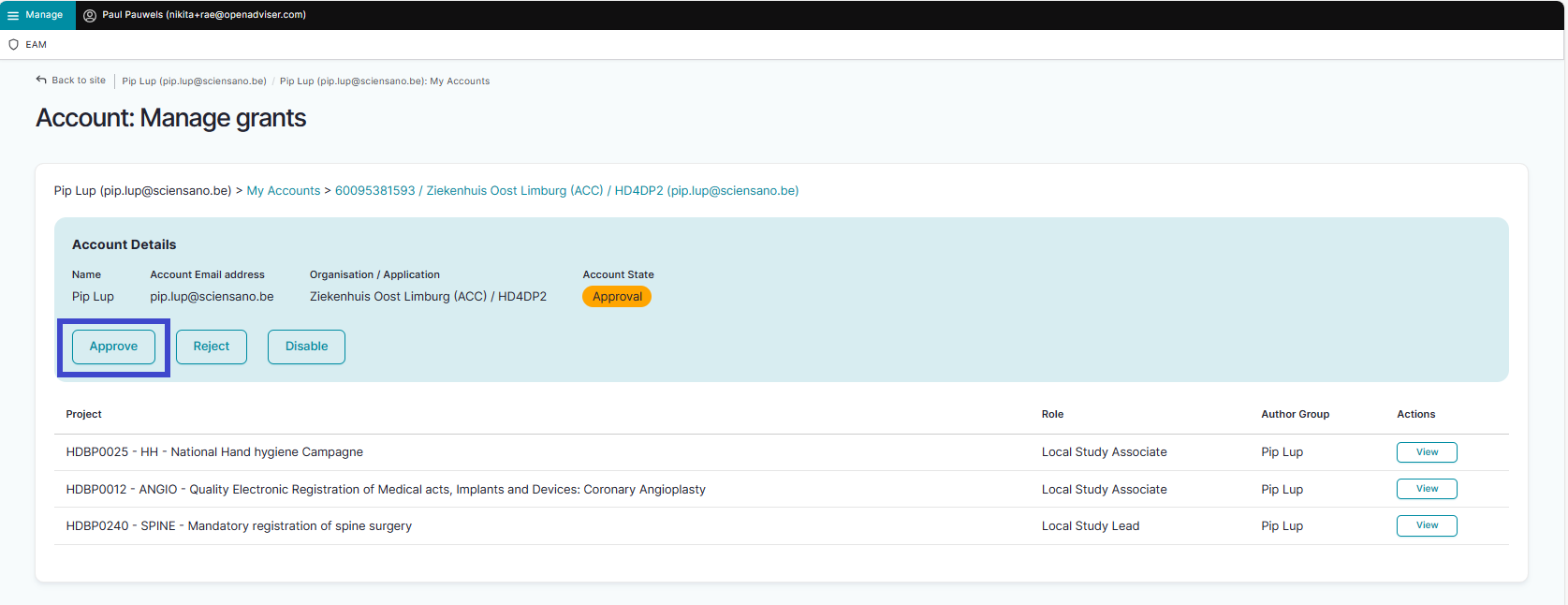
Approving an account
Go here to learn how to approve an account request and how to perform a push action
Returning to the user's My accounts page you will notice the Account state has changed to Approved.
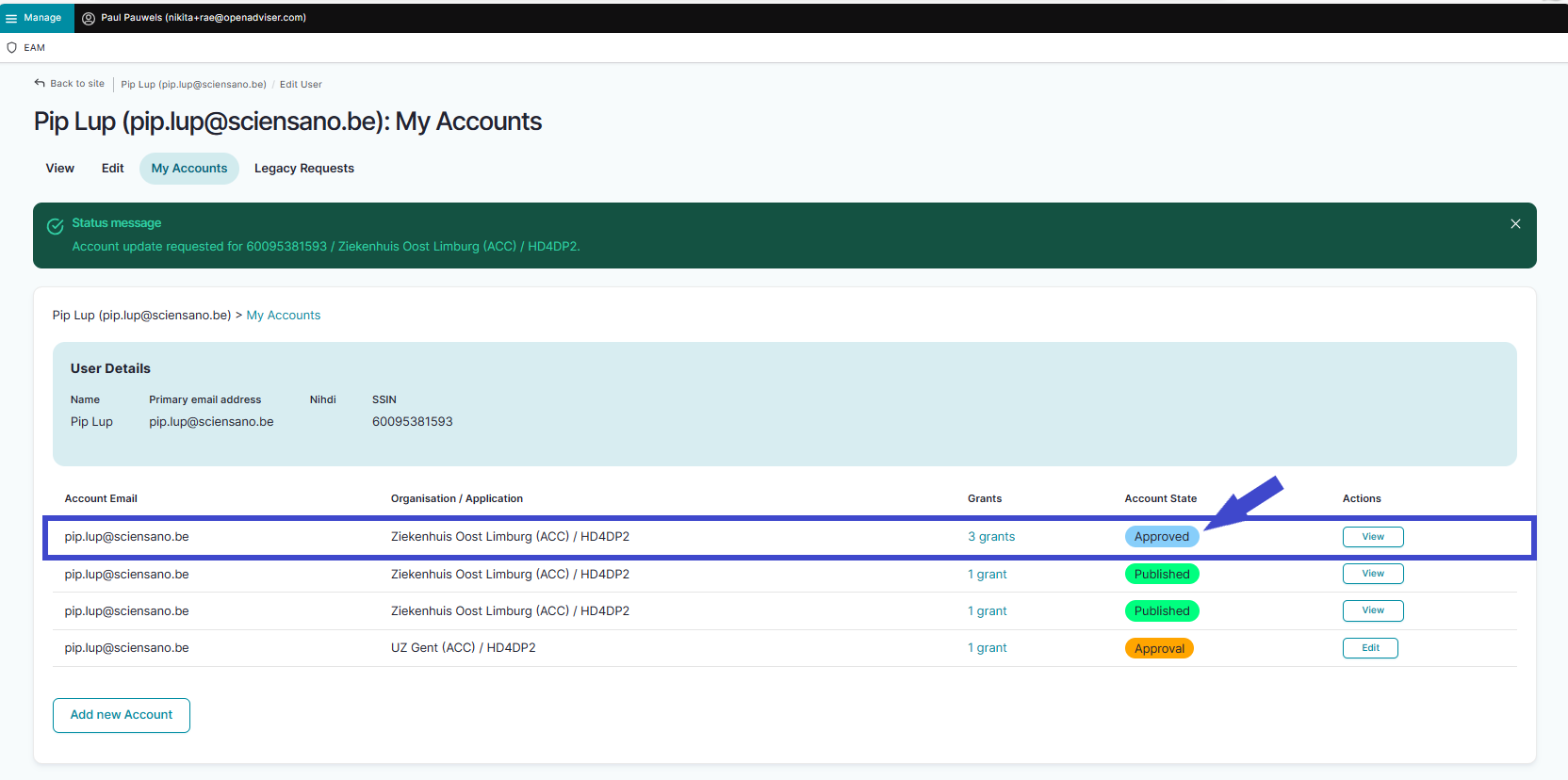
With an approved account, Authenticated Users can access their specific project(s) in HD4DP2.
How to disable an account for a project in HD4DP2 using the EAM interface? (own orgs)
End-to-end process:
Navigating to the HD EAM Portal and Access Manager profile
Go here to learn how to login via the Federal Authentication Service (FAS) with eID or itsme.
Disabling an EAM account
Click on Manage on the top left of the screen in order to reveal the EAM menu. Select EAM Accounts.

Scroll down the displayed list of accounts and tick the selection box of the account(s) you want to disable. Go to the bottom of the page and click on the Action toggle button to select Disable account. Then, click on the Apply to selected items button.

Confirm with the Execute action button

This action triggers an email notification for the Authenticated User to inform about the account being disabled. The user is no longer able to login with the credentials at hand, and needs to contact the Access Manager to have the account enabled again.
How to restore an account for a project in HD4DP2 using the EAM interface? (own orgs)
End-to-end process:
Navigating to the HD EAM Portal and Access Manager profile
Go here to learn how to login via the Federal Authentication Service (FAS) with eID or itsme.
Restoring an EAM account
Sometimes the Access Manager disables an EAM account to perform corrective actions without the Authenticated User of that account being able to login to the account.
Click on Manage on the top left of the screen in order to reveal the EAM menu. Select EAM Accounts.

Next, in the overview with the accounts of the Authenticated Users, click on the Edit button of the disabled account you wish to restore.
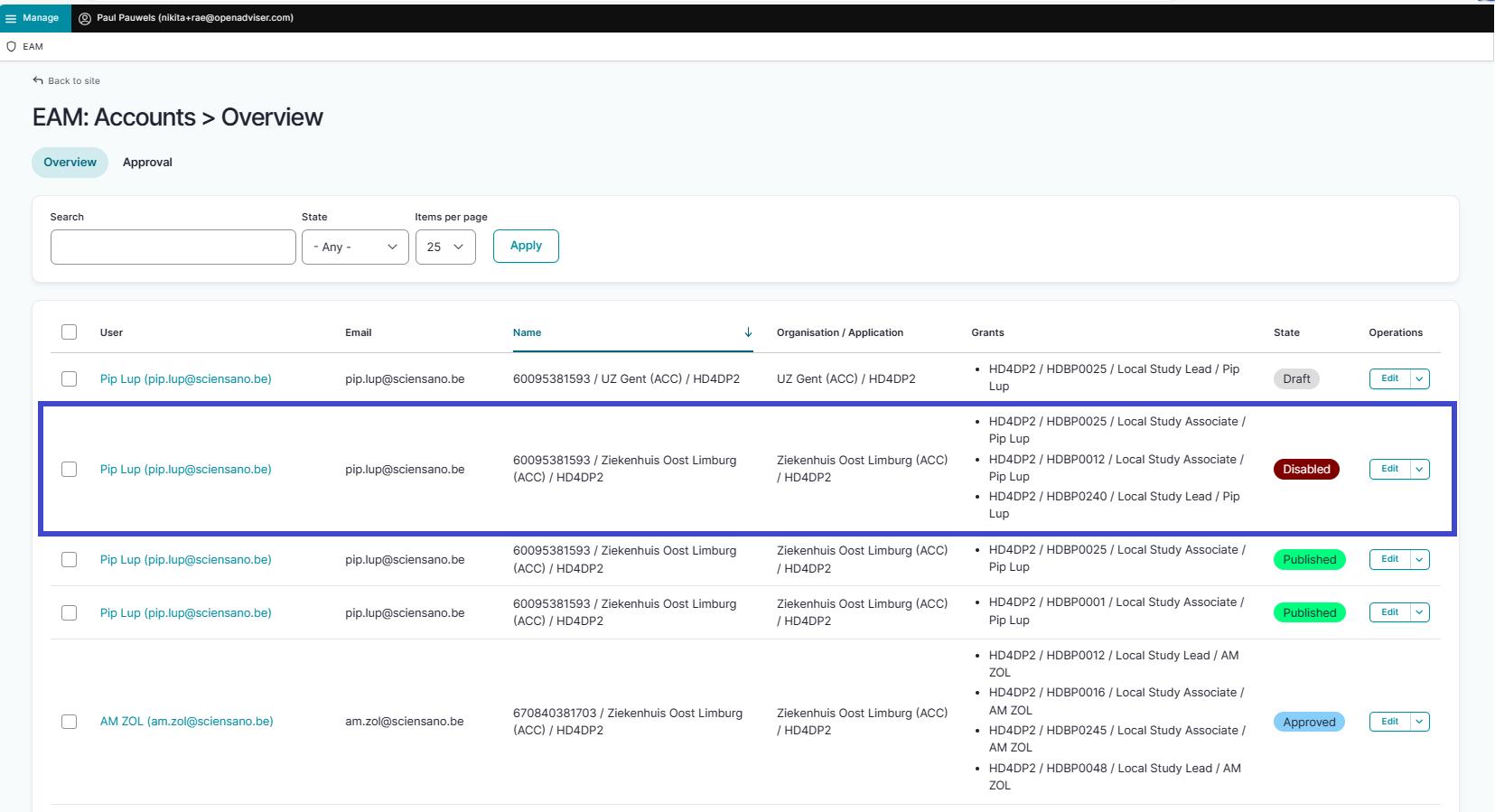
Next, to undo the Disabled state, you need to click on the Create New Draft button.
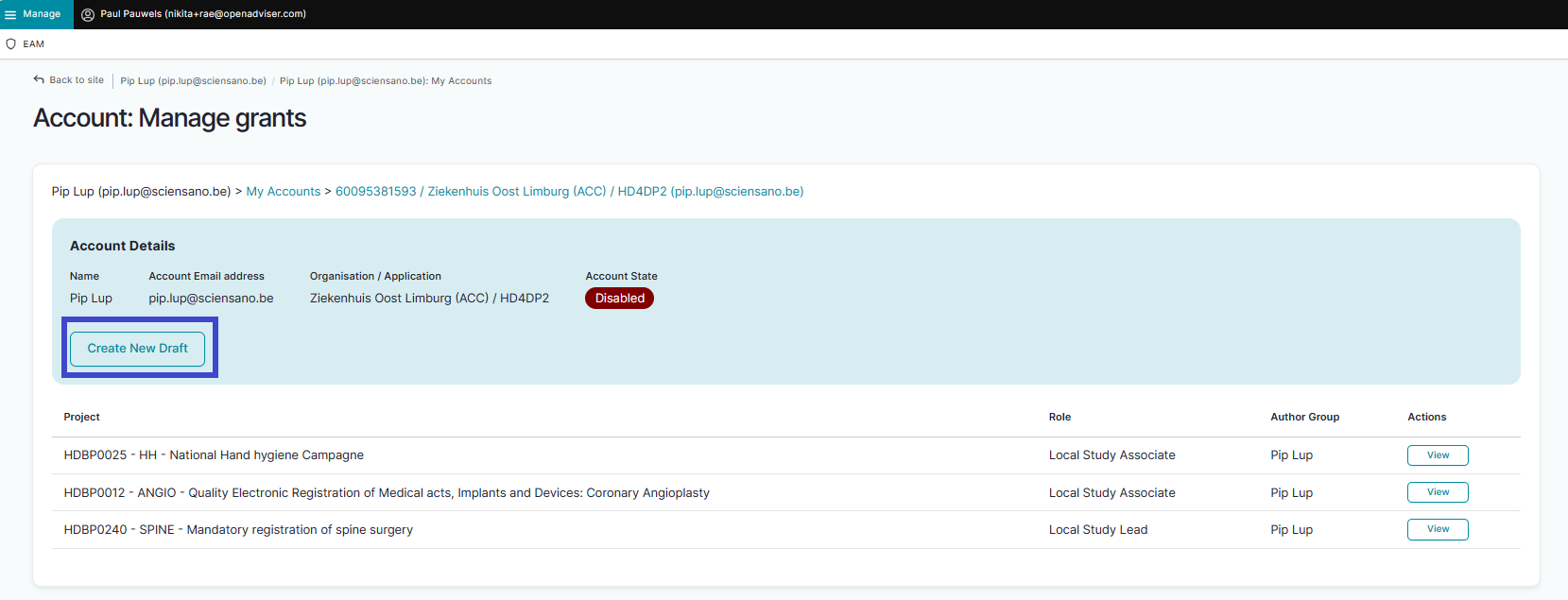
The Account State is restored to Draft, so that the Access Manager is able to carry out the necessary corrections on this EAM account.
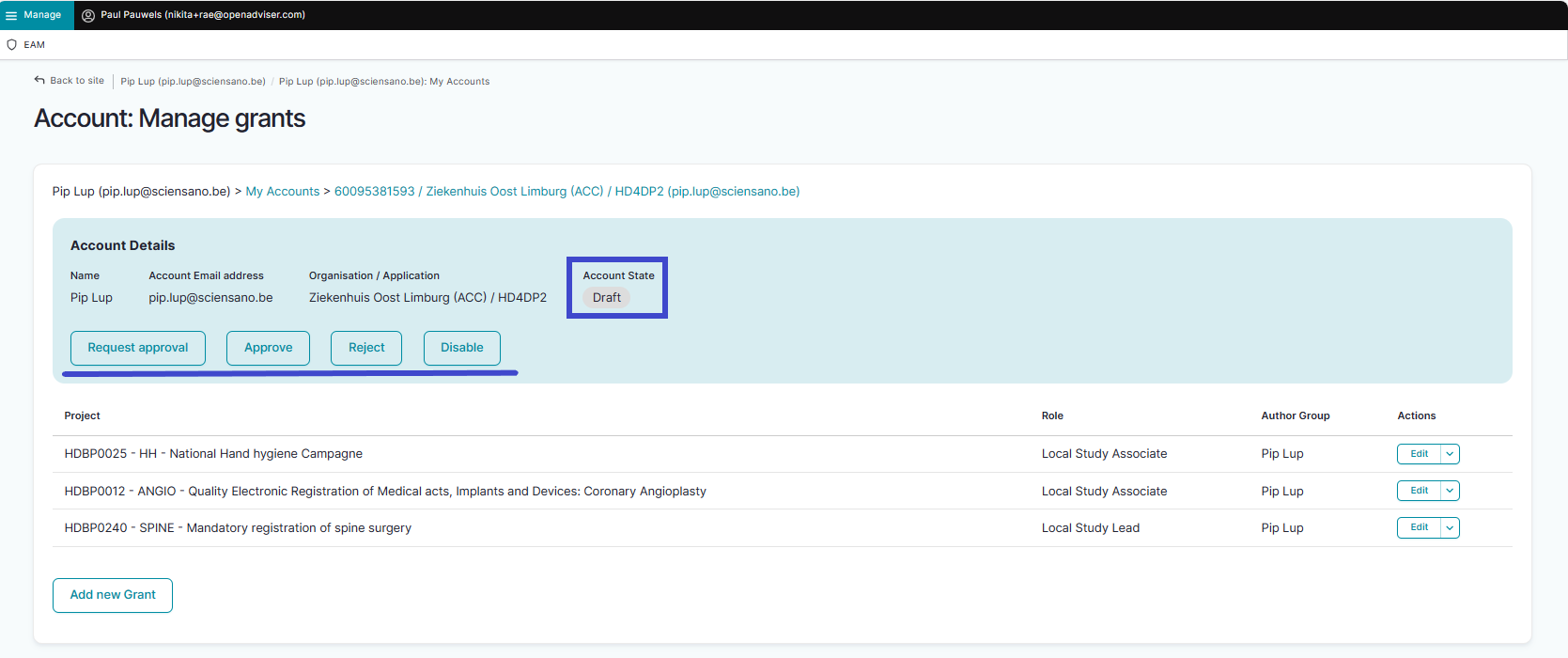
After having restored the Draft status, the Access Manager first needs to request for approval by clicking on the Request approval button. The approval request needs then to be approved. Click here to learn how to do this.
How to reset a password of an account for a project in HD4DP2 using the EAM interface?
Video available here
End-to-end process:
Navigating to the HD EAM Portal and Access Manager profile
Go here to learn how to login via the Federal Authentication Service (FAS) with eID or itsme.
Resetting the password of an EAM account
Click on Manage on the top left of the screen to reveal the EAM menu. Select EAM Accounts.

Scroll down the overview with the accounts and tick the selection box of the account(s) for which you want to reset the password.

Go to the bottom of the page and click on the Action toggle button to select Reset password.

To complete the action, you need to click on the Execute action button.

This action triggers an e-mail to the end-user containing the new credentials.
How to request to change an account for a project in HD4DP2 to the role of Local Study Lead, Local Study Associate or Local Study Support (for an author group "Author Group") using the EAM interface? (own orgs)
End-to-end process:
Navigating to the HD EAM Portal and Access Manager profile
Go here to learn how to login via the Federal Authentication Service (FAS) with eID or itsme.
Changing access grants
Go here to learn how to change roles for a project in an application.
Requesting for approval of changed access grants
To request for approval of the access grants change for a project in an application, you need to click on the Request approval button.

The Account State changes to Approval.

The updated state is also visible in the accounts overview.

Next step: The Access Manager approves the access grants change approval request as described here.
How to approve to change an account for a project in HD4DP2 to the role of Local Study Lead, Local Study Associate or Local Study Support (for an author group "Author Group" using the EAM interface? (own orgs)
Video available here
End-to-end process:
Navigating to the HD EAM Portal and Access Manager profile
Go here to learn how to login via the Federal Authentication Service (FAS) with eID or itsme.
Changing access grants
Go here to learn how to change roles for a project in an application.
Requesting for approval of changed access grants
Go here to learn how to request for approval of the access grants change in an application.
Approving the role change
To then approve the accounts for which approval was requested, the Access Manager needs again to click on the relevant Edit button in order to return to the Account: Manage grants page.
Now, select the Approve button.

The account state immediately changes to Approved, which will again be visible in the EAM accounts overview.

How to change an account for a project in HD4DP2 to the role of Local Study Lead, Local Study Associate or Local Study Support (for an author group "Author Group") using the EAM interface? (own orgs)
End-to-end process:
Navigating to the HD EAM Portal and Access Manager profile
Go here to learn how to login via the Federal Authentication Service (FAS) with eID or itsme.
Changing access grants
Click on Manage on the top left of the screen to reveal the EAM menu. Select EAM Accounts.
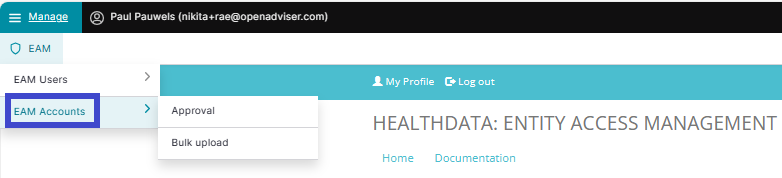
Select an account for a project in an application for which the role, author group (HD4DP2) or data/level (healthstat.be) need to be changed.

When you have set up a new account, it will have the draft state, which allows for adding and editing grants.
However, in the following four scenarios you need to make sure that the account state is set to Draft first before you can start to edit the grants (project, role).
- When the account is in the Published state, do the following:
Go to the EAM: Accounts overview and click on the Edit button next to Published.

In the Account: Manage grants screen you select the Create New Draft button.

The Account State will be set to Draft.
- When the account is in the Disabled state, do the following:
Go to the EAM: Accounts overview and click on the Edit button next to Published.

In the Account: Manage grants screen you select the Create New Draft button.

The Account State will be set to Draft.
- When the account is in the Approved state, do the following:
Go to the EAM: Accounts overview and click on the Edit button next to Disabled.

In the Account: Manage grants screen you select the Disable button.

Select the Create New Draft button.

The Account State will be set to Draft.
- When the account is in the Approval state, do the following:
Go to the EAM: Accounts overview, select the Approval tab and click on the Edit button next to Approval.

In the Manage grants screen you select the Disable button.

Select the Create New Draft button.

The Account State will be set to Draft.
When the account state is finally set to Draft, click on the Edit button for the project and role you wish to change.

Change the set role to the desired one. Below an example for the HD4DP2 application.

When changing role to Local Study Support (HD4DP2), you also need to select an Author group.
Confirm with the Save button. When returning to the Account: Manage grants page you will notice that the grant is added to your account. This will still be in the Draft state.

You have now changed the access grants for a project in HD4DP2 with the role of Local Study Lead, Local Study Associate or Local Study Support (for an author group).
Next step: Request for approval of the access grants change as described here.
How to remove a project and a role (grant) from a project in HD4DP2 using the EAM interface?
End-to-end process:
Navigating to the HD EAM Portal and Access Manager profile
Go here to learn how to login via the Federal Authentication Service (FAS) with eID or itsme.
Removing access grants
Click on Manage on the top left of the screen in order to reveal the EAM menu. Select EAM Accounts.
Next, select an account for which you want to remove the grants (HD4DP2 project and role).
When you have set up a new account, it will display the draft state, which allows for adding and editing grants.
However, in the following four scenarios you need to make sure that the account state is set to Draft first before you can start to edit Project/Role (Grant).
- When the account is in the Published state, do the following:
Go to the EAM: Accounts overview and click on the Edit button next to Published.
In the Manage grants screen you select the Create New Draft button.
The Account State will be set to Draft.
- When the account is in the Disabled state, proceed as follows:
Go to the EAM: Accounts overview and click on the Edit button next to Published.
In the Manage grants screen you select the Create New Draft button.
The Account State will be set to Draft.
- When the account is in the Approved state, do the following:
Go to the EAM: Accounts overview and click on the Edit button next to Disabled.
In the Manage grants screen you select the Disable button.
Select the Create New Draft button.
The Account State will be set to Draft.
- When the account is in the Approval state, do the following:
Go to the EAM: Accounts overview, select the Approval tab and click on the Edit button next to Approval.
In the Manage grants screen you select the Disable button.
Select the Create New Draft button.
The Account State will be set to Draft.
When the Account State is finally set to Draft, click on the toggle of the Edit button for the grant (HD4DP2 project and role) you want to remove.

Click on the Remove option to remove the relevant grant from the EAM account.
How to change an author group for a project in HD4DP2 using the EAM interface?
End-to-end process:
Navigating to the HD EAM Portal and Access Manager profile
Go here to learn how to login via the Federal Authentication Service (FAS) with eID or itsme.
Changing the author group
Click on Manage on the top left of the screen to reveal the EAM menu. Select EAM Accounts.
Select an account for a project in HD4DP2 with role Local Study Support from the displayed overview for which you want to change the author group.

First, make sure that the account state is Draft or Published. Editing grants, such as changing an author group, is not possible when the selected account is in the Approval or Approved state. Go here to learn how to reset your account back to the Draft state.
When the Account State is finally set to Draft, click on the Edit button for a project in HD4DP2 for which you wish to change the author group. Next, select the Edit button for the project and role you want to change.

In the Edit Grant window, select another author group from the drop-down list.

The Author group change is confirmed and shown on the Account: Manage grants page.

How to view accounts of all participants for an own project in HD4DP2 of the own organization using the EAM interface?
There is currently no concept "own project"
How to view accounts of all participants to all projects in HD4DP2 of the own organization using the EAM interface?
End-to-end process:
Navigating to the HD EAM Portal and Access Manager profile
Go here to learn how to login via the Federal Authentication Service (FAS) with eID or itsme.
Displaying overview of all accounts with all grants
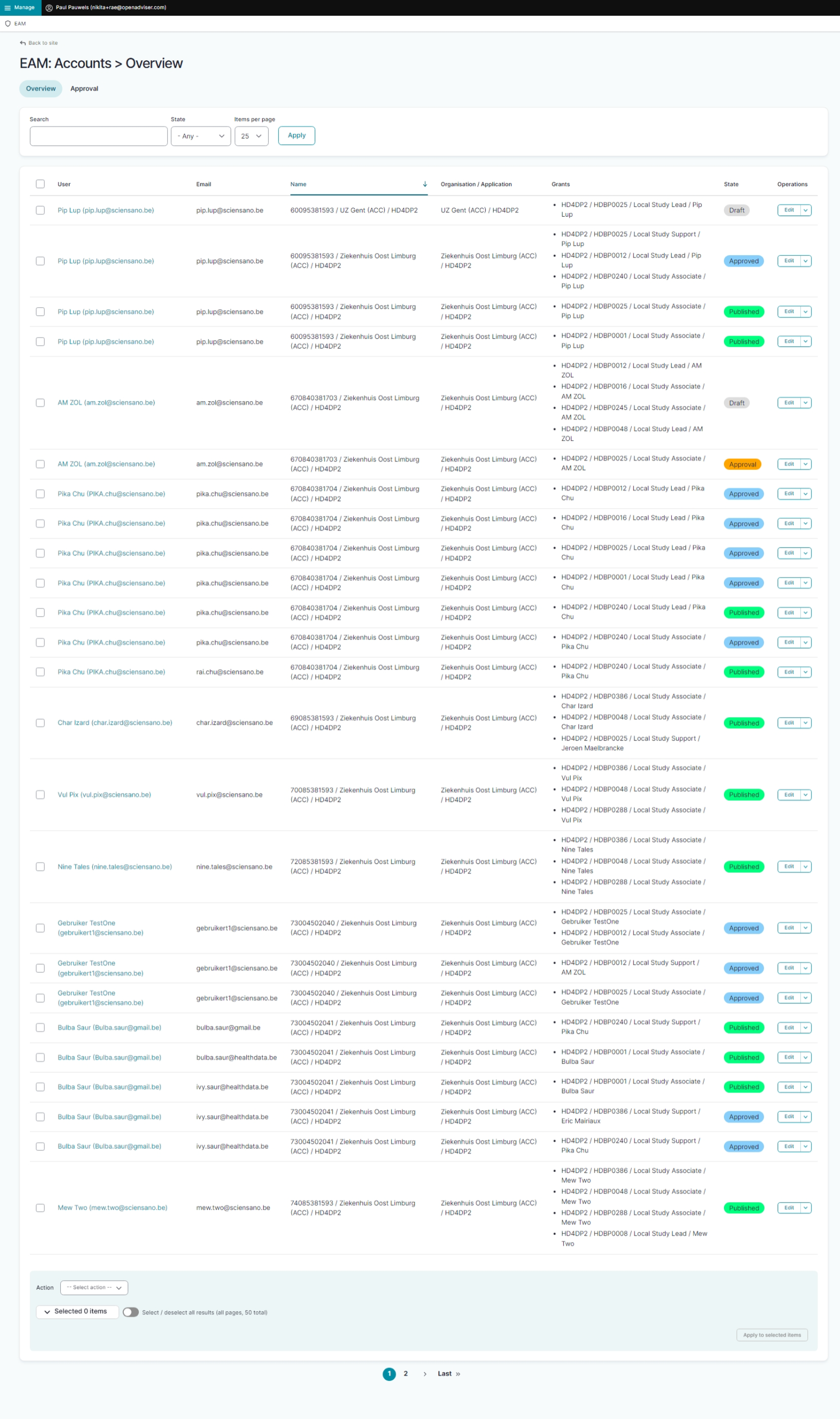
Click on Manage to the top left of the screen, so that EAM appears. When hovering over this menu item, the subitems EAM Users and EAM Accounts become visible. Select EAM Accounts.
The page shown gives an overview of the accounts of the different users with their projects in HD4DP2, including roles and author groups.
How to view accounts for own projects in HD4DP2 using the EAM interface?
End-to-end process:
Navigating to the HD EAM Portal and Access Manager profile
Go here to learn how to login via the Federal Authentication Service (FAS) with eID or itsme.
Displaying overview of all accounts with all grants
Go here to learn how an access manager can retrieve an overview of all accounts with all grants.
Displaying overview of all accounts of own projects
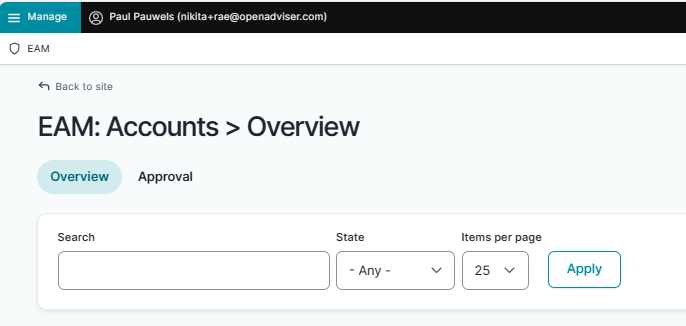
Make use of the Search field at the top to filter on own projects.
How to view all accounts for all projects in HD4DP2 of all organizations using the EAM interface?
An Access Manager is not able to carry out this action.
This documentation is being updated regularly. We try to provide as correct, complete and clear as possible information on these pages. Nevertheless, if you see anything in the documentation that is not correct, does not match your experience or requires further clarification, please create a support ticket via our portal Jira Service Management or send us an e-mail via support.hd@hda.fgov.be to report this documentation issue. Please do not forget to mention the URL of the page. We will then adjust the documentation as soon as possible. Thank you!