 docs.healthdata.be
Access Manager actions using the EAM interface
Table of contents
How to create an account using the EAM interface?
How to approve an account request using the EAM interface?
How to disable an account using the EAM interface?
How to restore an account using the EAM interface?
How to change the user type to Access manager using the EAM interface?
How to change the user type to Authenticated user using the EAM interface?
How to change the user type to Manager using the EAM interface?
How to change the user type to Administrator using the EAM interface?
How to reset the password of an account using the EAM interface?
How to view the accounts of all participants to an own project of the own organization using the EAM interface?
How to view the accounts of all participants to all projects of own organization using the EAM interface?
How to view the accounts of own projects using the EAM interface?
How to view all accounts of all projects of all organizations using the EAM interface?
How to create an account using the EAM interface?
The Access Manager profile page
The main My profile screen that appears after selecting the confirmation button shows the Personal information of the Access Manager as well as the Linked accounts of this profile. The list can be sorted by Account, Email or State.
Attention: The accounts listed in Linked accounts are NOT the accounts of other users you manage as an Access Manager.
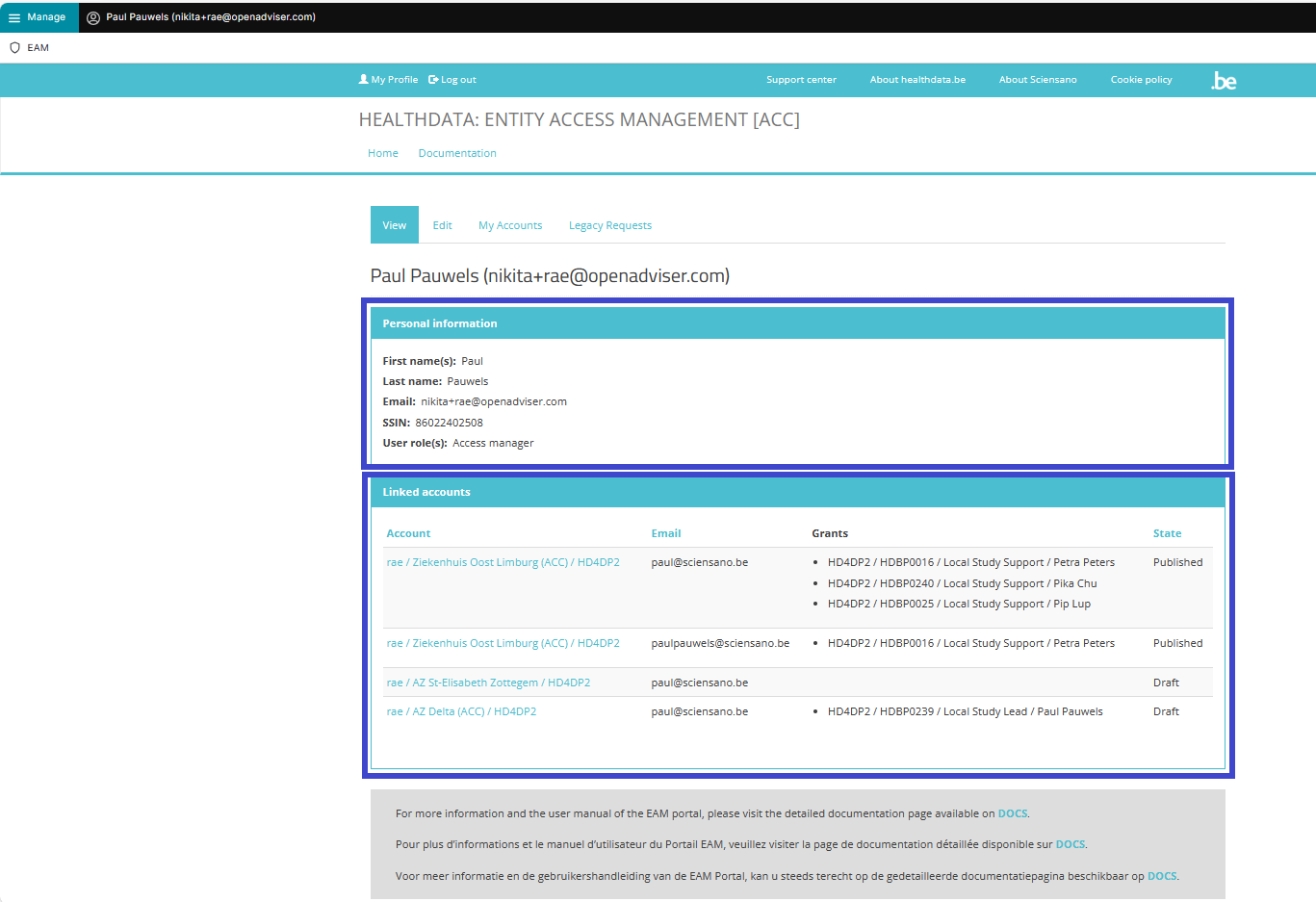
By selecting one of the accounts in the Linked accounts window, the Access Manager will be able to manage grants and to carry out several advanced actions.
When clicking on your name and e-mail address to the top left of the screen, you toggle a toolbar (see image below) with four tabs: View profile, Edit profile, My Accounts and Log out. Select the My Accounts tab if you want to create an account.

On the My accounts screen you will find a list of accounts that you can edit. Click on the Add new Account button at the bottom to create a new account.

The created account is automatically added to the list of accounts.

It will also appear on the profile page of the Access Manager.

How to approve an account request using the EAM interface? (own orgs)
The Access Manager profile page
The main My profile screen that appears after selecting the confirmation button shows the Personal information of the Access Manager as well as the Linked accounts of this profile. The list can be sorted by Account, Email or State.
Attention: The accounts listed in Linked accounts are NOT the accounts of other users you manage as an Access Manager.
Click on Manage to the top left of the screen, so that EAM appears. When hovering over this, the items EAM Users and EAM Accounts become visible.

Select EAM Accounts and Approval successively.

When clicking on Approval you open the page with end-user accounts that are waiting to be approved:
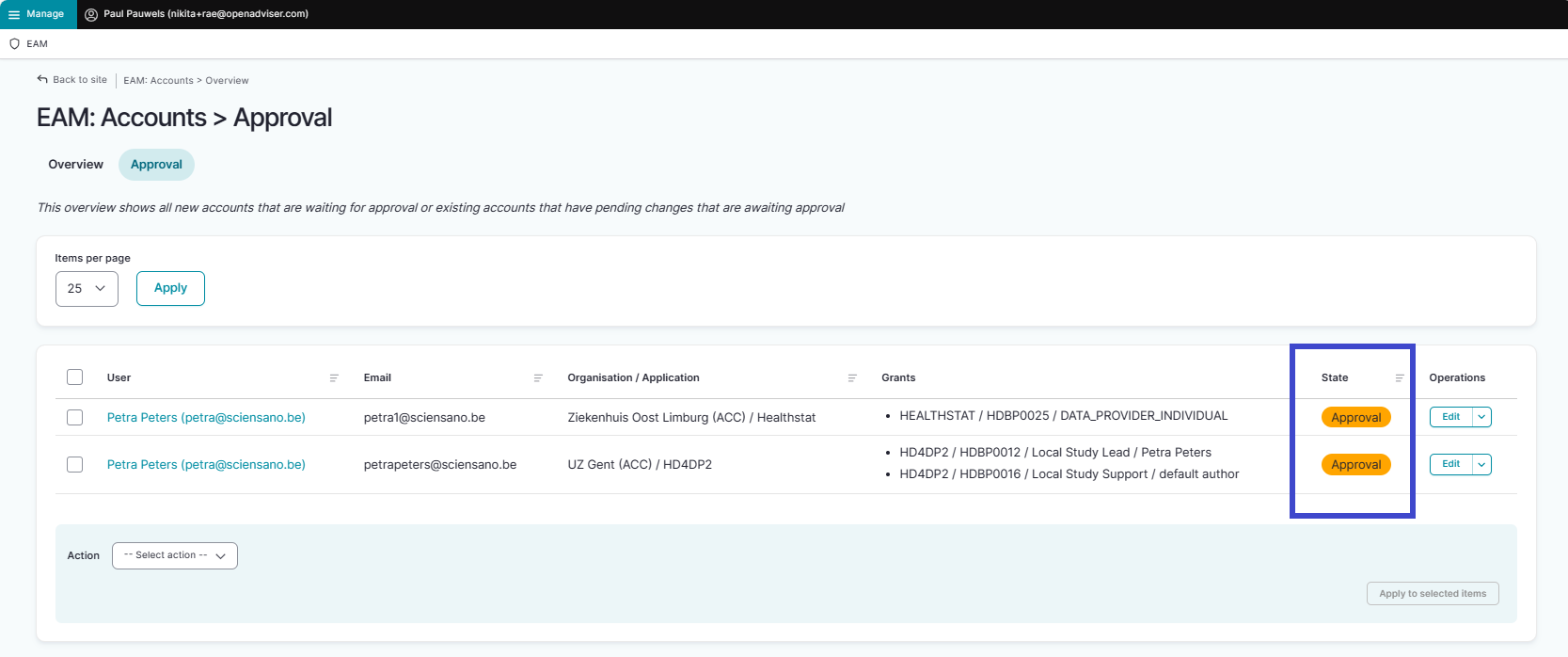
There are several ways to approve these account requests:
- By activating the checkbox of the relevant account request and selecting the Approve action. Click on the Apply button to perform the action

- By clicking on the Edit button in the Operations column for the relevant account

How to disable an account using the EAM interface? (own orgs)
The Access Manager profile page
The main My profile screen that appears after selecting the confirmation button shows the Personal information of the Access Manager as well as the Linked accounts of this profile. The list can be sorted by Account, Email or State.
Attention: The accounts listed in Linked accounts are NOT the accounts of other users you manage as an Access Manager.
Click on Manage to the top left of the screen, so that EAM appears. When hovering over this, the items EAM Users and EAM Accounts become visible.
Select EAM Accounts and Approval successively.
When clicking on Approval a page is opened with a list of end-user accounts that are waiting to be approved:
To disable an account you here need to click on the relevant Edit button in the Operations column.

The Account: Manage grants screen appears in which you click now on the Disable button.
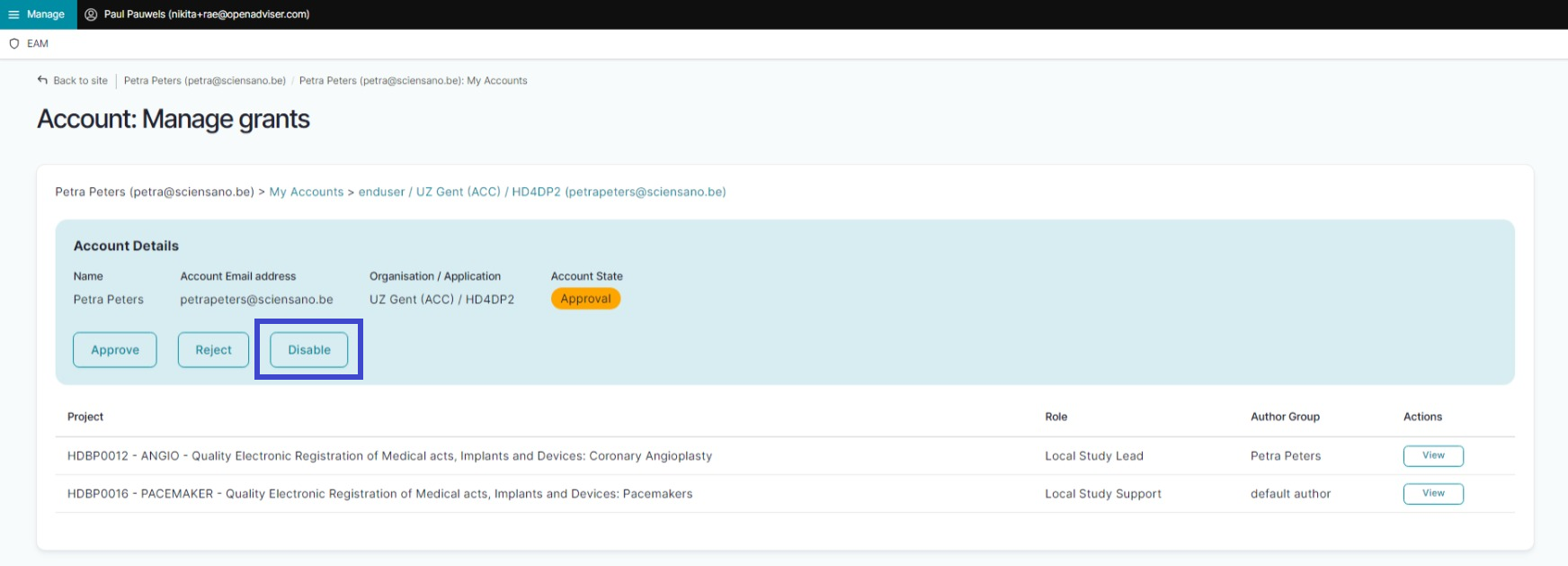
The Account state changes to Disabled.
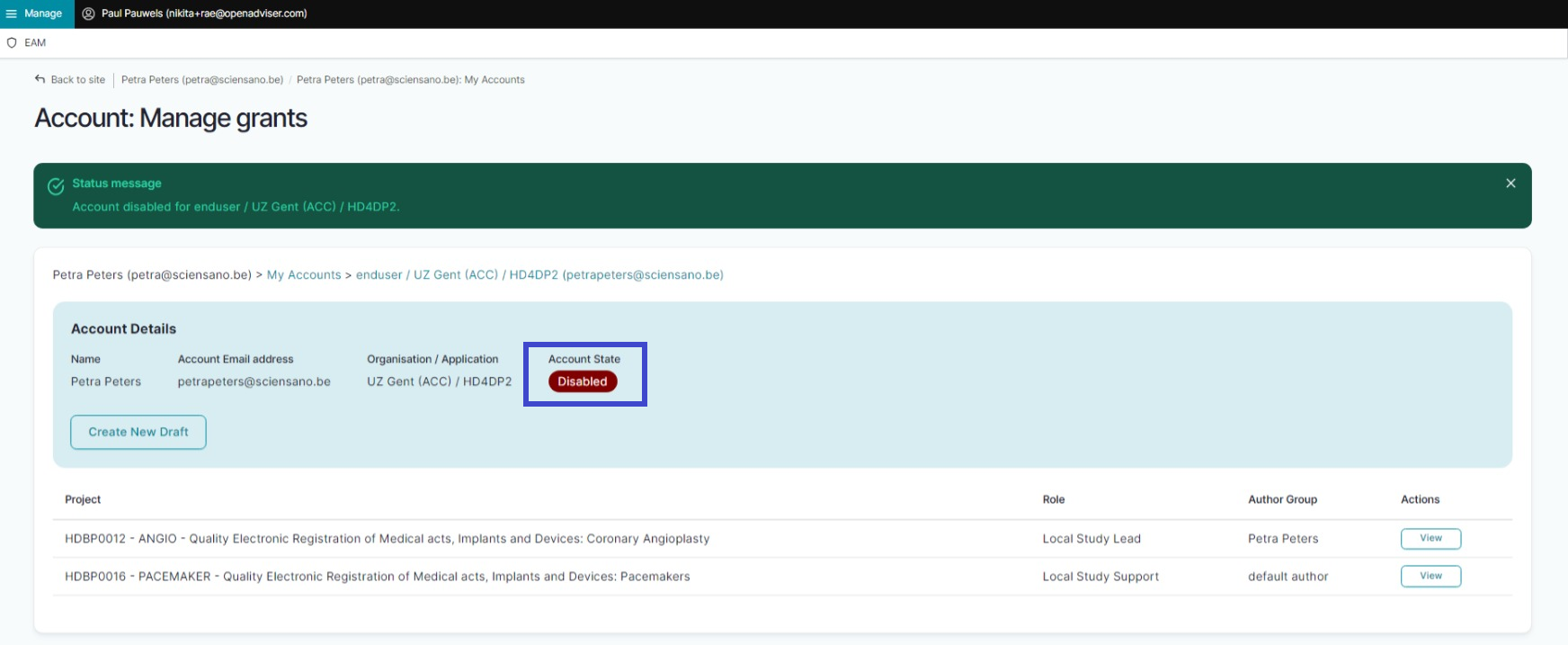
You have now succesfully disabled an account.
How to restore an account using the EAM interface? (own orgs)
The Access Manager profile page
The main My profile screen that appears after selecting the confirmation button shows the Personal information of the Access Manager as well as the Linked accounts of this profile. The list can be sorted by Account, Email or State.
Attention: The accounts listed in Linked accounts are NOT the accounts of other users you manage as an Access Manager.
Click on Manage to the top left of the screen, so that EAM appears. When hovering over this, the items EAM Users and EAM Accounts become visible.
Select EAM Accounts and Approval successively.
When clicking on Approval a page is opened with a list of end-user accounts that are waiting to be approved:
To disable an account you here need to click on the relevant Edit button in the Operations column.
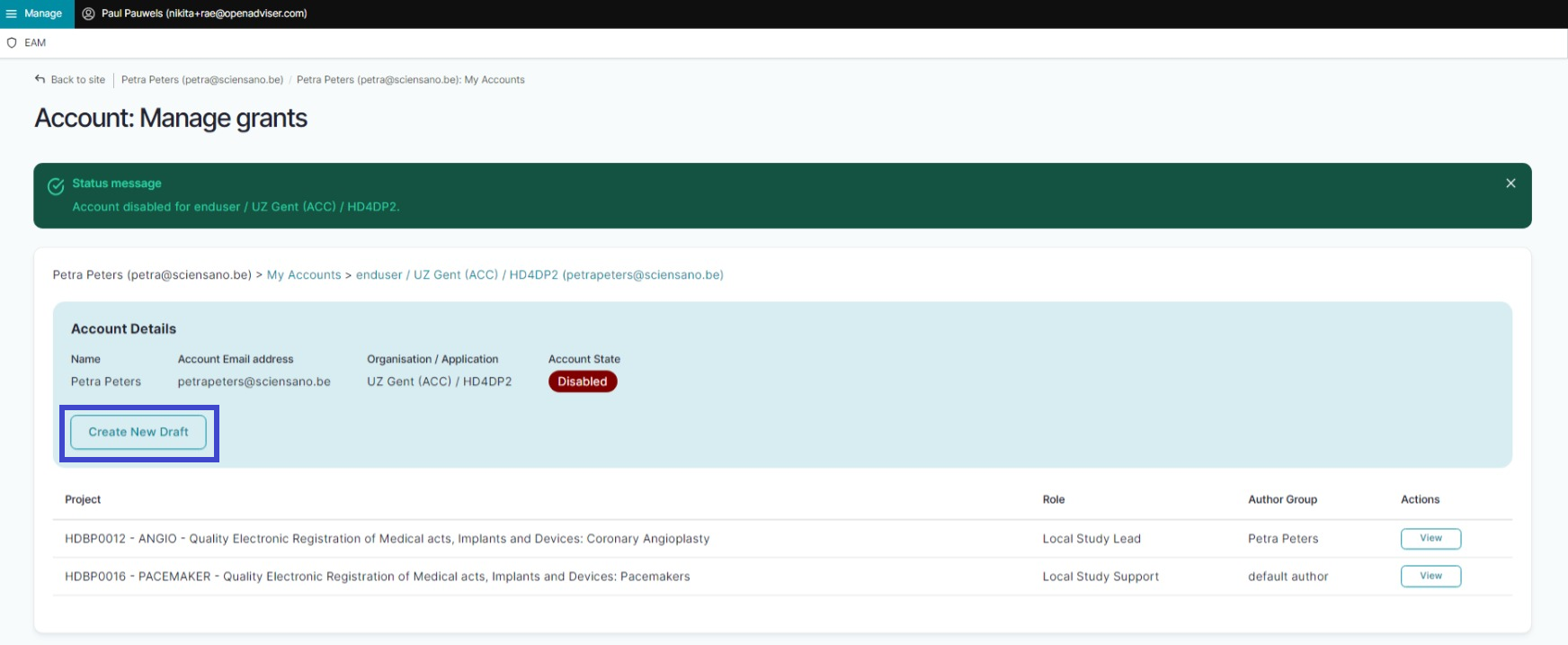
The Account: Manage grants screen appears in which you click now on the Disable button.
The Account state changes to Disabled.
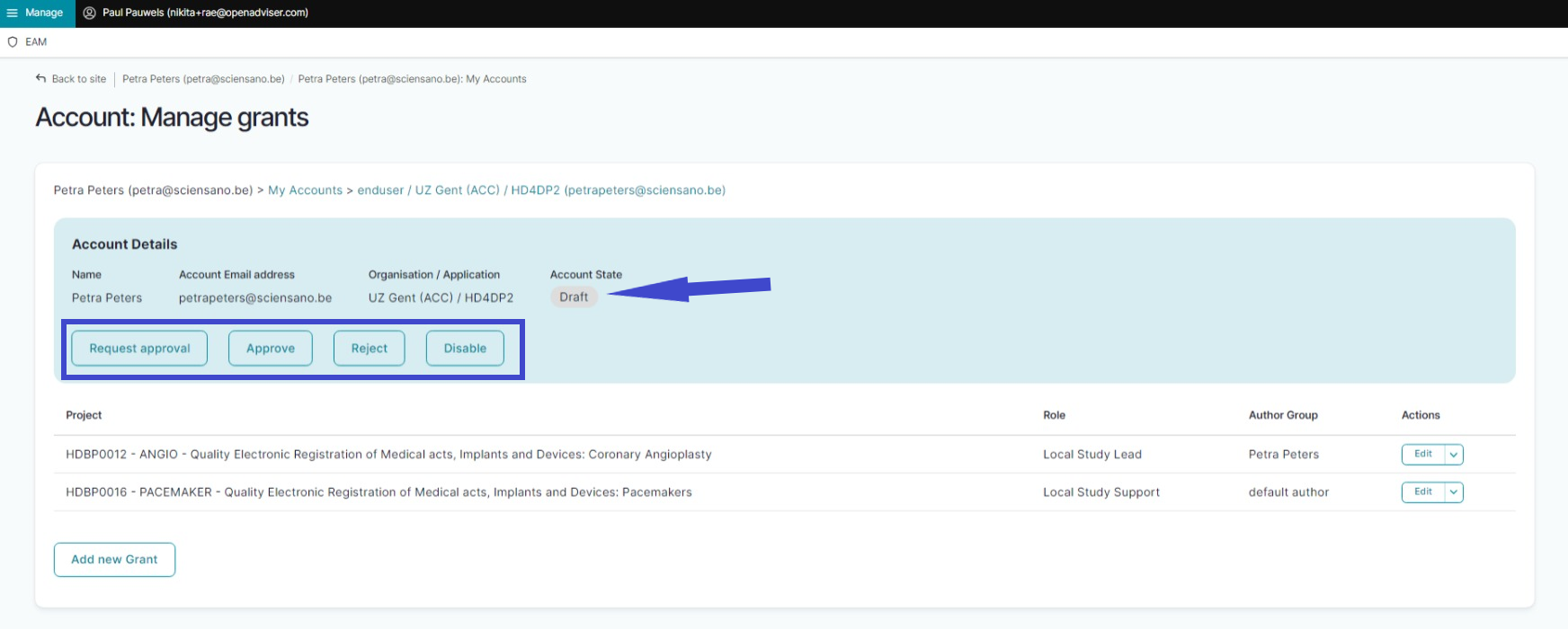
To restore the account you want to click on the Create New Draft button.
The account is reset to Draft state, giving the Access Manager the option to change it to Request approval, Approve, Reject or Disable.
How to change the user type to Access manager using the EAM interface?
The Access Manager profile page
The main My profile screen that appears after selecting the confirmation button shows the Personal information of the Access Manager as well as the Linked accounts of this profile. The list can be sorted by Account, Email or State.
Attention: The accounts listed in Linked accounts are NOT the accounts of other users you manage as an Access Manager.
Click on Manage to the top left of the screen, so that EAM appears. When hovering over this, the items EAM Users and EAM Accounts become visible. Click on EAM Users.

You will now see a list of users that can be sorted by the items in the column headings. To perform an action for a user, you need to select the relevant checkbox and go to the Action drop-down toggle at the bottom of the page.

Click on the toggle button and select Promote to Access Manager. Select Apply to selected items down-right of the screen to perform the change of the user type to Access Manager.

The action will be executed. In case the (authenticated) user is associated with multiple HCOs, the relevant item needs to be selected first and confirmed successively.

The change is published in the users overview.

How to change the user type to Authenticated user using the EAM interface? (csv users bulk import)
Video available here
The Access Manager profile page
The main My profile screen that appears after selecting the confirmation button shows the Personal information of the Access Manager as well as the Linked accounts of this profile. The list can be sorted by Account, Email or State.
Attention: The accounts listed in Linked accounts are NOT the accounts of other users you manage as an Access Manager.
Click on Manage to the top left of the screen, so that EAM appears. When hovering over this, the items EAM Users and EAM Accounts become visible. Click on EAM Users.
You will now see a list of users that can be sorted by the items in the column headings. To perform an action for a user, you need to select the relevant checkbox and go to the Action drop-down toggle at the bottom of the page.

Click on the toggle button and select Demote Access Manager. Select Apply to selected items down-right of the screen to perform the change of the user type to Access Manager.

On the security query page you click on the Execute action button to perform the change.

The change is published in the users overview.

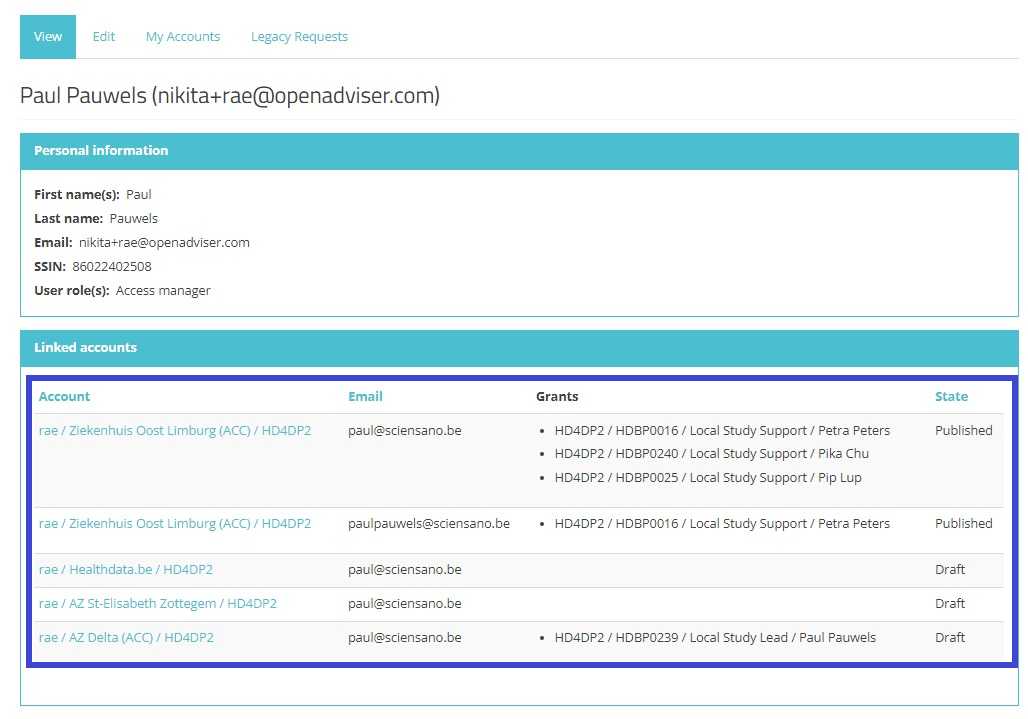
REMARK: An Access Manager automatically is an Authenticated User by logging in to the system, and can manage own projects and grants as shown on the personal landing page:
How to change the user type to Manager using the EAM interface?
An Access Manager is not able to carry out this action.
How to change the user type to Administrator using the EAM interface?
An Access Manager is not able to carry out this action.
How to reset the password of an account using the EAM interface? (FAS)
An Access Manager is not able to carry out this action.
How to view the accounts of all participants to an own project of the own organization using the EAM interface?
There is currently no concept "own project"
How to view the accounts of all participants to all projects of own organization using the EAM interface?
The Access Manager profile page
The main My profile screen that appears after selecting the confirmation button shows the Personal information of the Access Manager as well as the Linked accounts of this profile. The list can be sorted by Account, Email or State.
Attention: The accounts listed in Linked accounts are NOT the accounts of other users you manage as an Access Manager.
Click on Manage to the top left of the screen, so that EAM appears. When hovering over this, the items EAM Users and EAM Accounts become visible.
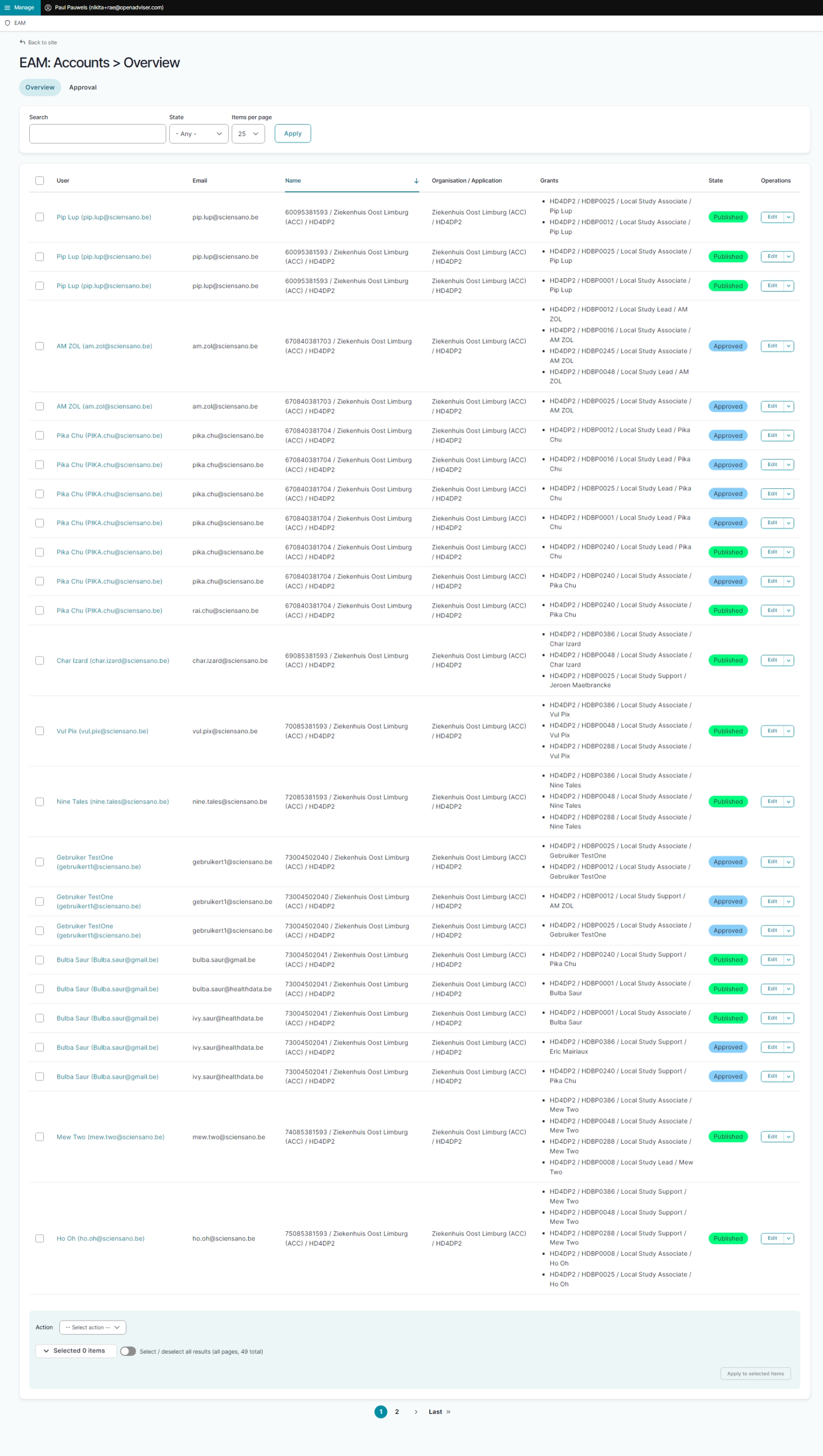
Click on EAM Accounts. You will now see the overview of all accounts of all users.
How to view the accounts of own projects using the EAM interface?
There is currently no concept "own project"
How to view all accounts of all projects of all organizations using the EAM interface?
An Access Manager is not able to carry out this action.
This documentation is being updated regularly. We try to provide as correct, complete and clear as possible information on these pages. Nevertheless, if you see anything in the documentation that is not correct, does not match your experience or requires further clarification, please create a support ticket via our portal (https://healthdatabe.atlassian.net/servicedesk/customer/portals) or send us an e-mail via support.healthdata@sciensano.be to report this documentation issue. Please, do not forget to mention the URL or web address of the page with the documentation issue. We will then adjust the documentation as soon as possible. Thank you!