 docs.healthdata.be
EAM actions using the EAM Portal
Table of contents
How to request an account using the EAM Portal?
How to approve an account request using the EAM Portal?
How to remove an account using the EAM Portal?
How to restore an account using the EAM Portal?
How to change the user type to Access manager using the EAM Portal?
How to change the user type to Authenticated user using the EAM Portal?
How to change the user type to Manager using the EAM Portal?
How to change the user type to Administrator using the EAM Portal?
How to reset the password of an account using the EAM Portal?
How to view the accounts of all participants of an own project of the own organization using the EAM Portal?
How to view the accounts of all participants of all projects of own organizations using the EAM Portal?
How to view the own project accounts using the EAM Portal?
How to view all accounts of all projects of all organizations using the EAM Portal?
How to request an account using the EAM Portal?
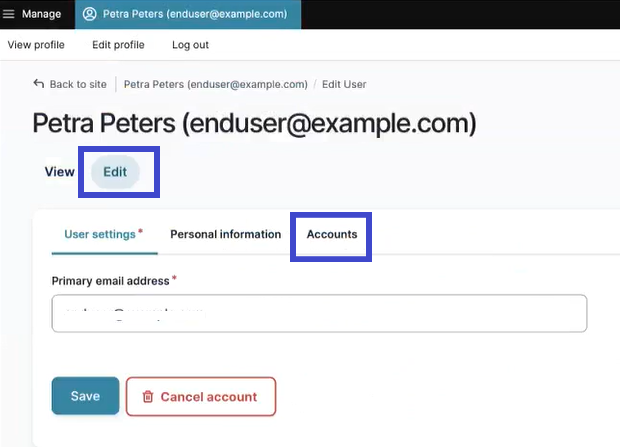
Go to your user profile, click on Edit to open the user editing screen and subsequently select the tab Accounts.
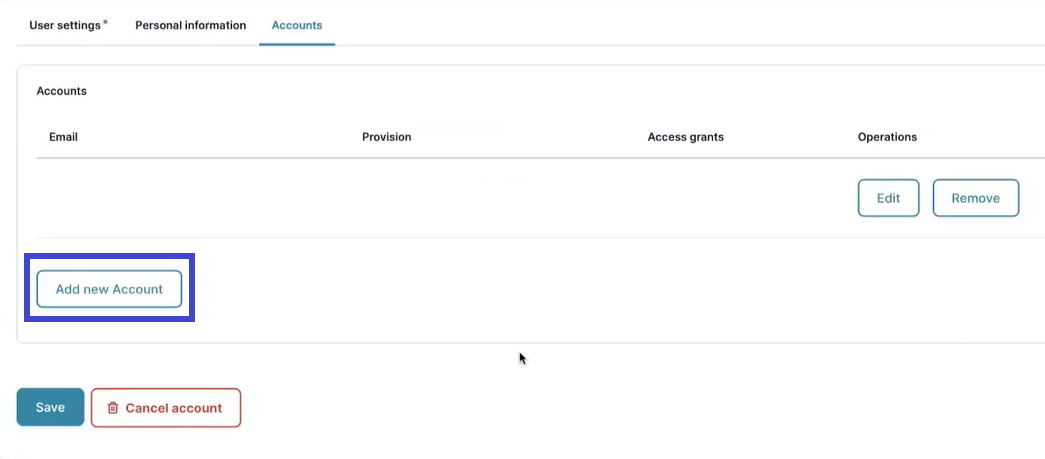
The Accounts tab allows you to add one or more accounts in case you require the registration of data for a single or different organizations. You will finally send them as account requests to the Access Manager for approval. To do so, click on the Add new Account button.
The Add Account window pops up.
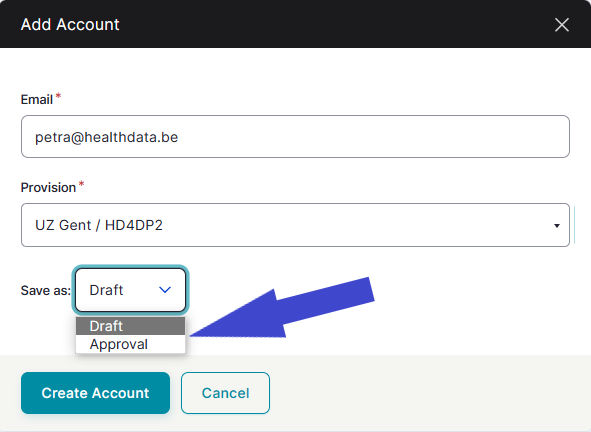
Complete the fields of the Add Account window (image above) with your e-mail address for your organization and select a provision. For the latter, you can search by organization name or application in a drop-down list.
Note: You want to save the account at this point as Draft, so you can edit it afterwards. When saving as Approval without addition of access grants, you would actually request an account without being able to access any projects.
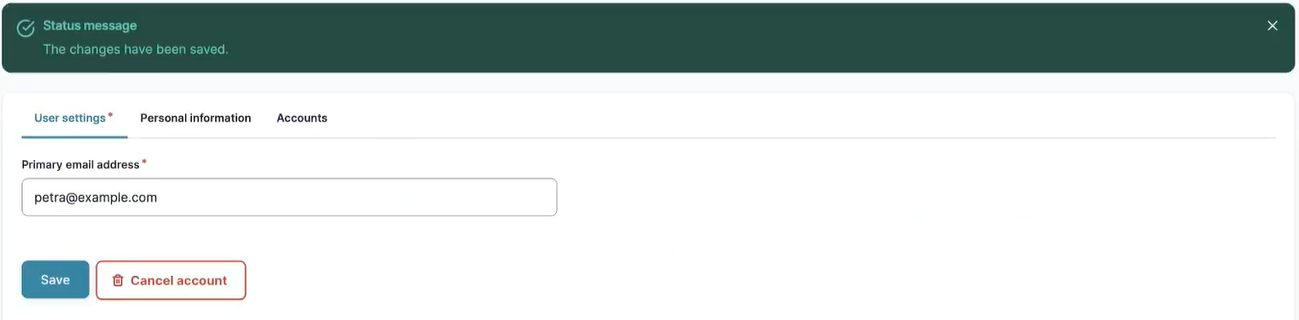
Click on the Create Account button and subsequently on the Save button to effectively add the account (!).
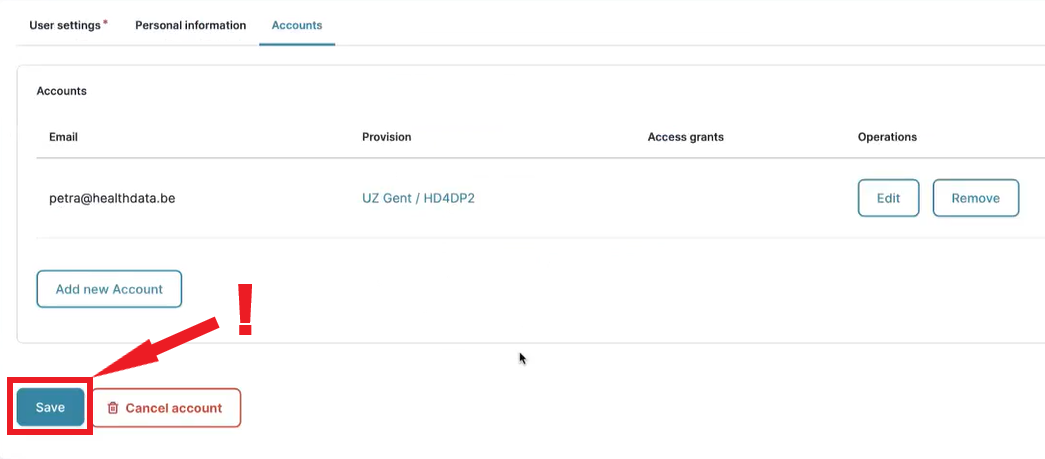
Succesfully saved changes will be confirmed with the following status message:
How to approve an account request using the EAM Portal?
An Authenticated User is not able to carry out this action.
How to remove an account using the EAM Portal?
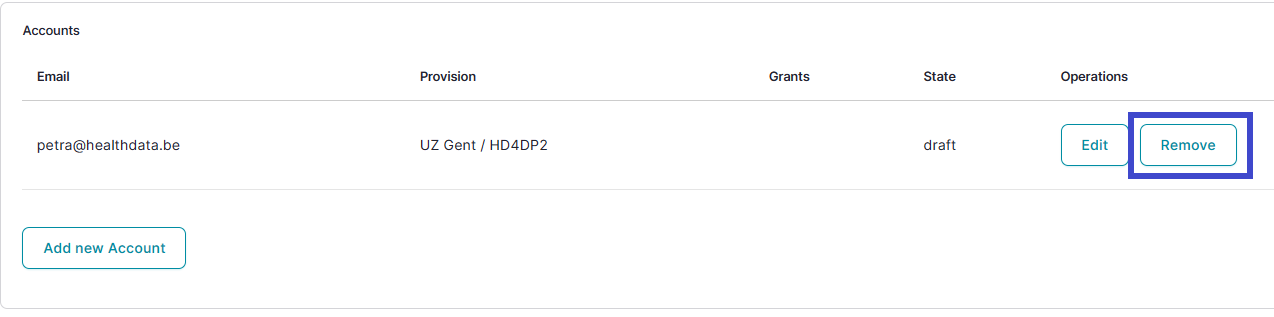
Go to your user profile, click on Edit to open the user editing screen and subsequently select the tab Accounts.
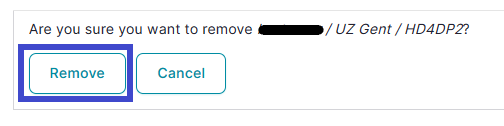
And to confirm:
How to restore an account using the EAM Portal?
An Authenticated User is not able to carry out this action.
How to change the user type to Access manager using the EAM Portal?
An Authenticated User is not able to carry out this action.
How to change the user type to Authenticated user using the EAM Portal?
- yes (autom on login)
How to change the user type to Manager using the EAM Portal?
An Authenticated User is not able to carry out this action.
How to change the user type to Administrator using the EAM Portal?
An Authenticated User is not able to carry out this action.
How to reset password of an account using the EAM Portal?
An Authenticated User is not able to carry out this action.
How to view the accounts of all participants of an own project of the own organization using the EAM Portal?
There is currently no concept "own project"
How to view the accounts of all participants of all projects of own organizations using the EAM Portal?
An Authenticated User is not able to carry out this action.
How to view the own project accounts using the EAM Portal?
There is currently no concept "own project"
How to view all accounts of all projects of all organizations using the EAM Portal?
An Authenticated User is not able to carry out this action.