 docs.healthdata.be
Submit an Orthopride total femur registration "Revision"
A "Revision" registration can be submitted at the end of the creation process using the study form (see: Create an Orthopride total femur registration "Revision").
When the registration was completed using the study form, saved and there are no more validation errors, the registration can also be submitted via the overview table. This method can be useful to submit multiple registrations in the same action.
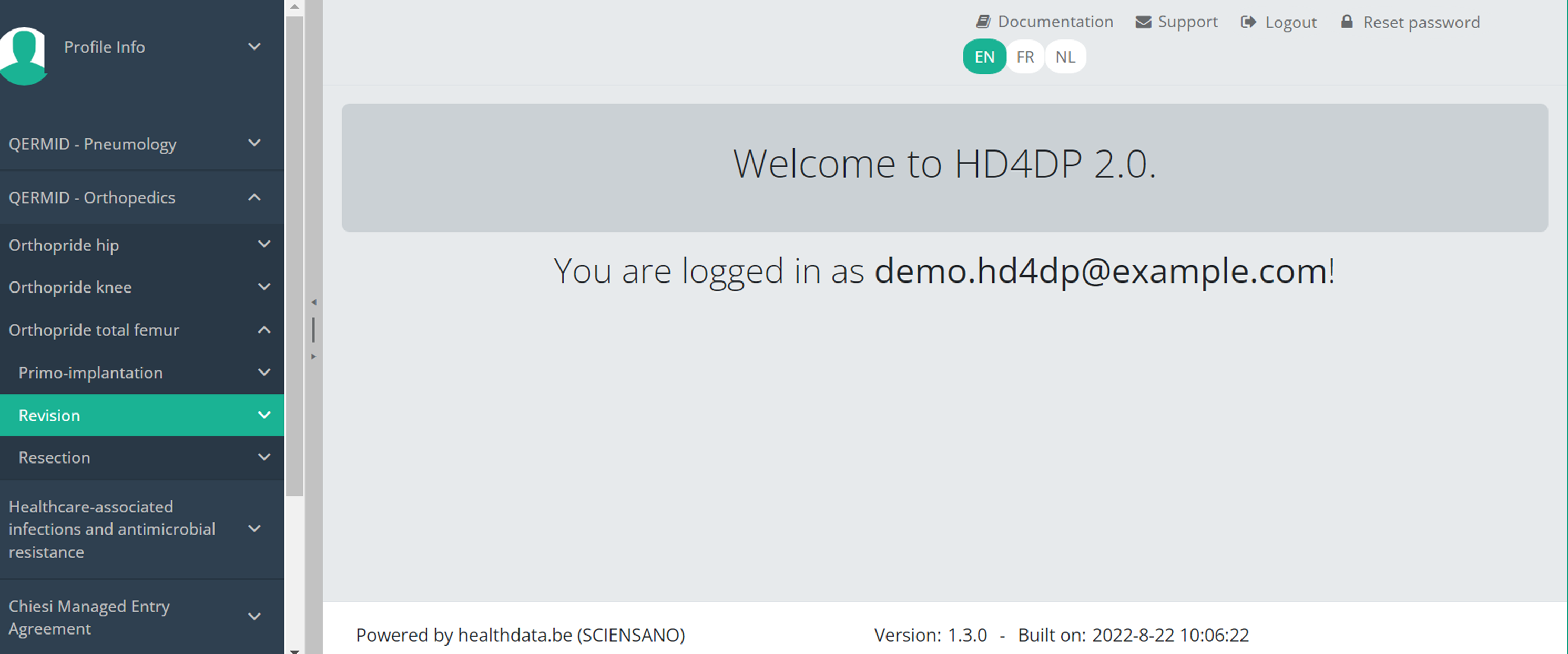
To submit a "Revision" registration for the study project Orthopride total femur using the overview table, select "Revision" in the dark blue left menu.
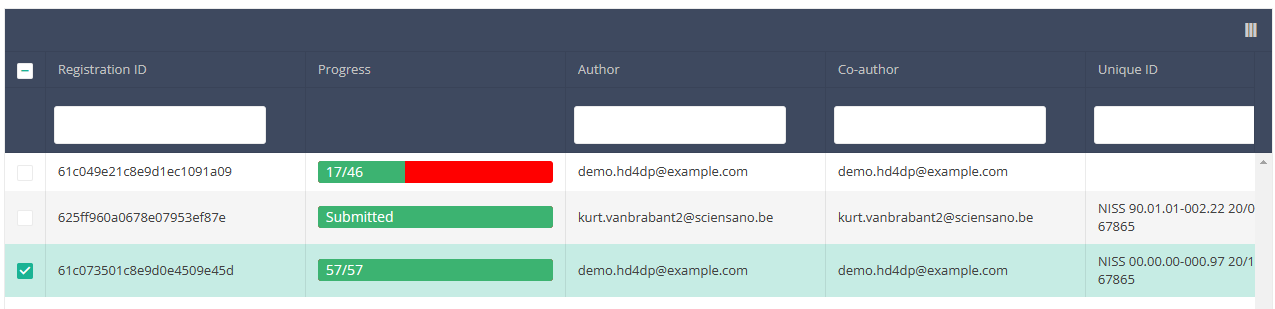
When you select a version of this course of study, you will see the summary table in the main body of your screen. The table includes the following items: Registration ID, Progress, Author, Co-author, Unique ID, Business Key, Registration Code, National registry number of the patient…

Use the filters in the header of the table to find the registration(s) you want to submit. For example, you can use the filters "Status" (set to "Open") and "Validation Errors" (set to "0") to find the registrations that are eligible for submission.

Once you have found the registration(s) you want to submit, you must select the registration(s) by checking the checkbox at the beginning of the row in the summary table.
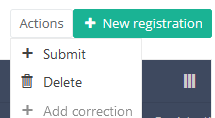
Then you need to press the "Actions" button at the top right of the summary table.

There are now two options, "Submit" and "Delete". Now press "Submit".
After you press "Submit," a pop-up message will appear asking you to confirm the submission of the selected registration(s). If you are sure about this action, press "Confirm." If not, press "Cancel."
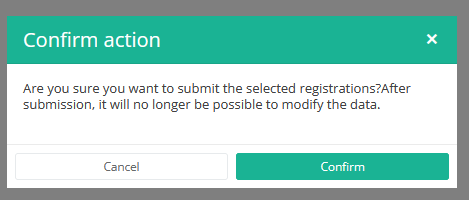
Once you confirm the submission, you cannot change the content of the registration(s). Sent registrations can also no longer be deleted.
The sent registration remains present in the summary table, but the status has changed from "Open" to "Submitted".
If you want to see only "Open" registrations, you can adjust the filter on the "Status" item in the summary table.
A registration can be submitted at the end of the creation process using the study form (see: Create a [project] registration).
When the registration was completed using the study form, saved and there are no more validation errors, the registration can also be submitted via the overview table. This method can be useful to submit multiple registrations in the same action.
Cette page a été traduite à l'aide d'une machine de traduction automatique dans le but de fournir le contenu plus rapidement dans votre langue. Un traducteur humain n'a pas encore révisé cette page. Par conséquent, cette page peut encore contenir des erreurs grammaticales et autres erreurs linguistiques. Si vous voyez quelque chose dans la documentation qui n'a pas été traduit correctement, veuillez nous contacter à support.healthdata@sciensano.be (n'oubliez pas d'inclure l'adresse Web de la page). Nous ajusterons ensuite la traduction. Merci!Cette documentation est encore en construction. Nous essayons de présenter les informations aussi correctes, complètes et claires que possible. Cependant, si vous voyez un élément dans la documentation qui est incorrect, ne correspond pas à votre expérience ou nécessite des éclaircissements supplémentaires, veuillez créer ticket support via notre portail Jira Service Management ou nous envoyer un e-mail à support.hd@hda.fgov.be pour signaler ce problème dans la documentation. N'oubliez pas d'inclure l'URL de la page. Nous ajusterons la documentation. Merci!