 docs.healthdata.be
Send a correction registration
Pour envoyer une correction d'un enregistrement soumis, vous devez soumettre à nouveau l'enregistrement complet. Un aperçu des corrections soumises est disponible via le formulaire de correction générique de HD4DP v2.
La fonction (et le bouton) Ajouter des corrections à un formulaire d'enregistrement a été supprimée. Elle n'est plus disponible, ni dans le tableau de synthèse, ni dans la page de prévisualisation d'un enregistrement.
Soumettre à nouveau l'enregistrement complet
La meilleure façon d'envoyer une correction est de remplir le formulaire d'enregistrement complet avec les valeurs correctes et de le soumettre à nouveau. Dans ce cas, la version la plus récente de l'enregistrement reçue par healthdata.be sera considérée comme correcte.
La recevabilité d'un enregistrement est déterminée par ce que l'on appelle une business key. Il s'agit d'un ensemble unique de valeurs de champs spécifiques par enregistrement, comme une combinaison de l'identifiant du patient et de la date d'hospitalisation, ou du numéro de registre national et de l'identifiant de l'échantillon. La business key est créée lors de la soumission de l'enregistrement original et permet ainsi d'identifier l'enregistrement le plus récent reçu dans la base de données de healthdata.be en cas de nouvelle soumission.
Attention : si l'un des champs constituant la business key doit être corrigé, l'enregistrement qui sera renvoyé aura une business key différente. Par conséquent, l'enregistrement originel et le nouvel enregistrement seront considérés comme corrects, puisque la business key n'est pas identique. Malheureusement, nous ne pouvons pas supprimer immédiatement votre enregistrement incorrect. Nous sommes actuellement à la recherche d'une solution pour le faire ultérieurement.
Il existe deux options pour soumettre à nouveau un enregistrement :
Option 1 : Soumission via API S2S / Téléchargement du fichier CSV
La correction des valeurs est effectuée directement dans le fichier json ou csv. Pour soumettre à nouveau l'enregistrement complet via le back-end, veuillez vous référer aux pages de documentation technique applicables. Les exemples présentés dans les liens ci-dessous concernent le projet Pacemaker Primo-implantation :
- Pour soumettre l'enregistrement complet sous la forme d'un fichier .json via l'API S2S, cliquez ici.
- Pour soumettre l'enregistrement complet sous la forme d'un fichier .csv via le téléchargement d'un fichier CSV, cliquez ici.
Option 2 : Soumission via l'application web HD4DP 2.0
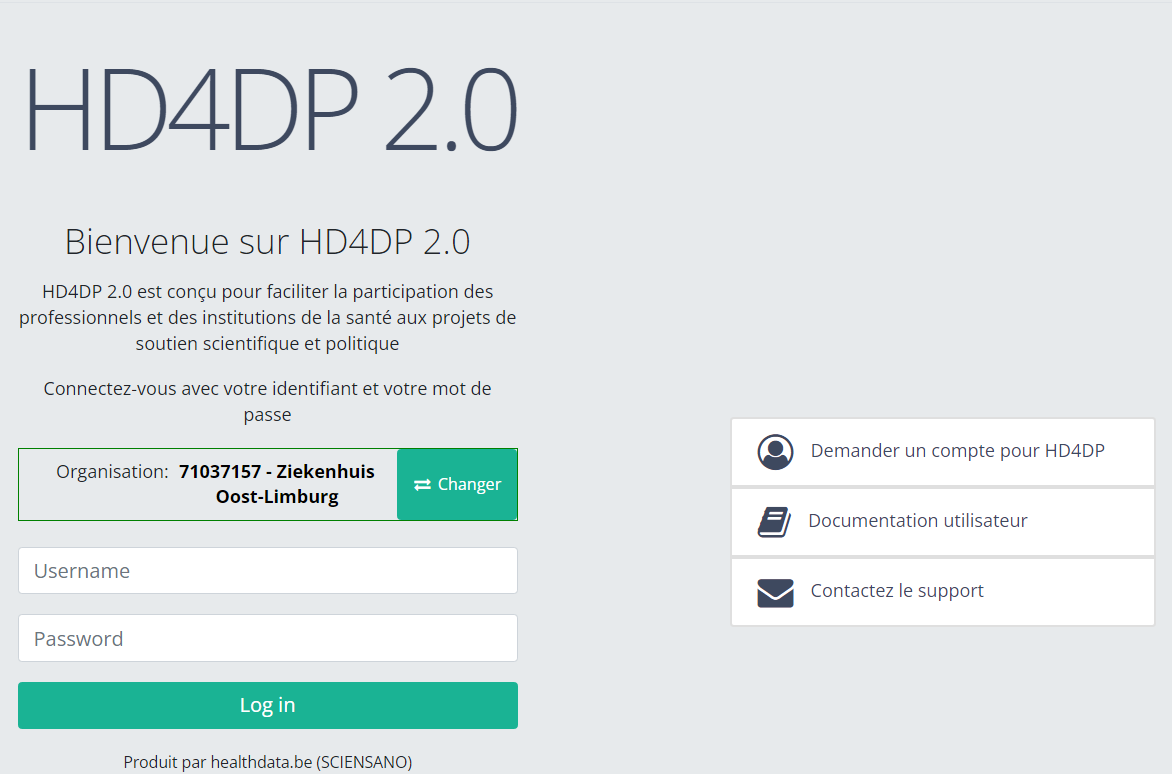
Tout d'abord, vous devez accéder à l'application web HD4DP v2, naviguer vers le programme d'études et sélectionner le projet d'étude souhaité dans le menu bleu foncé de gauche. Ensuite, remplissez à nouveau manuellement le formulaire d'enregistrement complet avec les valeurs correctes. Soumettez à nouveau le formulaire d'enregistrement complété.
L'enregistrement précédemment soumis ne sera plus pertinent en fonction de la business key.
Le formulaire de correction générique
Le Formulaire de Correction que vous trouverez dans la liste des programmes d'études et des projets d'études de l'application web HD4DP v2 contient une vue d'ensemble de toutes les corrections d'enregistrement soumises.
Si vous souhaitez avoir un aperçu de ces corrections d'enregistrements, naviguez vers le Formulaire de Correction du programme d'études, puis vers le Formulaire de Correction du projet d'études. Enfin, sélectionnez la version la plus récente.

Les corrections des enregistrements des différents projets seront affichées en LECTURE SEULE dans le tableau récapitulatif.
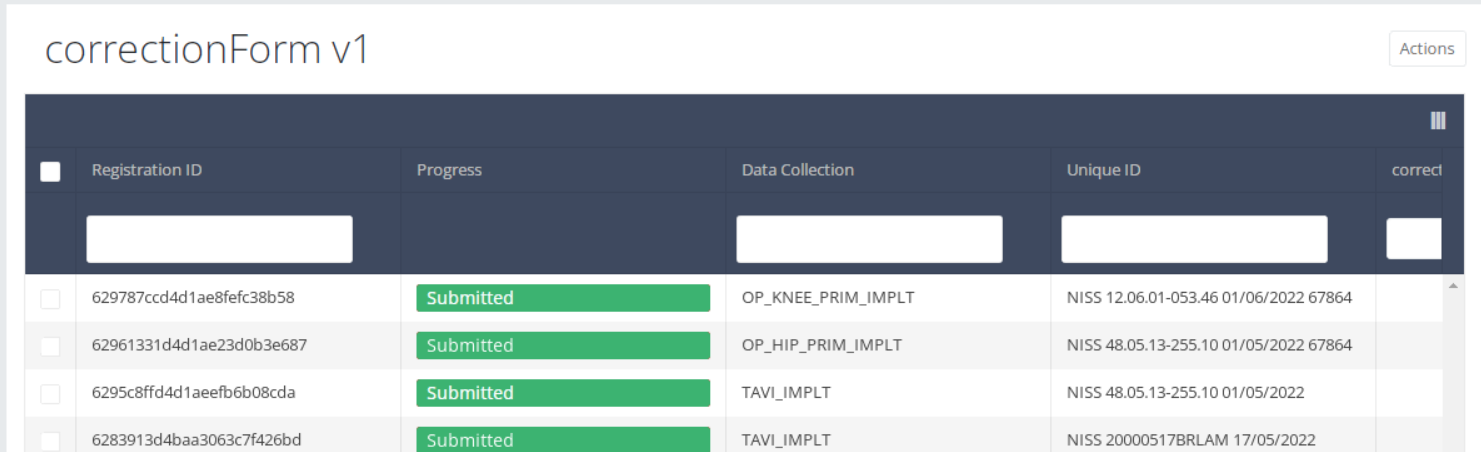
Suppose you want to send a correction registration of a registration. In that case you need to navigate to the study program and subsequently the study project concerned. Then, you need to select the respective part in the dark blue left menu.
Important: A correction registration can be added only if the status of the registration is submitted.
A correction registration can be added in two ways. The first way is via the overview table and the second way is in the preview page of a registration.
Send a correction via Overview table
When the registration was submitted, the correction registration can be added via the overview table:

When you select a version of this study section, you will see the overview table in the main part of your screen. This table contains, among other things: Registration ID, Progress, Author, Co-author, Unique ID, Business Key, Registration Code, National Registry ID of the patient…

Use the filters in the table header to find the registration that need a correction. For example, you can use the "Status" (set to "Sent") filter to get only submitted registrations.

Then, you must press the "Actions" button at the top right of the overview table.
Three options are displayed: "Submit", "Delete" en "Add correction" but only option "Add correction" is available for submitted registrations. Now press "Add correction".

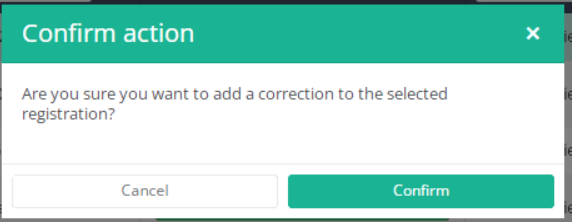
After you press "Add correction", a pop-up window will appear asking you to confirm the action of adding a correction registration for selected registration. If you are sure of this action, press "Confirm". If not, press "Cancel".
If you confirm, you will be redirected to correction registration form.
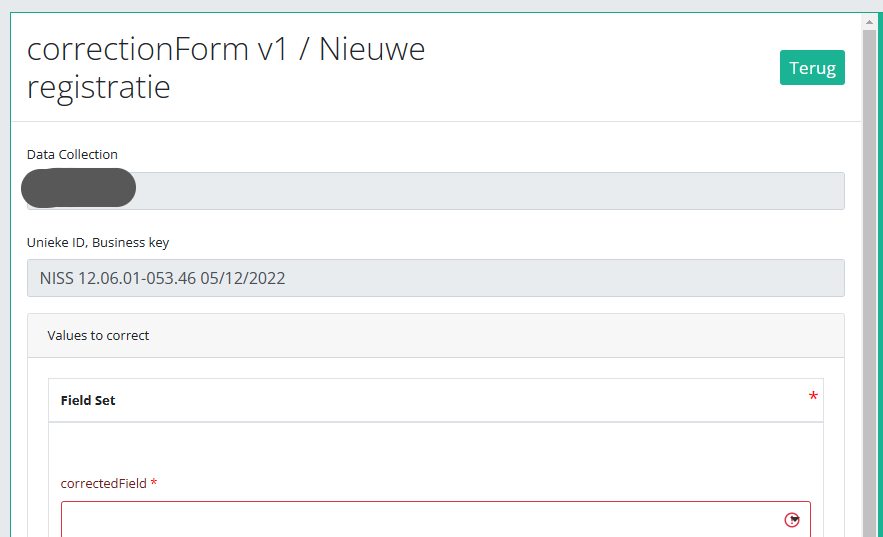
The correction DCD has no more than:
- Business key of original registration,
- The name of Data Collection,
- The field or variable which is wrong,
- The correction value,
- Comment field.
Some fields are automatically filled with values of original registration, like :"Data collection " and "Business_KEY" .
The number of fields to correct in the same correction registration is limited to three. You can add another field to correct by clicking on "Add another".
When you finish filling the correction registration, you can add a comment and send the correction by clicking on the "Submit" button.

Send a correction via Preview page
We can also add a correction form in the preview page of a registration.
Click on the registration to correct in overview table, you will be redirected to the preview page.
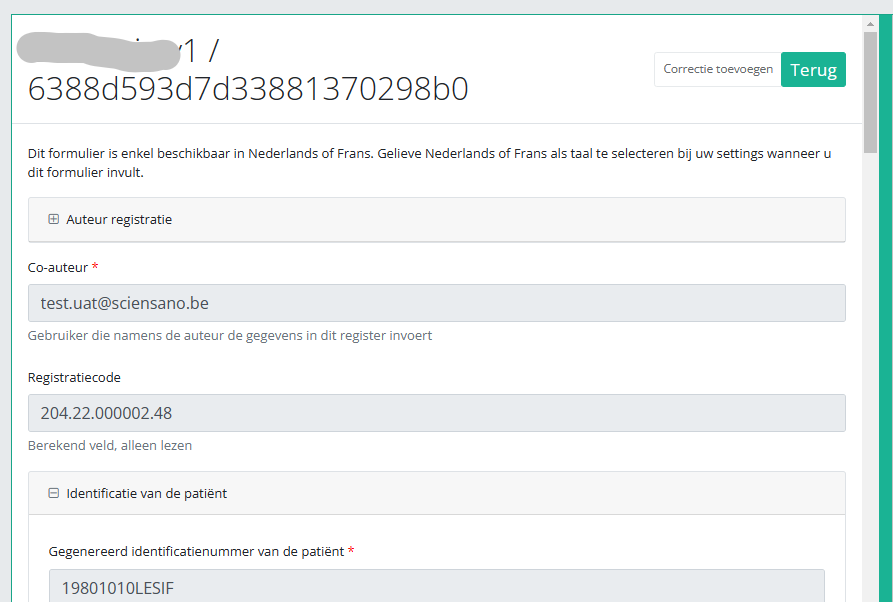
Click on the "Add correction" button to add a correction for current registration.

Follow same steps described in previous section (See "Send a correction via Overview table")
Preview a correction registration
Correction form is a generic form available for all projects and DCDs.
If you want to preview "correction registrations" already submitted, you have to navigate to the study program Correction form and then to the study project Correction form. There you need to select the last version of "correction form" in the dark blue left menu.
All corrections registrations will be displayed(of different projects). You can use the filters in the table header to find a specific registration.
If you want to preview a correction registration, you need to click on, then you will be redirected to preview page.
<<illustration for Belgian Sexual Assault Care Centres: Monitoring and evaluation not yet available>>
This documentation is being updated regularly. We try to provide as correct, complete and clear as possible information on these pages. Nevertheless, if you see anything in the documentation that is not correct, does not match your experience or requires further clarification, please create a support ticket via our portal Jira Service Management or send us an e-mail via support.hd@hda.fgov.be to report this documentation issue. Please do not forget to mention the URL of the page. We will then adjust the documentation as soon as possible. Thank you!