 docs.healthdata.be
Envoyer un enregistrement de correction
Supposons que nous voulions envoyer un enregistrement de correction d'un enregistrement Spine chirurgie. Dans ce cas, nous devons naviguer vers le programme d'études QERMID Othopédie, puis vers le projet d'étude Spine chirurgie. Là, nous devons sélectionner « Chirurgie » dans le menu de gauche bleu foncé.
Important : un enregistrement de correction ne peut être ajouté que si le statut de l'enregistrement est envoyé.
Un enregistrement de correction peut être ajouté de deux manières. La première façon est via le tableau récapitulatif et la deuxième façon, dans la page de prévisualisation d'un enregistrement.
Envoyer une correction via le tableau récapitulatif
Lorsque l'enregistrement a été envoyé, l'enregistrement de correction peut être ajouté via le tableau récapitulatif :

Lorsque vous sélectionnez une version de cette section d'étude, vous verrez le tableau récapitulatif dans la partie principale de votre écran. Ce tableau contient, entre autres, les éléments suivants : ID d'enregistrement, Progrès, Auteur, Co-auteur, ID unique, Business key, Code d'enregistrement, Numéro de registre national du patient...
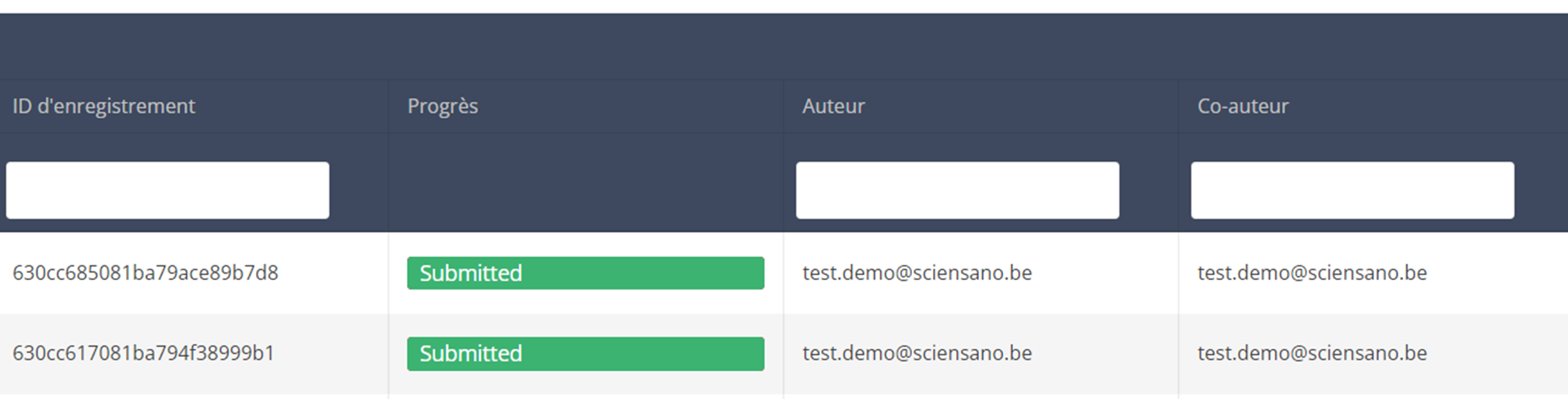
Use the filters in the table header to find the registration that need a correction. For example, you can use the "Status" (set to "Verzonden" (Submitted)) filter to get only submitted registrations.
Utilisez les filtres dans l'en-tête du tableau pour trouver les enregistrements qui ont besoin d'une correction. Par exemple, vous pouvez utiliser le filtre « Statut » (défini sur « Envoyé ») pour obtenir uniquement les enregistrements envoyés.

Then, you must press the "Acties" button (Actions) at the top right of the summary table.
Three options are displayed : "Registraties verzenden" (Submit) en "Registraties verwijderen" (Delete) en "Correctie toevoegen" (Add correction) but only option "Correctie toevoegen" is available for submitted registrations. Now press "Correctie toevoegen".

After you press "Correctie toevoegen", a pop-up window will appear asking you to confirm the action of adding a correction registration for selected registration. If you are sure of this action, press "Bevestig" (Confirm). If not, press "Annuleren" (Cancel).

If you confirm, you will be redirected to correction registration form.

The correction DCD has no more than:
- Business key of original registration,
- The name of Data Collection,
- The field or variable which is wrong,
- The correction value,
- Comment field.
Some fields are automatically filled with values of original registration, like :"Data collection " and "Business_KEY" .
The number of fields to correct in the same correction registration is limited to three. You can add another field to correct by clicking on "Voeg een ander(e) toe" (Add another).
When you finish filling the correction registration, you can add a comment and send the correction by clicking on "Verzenden" (Submit) button.

Send a correction via Preview page
We can also add a correction form in the preview page of a registration.
Click on the registration to correct in overview table, you will be redirected to the preview page.

Click on "Correctie toevoegen" (Add correction) button to add a correction for current registration.

Follow same steps described in previous section( See "Send a correction via Overview table")
Preview a correction registration
Correction form is a generic form available for all projects and DCDs.
If you want to preview "correction registrations" already submitted, you have to navigate to the study program Correction form and then to the study project Correction form. There you need to select the last version of "correction form" in the dark blue left menu.

Tous les enregistrements de correction seront affichés (de différents projets). Vous pouvez utiliser les filtres dans l'en-tête du tableau pour trouver un enregistrement spécifique.
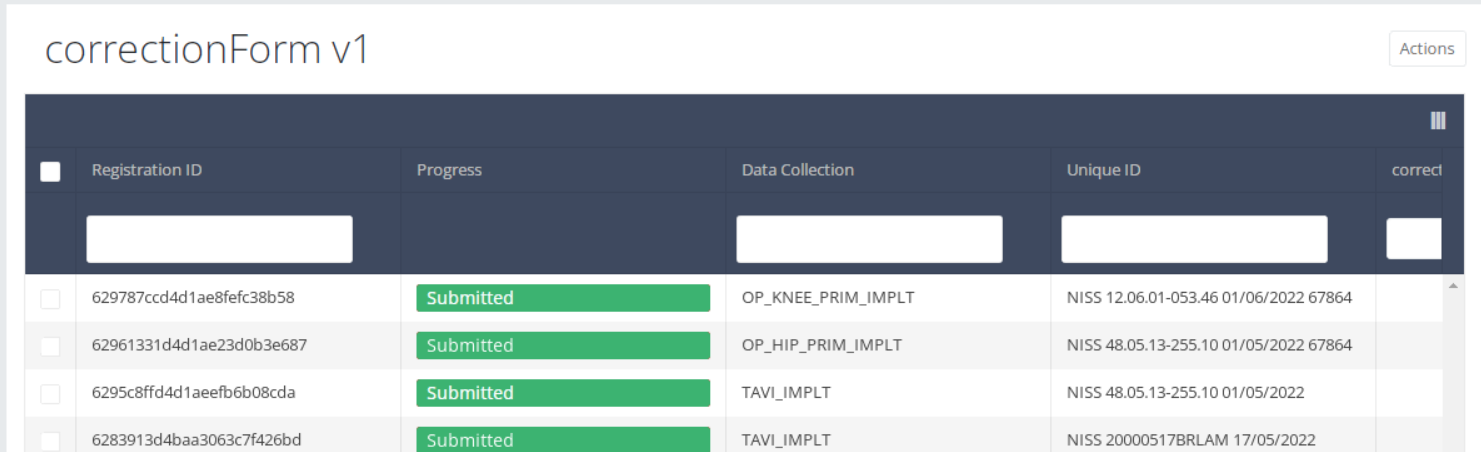
Si vous voulez avoir un aperçu d'un enregistrement de correction, vous devez cliquer cet enregistrement, puis vous serez redirigé vers la page d'aperçu.
<<illustration pour Spine chirurgie pas encore disponible >>
Cette documentation est encore en construction. Nous essayons de présenter les informations aussi correctes, complètes et aussi claires que possible. Cependant, si vous voyez un élément dans la documentation qui est incorrect, ne correspond pas à votre expérience ou nécessite des éclaircissements supplémentaires, veuillez créer ticket support via notre portail (https://healthdatabe.atlassian.net/servicedesk/customer/portals) ou nous envoyer un e-mail à support.healthdata@sciensano.be pour signaler ce problème de documentation. N'oubliez pas d'inclure l'URL ou l'adresse Web de la page avec le problème de documentation. Nous ajusterons ensuite la documentation. Merci!