 docs.healthdata.be
Export of NIPPIN reports
On this page we describe how the NIPPIN reports can be exported in the Self-Service Portal application.
The functionality to export data requires the assignment of a member with the role of a "NIPPIN Manager". The assignment of a NIPPIN Manager is described here
Once you are logged in, you can select the healthcare organization on the home page.

Subsequently you can either export the submitted data by clicking the “CSV export” button or review the NIPPIN reports by clicking the “NIPPIN” button”.

A list of the registries for which a request of report can be selected. This list is composed of registries for which a reimbursement is foreseen. An overview of the list is described here.

By clicking on one of these registries, a list of records for which a CSV file was generated will appear. This list contains the validated MyCarenet messages as generated every night.
A specific period of the reported NIPPIN files can be requested by selecting the appropriate start and end date.
The Start and End date are based on the implant date.
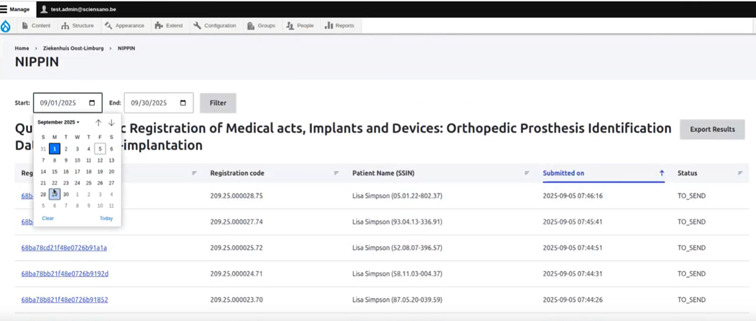
Finally the request is initiated by clicking the “export Result” button.
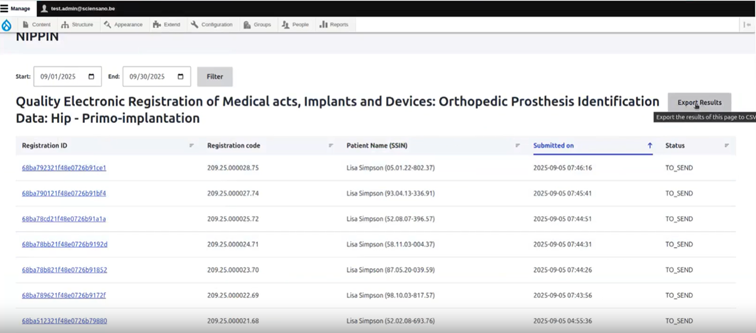
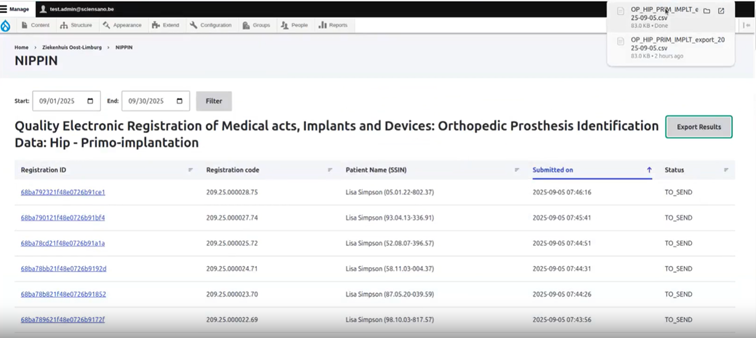
The requested files will be available in the download folder.
Results
| Status | Info |
| valid | A valid status means the payload looks okay and the nippin_status is SENT or TO_SEND. |
| invalid | An invalid status means the payload is wrong and the nippin_status is INVALID or ARCHIVED. The issue needs to be investigated by healthdata.be. Please create a ticket in our support portal. |
| not_found | No nippin message was created for the localdwh message. The issue needs to be investigated by healthdata.be. Please create a ticket in our support portal. |
| not_sent | This status is used when a payload is not able to be delivered to MyCareNet. The communication problem needs to be resolved and the messages need to be resend to MyCareNet. Please create a ticket in our support portal. |
Below is an example of the requested file.

