 docs.healthdata.be
Creation of users and organisations
Initial setup
Upon installation the Self-Service Portal will be completely empty, but in a few steps you can set up the required groups, users and roles to get it working.
Create a new User Manager.
Every installation needs at least 1 user manager. You can create one with the administrator through admin/people/create. Or a a new User Manager can be created with just a few simple drush commands.
drush user-create <username> --mail="<user email>" --password="<user password>"
drush user-add-role "manager" <username>
⚠️ It’s probably handier to use the email address as <username>. This allows users to login with their email address which is often easier to remember than a username.
Create the organisations for the installation.
Organisations are provided using the contributed Groups module, so to create new Organisations, you’ll be creating new groups.
Visit {url}/admin/group and click Add Group
The Title and Org Nihdi fields are required. You don’t have to fill in a revision Log Message.

Once all groups are created, you can add members to the groups.
Add members to an organisation.
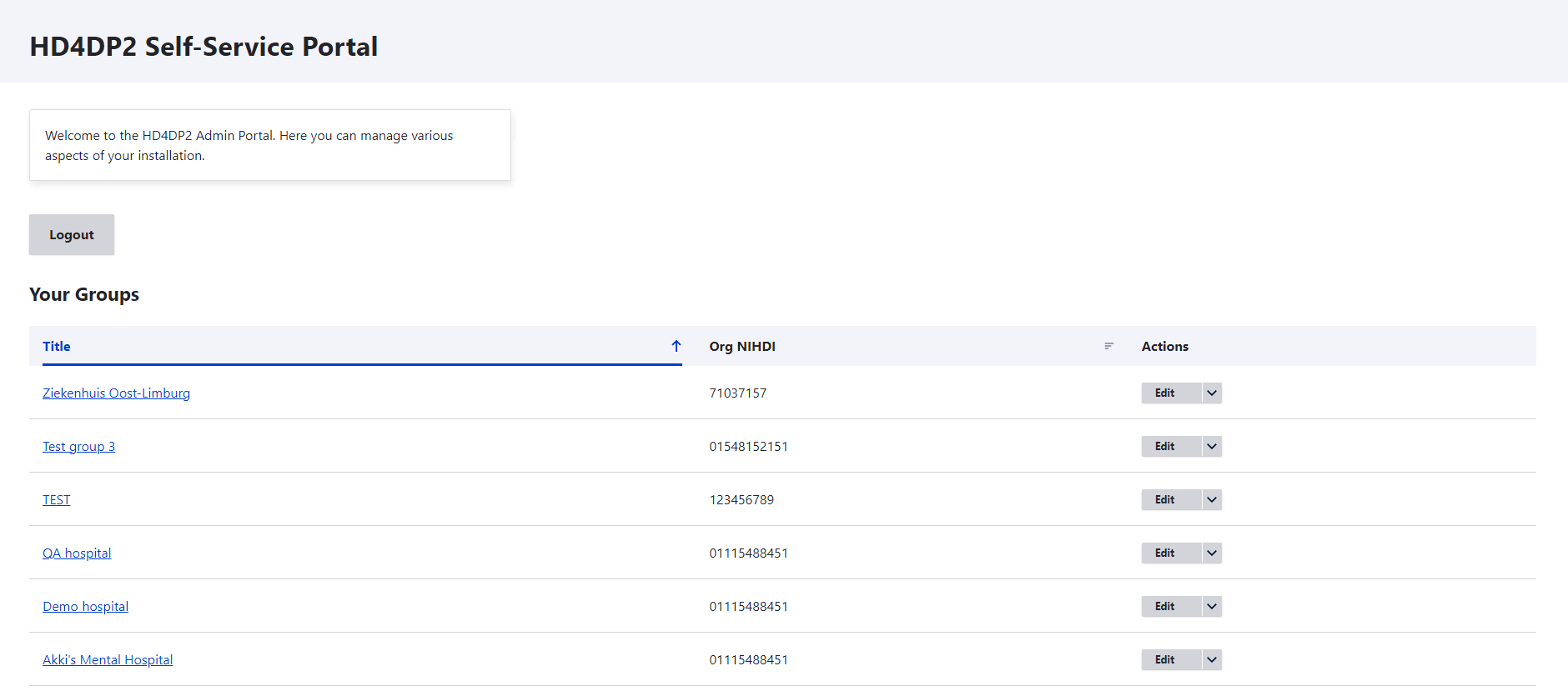
On the homepage, you’ll get an overview of all orgs. Click on the name of one of them to see the details.
Trough the Members you can find the Add Member button to add an existing user or a new user to the organisation.
You’ll be directed to a simple form where you can enter the users email address. In the background we’ll do a lookup for that email address. If the users already exists you’ll be shown a form with roles, but without a password field. If the user does not exist yet, you’ll also have to provide a password for this user.
After the creation you’ll be redirected to the members overview again and can add another member easily.
Managing Certificates
As a user with the Certificate Editor role, you can add a new p12 certificate for your organisation. If you have a user with just that role, you can easily get to the overview per org on the homepage.
Click on one of the Certificates buttons to view the history of the certificate of this org, and also add a new one directly.
Through the + Add Certificate button you’ll immediately be asked for a p12 file and a password. This form will also validate the certificates. Check if there are two keys inside and that the password matches.
⚠️ Previous versions will automatically become unpublished.
View the log of one certificate upload
The processing of the p12 file will occasionally send status updates. These can be tracked on the certificates overview, this view will always show the latest status update. When you click the status it will show the log of all previous log messages