HD4DP v2 MyCareNet
HD4DP v2 MyCareNetHD4DP v.2 permits the administrative obligation of reporting to the insurance institutions. The limited necessary data are sent via HD4DP v2 to the MyCarenet interface of the National Intermutualistic College (NIC). This transmission of nominative data occurs in parallel with the transmission of pseudonymized data to the healthdata.be platform.
Two options are available to enable the transmission of data from HD4DP v.2 to the National Intermutualistic College (NIC):
Only for the following DCDs a message will be sent to MyCareNet:
- 'DEFIB_ELECT',
- 'DEFIB_PRIM_IMPLT',
- 'DEFIB_REPL',
- 'MVO_IMP',
- 'OP_HIP_PRIM_IMPLT',
- 'OP_HIP_RESEC',
- 'OP_HIP_REVIS',
- 'OP_KNEE_PRIM_IMPLT',
- 'OP_KNEE_RESEC',
- 'OP_KNEE_REVIS',
- 'OP_MP_PRIM_IMPLT',
- 'OP_MP_RESEC',
- 'OP_MP_REVIS',
- 'PITTER',
- 'QERMID_Pacemaker_ Remplacement',
- 'QERMID_Pacemaker_Ajout_remplacement_electrode',
- 'QERMID_Pacemaker_Primo_implantation',
- 'SPIN_SURG',
- 'TAVI_IMPLT',
- 'ZEPHYR_PRIM_IMPLT',
- 'ZEPHYR_REPLAC',
This documentation is being updated regularly. We try to provide as correct, complete and clear as possible information on these pages. Nevertheless, if you see anything in the documentation that is not correct, does not match your experience or requires further clarification, please create a support ticket via our portal (https://healthdatabe.atlassian.net/servicedesk/customer/portals) or send us an e-mail via support.healthdata@sciensano.be to report this documentation issue. Please, do not forget to mention the URL or web address of the page with the documentation issue. We will then adjust the documentation as soon as possible. Thank you!Option 1: XML export for MyCareNet component of HCO
Option 1: XML export for MyCareNet component of HCOThis configuration is by default active in HD4DP v.2. The XML files can be downloaded with an SFTP client of your choice. The XML files you download can be sent with the MyCareNet component available in your organization. You can attach the XML files to the Web Service call to MyCareNet and sign the message with your eHealth P12 certificate. The XML files are ready for use, thus contain the required fields. There is no additional edit required.
SFTP Connection
The server name and the SFTP credentials can be requested via our Service Portal
- Server: IP of HD4DP v.2 server
- Port: 22
- Username: (your SFTP credentials)
- Password: (your SFTP credentials)
- Path: /data/localsftp/upload/nippin (Upload is the home directory of the sftp user)

Deze documentatie wordt regelmatig bijgewerkt. We proberen de informatie zo correct, volledig en zo duidelijk mogelijk weer te geven. Als u desondanks iets in de documentatie ziet dat niet correct is, niet overeenkomt met uw ervaring, of verdere verduidelijking vereist, maak dan een support ticket via ons portaal Jira Service Management of stuur ons een e-mail via support.hd@hda.fgov.be om dit documentatieprobleem te melden. Vergeet niet de URL van de pagina te vermelden. Wij zullen de documentatie dan aanpassen. Bedankt!Option 2: MyCareNet integration in HD4DP v2
Option 2: MyCareNet integration in HD4DP v2Three major actions are required in order to setup MyCareNet in HD4DP v.2:
- Whitelisting URLs
- Upload eHealth certificate in HD4DP v.2
- Provide eHealth password to make the interface work with NIC/CIN.
Whitelist URL
The following URLs must be whitelisted to communicate with MyCareNet and E-health. Without a direct connection from HD4DP v.2 server to these URLs, a registration to MyCareNet will not work.
https://prod.mycarenet.be:9443/*
https://services.ehealth.fgov.be/*
Create certificate with labels
This part requires your organization's eHealth certificate. Create a certificate that has the name ehealth_certificate.p12 using the open source GUI KeyStore Explorer. Download and install the tool from https://keystore-explorer.org/
- Open KeyStore Explorer, and create a new KeyStore

2. Select the type of the new KeyStore: PKCS#12

3. In the menu bar go to Tools -> Import Key Pair
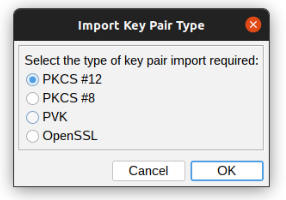
4. Select the type of key pair import required:
5. Browse the Ehealth NIHII-HOSPITAL P12 certificate and fill in the Decryption Password

6. mport the PKCS #12 Key Pair and give it the NIHII number as alias, ex 71001129
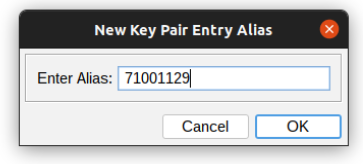
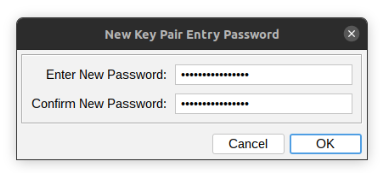
7. Click OK and give it a password that needs to be same for all imported certs in the P12 KeyStore
8. The Key Pair is imported successfully

9. Repeat step 3 to 8 to add more NIHII-HOSPITAL P12 certificates to this KeyStore
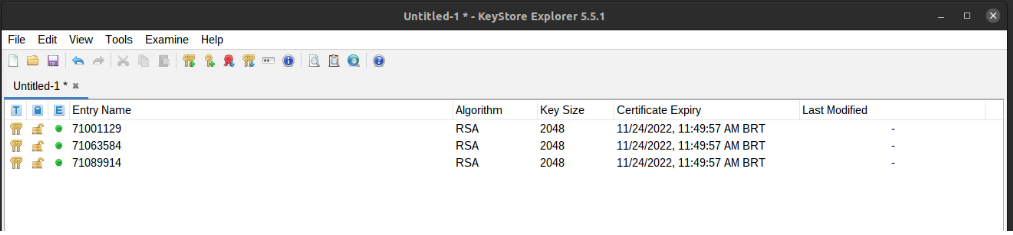
10. In the menu bar go to File -> Save All
11. Set the KeyStore Password and give it a password that needs to be same for all certs
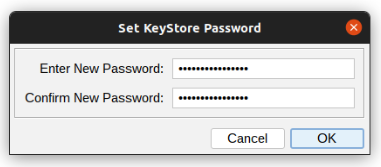
12. Click OK and save the KeyStore as ehealth_certificate.p12

13. Click save and the P12 for HD4DP is created
Upload certificate
The filename of your P12 certificate must be ehealth_certificate.p12
Server: IP of HD4DP v. 2 server
Username: (your SFTP credentials)
Password: (your SFTP credentials)
Path: /data/localsftp/upload (home directory of thesftpuser)
File: ehealth_certificate.p12
The server name and the sftp credentials can be requested via our Service Portal. The password of your P12 certificate can be delivered to Healthdata either via a secure password sharing tool of your choice or via Belnet Filesender to hd-architecture-2@sciensano.be. You can request a Belnet Filesender voucher via our Service Portal as well.
Deze documentatie wordt regelmatig bijgewerkt. We proberen de informatie zo correct, volledig en zo duidelijk mogelijk weer te geven. Als u desondanks iets in de documentatie ziet dat niet correct is, niet overeenkomt met uw ervaring, of verdere verduidelijking vereist, maak dan een support ticket via ons portaal Jira Service Management of stuur ons een e-mail via support.hd@hda.fgov.be om dit documentatieprobleem te melden. Vergeet niet de URL van de pagina te vermelden. Wij zullen de documentatie dan aanpassen. Bedankt!Nippin validation
Nippin validationScope
To support the Data Provider with the validation of the MyCarenet message, every night a CSV file is generated with the latest MyCareNet message information.
NexuzHealth hospitals are not able to validate this.
Requirements
The data provider needs access to the sftp folder of HD4DP2.0.
Request the credentials if you did not receive this in our support portal: Jira Service Management
Server: IP of HD4DP v. 2 server
Username: (your SFTP credentials)
Password: (your SFTP credentials)
Path: /data/localsftp/upload (home directory of the user)
Output
Example output CSV file:
head -n2 output.csv
localdwh_id,localdwh_created_on,localdwh_registration_code,localdwh_register,nippin_message,nippin_interface_type,nippin_status,nippin_created_on,nippin_payload_after_validation,nippin_postresponse_tack_reference,result
16686,2024-06-18T06:38:01.449820+00:00,206.24.000214.88,OP_KNEE_PRIM_IMPLT,208f3aab-c97a-4ea0-aa70-6cba5e23ce72,REST,SENT,2024-06-18T06:38:01.938909+00:00,,11b7aeb0-4e41-496c-a9f0-8e506744b064,urn:nip:tack:result:major:success,valid
Interface type
| Interface type | Info |
| FILE_SYSTEM | HD4DP2.0 is configured with option 1 (DP will deliver the xml files to mycarenet) |
| REST | HD4DP2.0 is configured with option 2 (HD4DP2.0 will deliver the xml files to mycarenet) |
Status
| Status | Info |
| valid | A valid status means the payload looks okay and the nippin_status is SENT or TO_SEND. |
| invalid | An invalid status means the payload is wrong and the nippin_status is INVALID or ARCHIVED. The issue needs to be investigated by healthdata.be. Please create a ticket in our support portal. |
| not_found | No nippin message was created for the localdwh message. The issue needs to be investigated by healthdata.be. Please create a ticket in our support portal. |
| not_sent | This status is used when a payload is not able to be delivered to MyCareNet. The communication problem needs to be resolved and the messages need to be resend to MyCareNet. Please create a ticket in our support portal. |