Installation of the AVD
Installation of the AVD1. Installation of the Windows app
In order to access the AVD for the first time, data users should install the AVD environment locally.
Open the Windows app via following link
Log in with your <firstname.lastname>@healthdata365.be account
Important Note for users who have worked with Citrix in the past.
Your <firstname.lastname>@healthdata365.be password is the same as your Citrix account password.

A pop-up appears to configure DUO (two factor authentication service)for your healthdata365.be account.
Since the Azure Virtual Desktop works with the Duo Security's two-factor authentication service of Duo Mobile to make logins more secure, it necessitate the installation of the DUO app on your mobile, tablet or smart watch. The application generates passcodes for login and can receive push notifications for easy, one-tap authentication on your mobile.
2. Install the DUO app on your mobile
As described in the section above, the DUO app necessitates its installation on you mobile as described below.
Download the app to your mobile device via the Apple Store or Play Store (Android)

On your mobile phone press on “+Add” in the right corner → “Use QR code”

Select Continue

3. Configure DUO
Select "Next" a number of times

Open the section "Recommended"
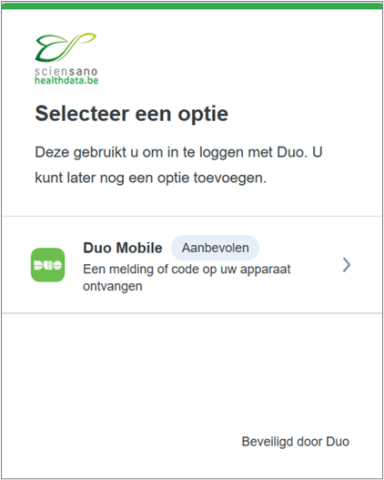
Provide your mobile phone number

Verify the entered number and confirm by selecting "Yes, that it is correct"

A QR code will appear on the next screen, leave it open until you have scanned it with your DUO application on your mobile phone.