Add and manage certificates
Add and manage certificatesObjective: A member whom has been given the role of Certificate Editor can add a new p12 certificate to an organization.
Only a member with the role of Certificate Editor can have an overview of the certificates in their home page (pictured below). Click on Groups, then on the Certificates tab to have an overview of the organizations and their certificates.

Click on the Certificates button in the Actions column to view the history of the certificate(s) of the relevant organization.

To add a new certificate to the Organization you only need to click on the Add Certificate button.
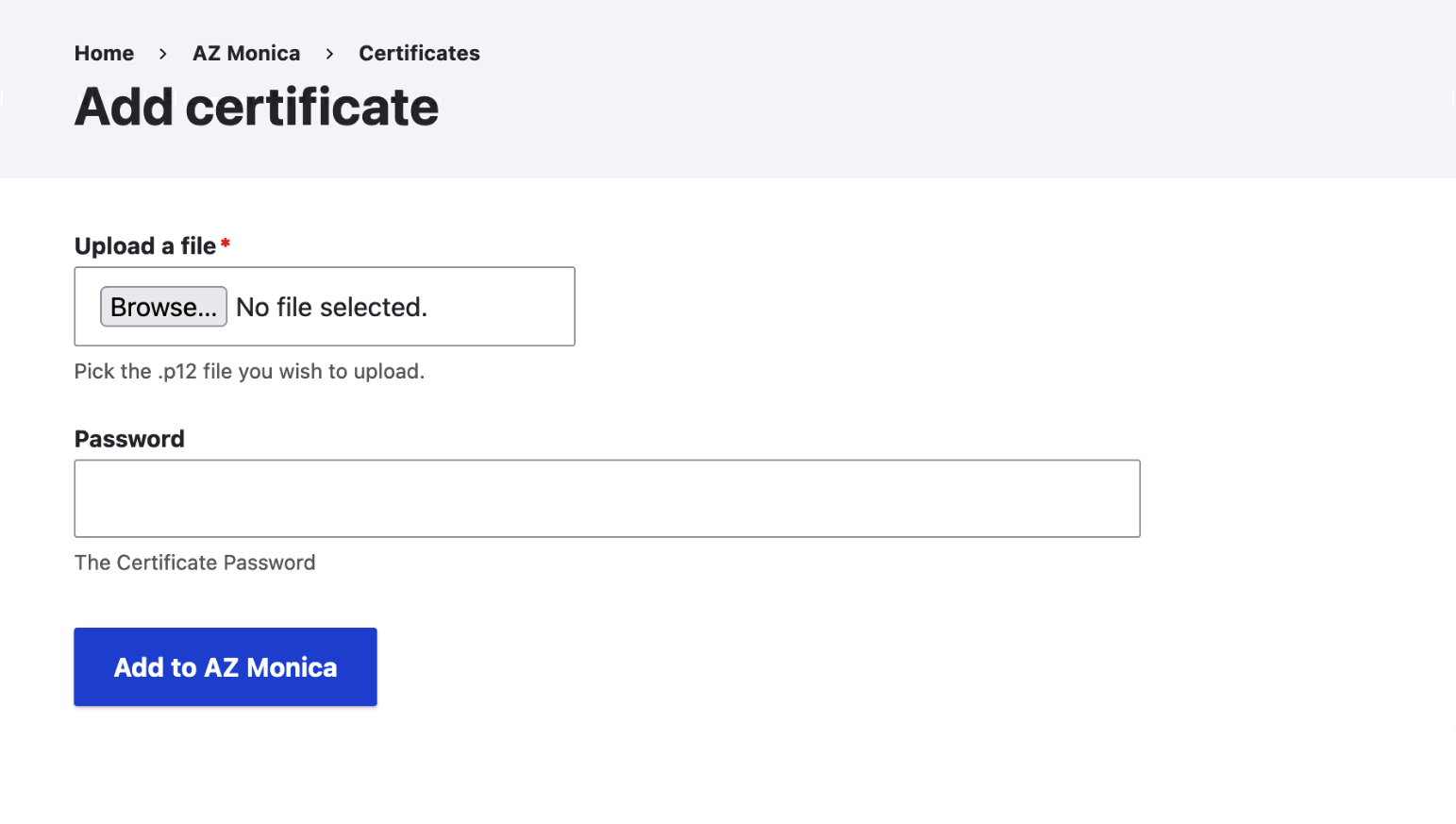
In the Add certificate screen you need to upload the p12 certificate file and the relevant password. Upon clicking the Add to [name organization] button, the certificate will be uploaded and validated.
Check if there are two keys inside and that the password matches. Previous versions will automatically become unpublished.
View the log of one certificate upload
The processing of the p12 file will occasionally send status updates. These can be tracked on the certificates overview, this view will always show the latest status update. When you click the status it will show the log of all previous log messages