Additional actions
Additional actionsNow that all General Practitioners and their EAM accounts with access grants to a project in healthstat.be have been approved, the Access Manager can follow-up on the management of EAM Users and EAM Accounts by means of functionalities that are available when necessary.
These actions start from the Entity Access Management homepage:
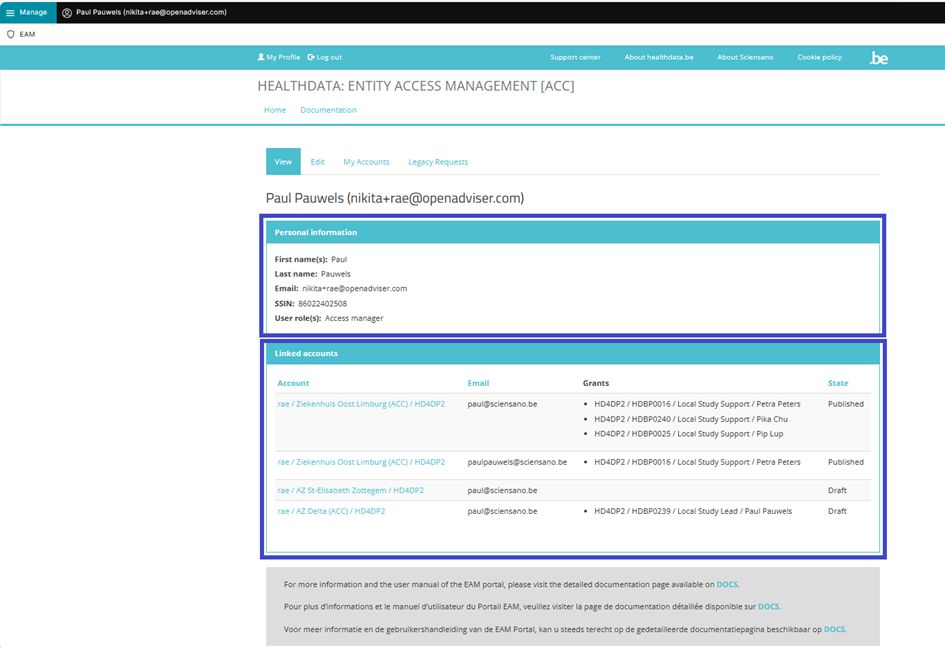
On the following pages you will find the most common additional actions:
Disabling an EAM account
Disabling an EAM accountDisabling an EAM account
Click on Manage on the top left of the screen in order to reveal the EAM menu. Select EAM Accounts.

Scroll down the displayed list of accounts and tick the selection box of the account(s) you want to disable. Go to the bottom of the page and click on the Action toggle button to select Disable account. Then, click on the Apply to selected items button.

Confirm with the Execute action button

This action triggers an email notification for the Authenticated User to inform about the account being disabled. The user is no longer able to login with the credentials at hand, and needs to contact the Access Manager to have the account enabled again.
Enabling an EAM account
Enabling an EAM accountEnabling an EAM account
Click on Manage on the top left of the screen in order to reveal the EAM menu. Select EAM Accounts.

Scroll down the displayed list of accounts and tick the selection box of the account(s) you want to enable. Go to the bottom of the page and click on the Action toggle button to select Enable Account.

To complete the action, you need to click on the Execute action button.
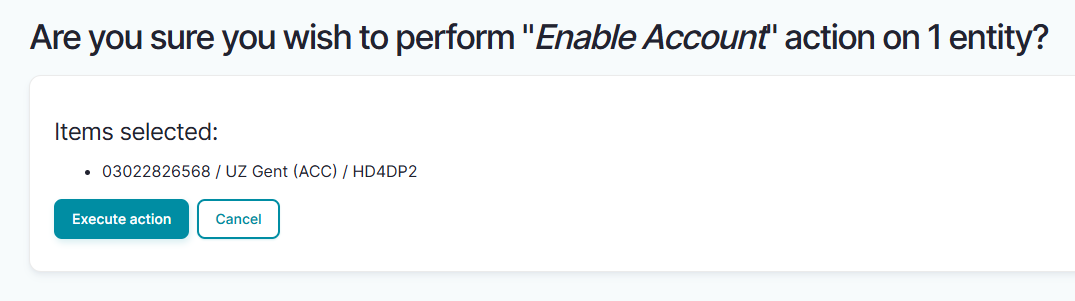
This action triggers an email being submitted to the Authenticated User with new credentials. All previously approved accesses will be restored.
Viewing all General Practitioners and their EAM accounts with grants
Viewing all General Practitioners and their EAM accounts with grantsViewing all users within the organization HDGP3333 for healthstat.be using the EAM interface?
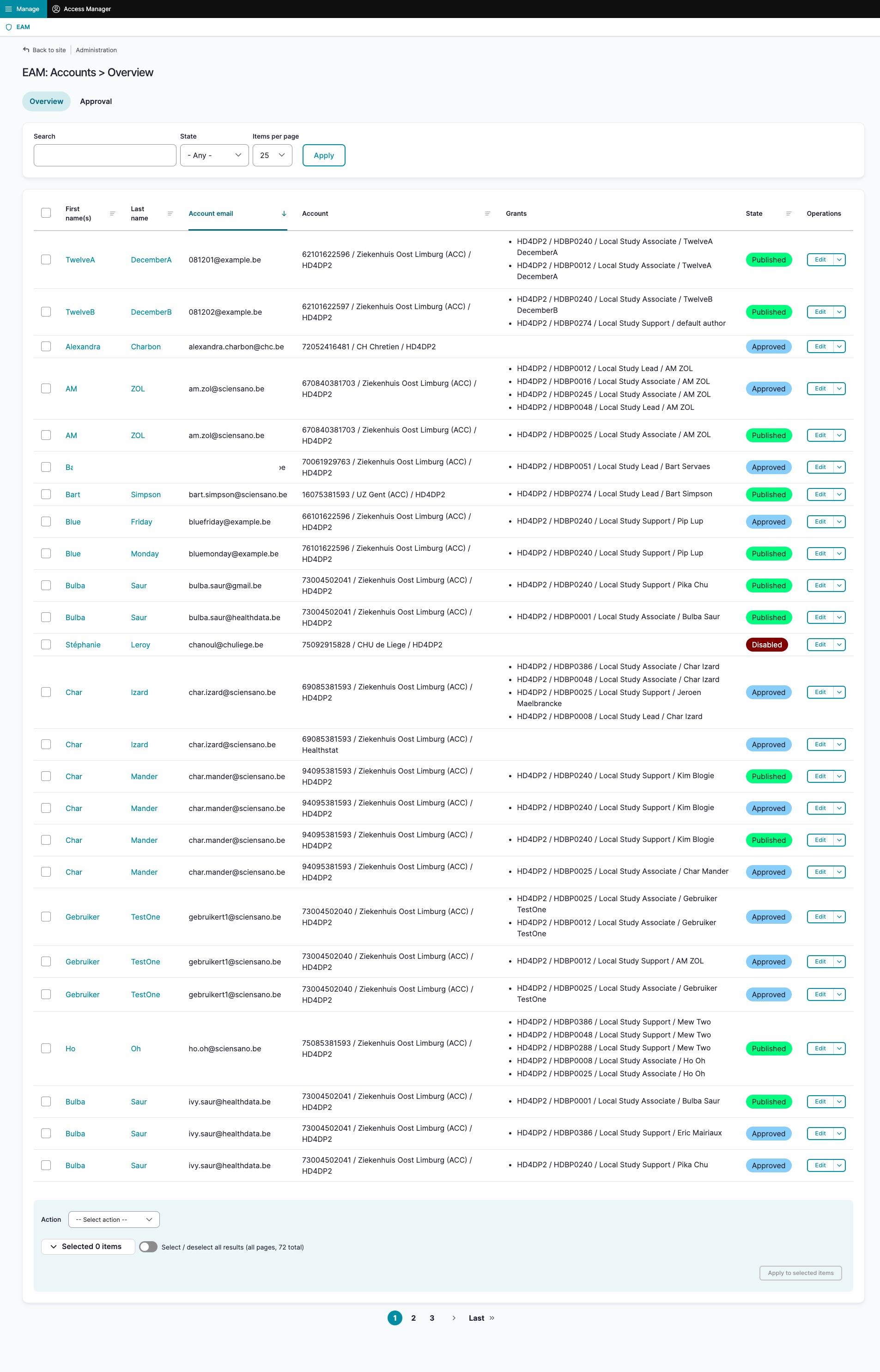
Click on Manage to the top left of the screen, so that EAM appears. When hovering over this menu item, the subitems EAM Users and EAM Accounts become visible. Select EAM Accounts.

The page shown gives an overview of all accounts of all users within the organization(s) for the different applications, including the grants.
Filtering accounts for healthstat.be
Use "CTRL+F" and enter "Healthstat" in order to find the accounts for projects in the application healthstat.be.