User manual of the application HD4DP v2
User manual of the application HD4DP v2In this manual we describe the following functions of the application HD4DP v2:
Request access to an HD application for a specific project
Request access to an HD application for a specific projectHealthdata.be applications such as HD4DP v2 and healthstat.be process sensitive personal information. Therefore, strictly controlled processes are used to grant access to these applications. The Entity Access Management (EAM) portal of healthdata.be facilitates these processes.
Make sure to use the current version of the EAM system. The relevant user documentation can be found here.
This documentation is being updated regularly. We try to provide as correct, complete and clear as possible information on these pages. Nevertheless, if you see anything in the documentation that is not correct, does not match your experience or requires further clarification, please create a support ticket via our portal Jira Service Management or send us an e-mail via support.hd@hda.fgov.be to report this documentation issue. Please do not forget to mention the URL of the page. We will then adjust the documentation as soon as possible. Thank you!User roles in HD4DP v2
User roles in HD4DP v2Each healthcare organization has at least one Access Manager who oversees the access rights to the applications of their own organization and manages them in the HD Entity Access Management (EAM) system. In this process, access requests by healthcare organization’s employees are analyzed and validated if legitimized. The scope of the accesses granted to HD4DP2 may differ, which is reflected in various user roles. Based on access rights, the following three user roles can be distinguished:
Local Study Lead (author):
The Local Study Lead can:
- edit and review all peer registrations (regardless of role) for the study or project;
- make registrations in HD4DP v2.
This role might be, but should not be limited to, the individual responsible for the study or project within the participating healthcare institution.
Local Study Associate (author):
The Local Study Associate can:
- edit and review their own registrations, not those of other colleagues from the same healthcare organisation participating in the same study or project. The indicated registrations are limited to the patients treated by the Local Study Associate;
- make registrations in HD4DP v2.
The Local Study Associate is a healthcare provider participating in the study or project. This is reflected in the registration form.
Local Study Support (co-author):
The Local Study Support can:
- edit and review registrations belonging to the author group they are linked to;
- make registrations in HD4DP v2.
A Local Study Associate and Local Study Lead can delegate registration tasks to a Local Study Support. This might be, but should not be limited to, an administrative assistant or staff from a medical coding department. The Local Study Associate and Local Study Lead are still considered as the author of the registration; the Local Study Support is considered as the co-author. The Local Study Associate and Local Study Lead can view and modify Local Study Support entries.
The scope of the access rights is to prevent users of HD4DP v2 from seeing personal and sensitive information from individuals with whom they do not have a therapeutic relationship. The access rights therefore do not necessarily reflect the hierarchy within the healthcare organization. The healthcare organisation staff can consult their Data Protection Officer (DPO) for more in depth information concerning these access rights. It is up to the Access manager to approve or change roles from/to Local Study Lead, Local Study Associate and Local Study Support. These requests are carried out in the EAM system by the Access managers of each healthcare organization.
Remarks:
- The scope of the access rights does not necessarily reflect the hierarchy within your healthcare organisation.
- It is up to the Access manager to change roles from/to Local Study Lead, Local Study Associate and Local Study Support. These requests are carried out in the EAM system.
Access the application HD4DP v2
Access the application HD4DP v2To access the HD4DP v2.0 application, you must first request an account. If you do not have an account yet, please consult "Request access to an HD application for a specific project" first.
Once your account has been created and the registry is put in production, you will receive an e-mail with the following information (Note that the text between the [ ] will be adapted):
- Organization: [RIZIV number - Name]
- Login: [email]
- Password: [password]
- Application URL: [url]
With these credentials you can access your organization's HD4DP v2.0 application:
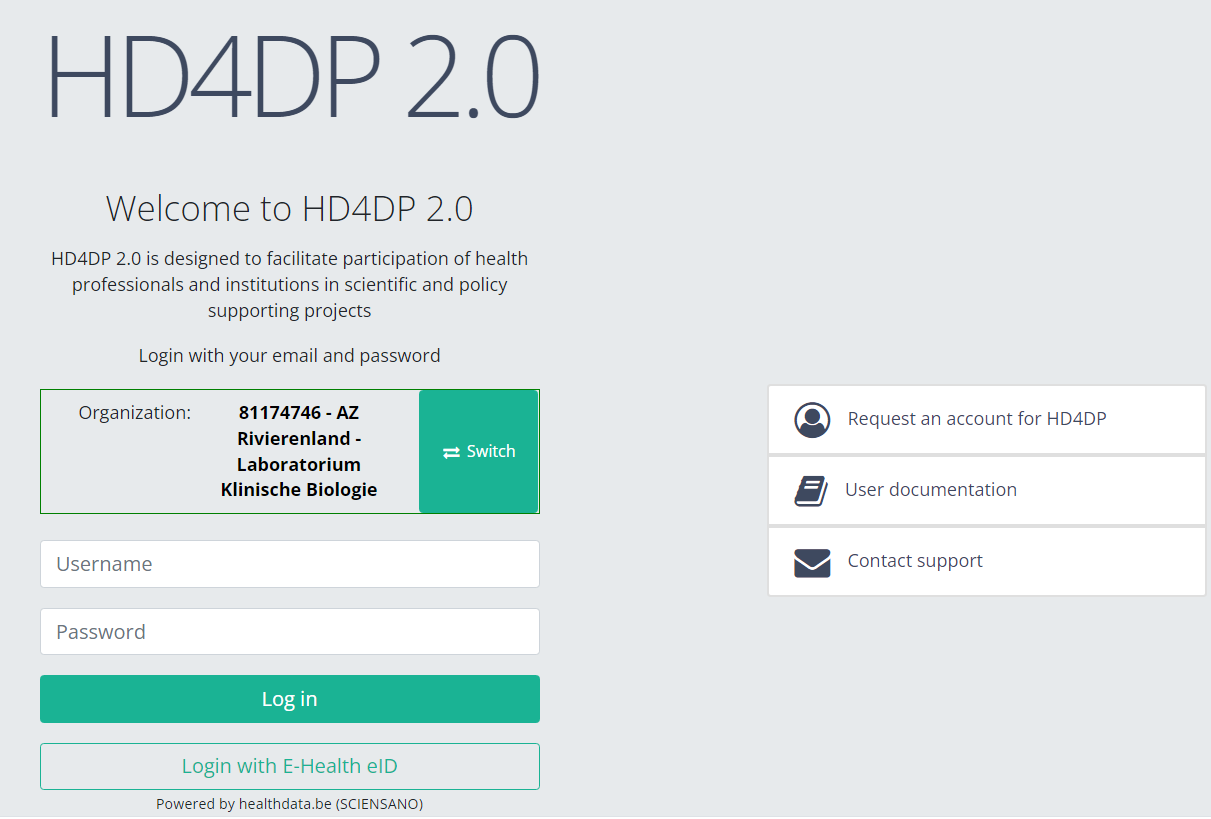
- Go to the url mentioned in the email
- Select "your organization" from the list
- Your organization: [RIZIV number – Name]
- Click on "Next"
- Fill in your "username" and "password"
- Click on "Log in"
Please be sure to log off after making use of the HD4DP v2.0 application, or any other healthdata.be application. Just closing your internet browser does not guarantee that your application with registrations has been closed.
Navigate to the BRBDR project
Navigate to the BRBDR project Adelaide.DAmore Fri, 06/07/2024 - 10:36Create a BRBDR registration
Create a BRBDR registration Adelaide.DAmore Fri, 06/07/2024 - 10:37Find a BRBDR registration
Find a BRBDR registration Adelaide.DAmore Fri, 06/07/2024 - 10:37Update a BRBDR registration
Update a BRBDR registration Adelaide.DAmore Fri, 06/07/2024 - 10:38Delete a BRBDR registration
Delete a BRBDR registration Adelaide.DAmore Fri, 06/07/2024 - 10:38Submit a BRBDR registration
Submit a BRBDR registration Adelaide.DAmore Fri, 06/07/2024 - 10:39Send a correction of a registration
Send a correction of a registrationTo send a correction of a submitted registration you need to submit the complete record again.
The Add corrections function (and button) to a registration form has been discontinued. It is no longer available, neither via the overview table, nor via the preview page of a registration.
Submitting the complete record again
Corrections are provided through a new submission. In doing so, the most recent version of a record which is received by healthdata.be will be considered to be the correct one.
Whether a record qualifies or not is determined by a so-called business key. This is a unique set of values of specific fields per record, such as a combination of the patient ID and the hospitalization date, or the niss code and the sample ID. The business key is created when submitting the original record, and so helps to identify the most recent record received in the healthdata.be database in case of resubmission.
Attention: In case any of the fields that builds the business key needs to be corrected, the record which will be resubmitted will have a different business key. Consequently, both records will be considered as correct ones, since there is no identical business key.
Unfortunately, we cannot immediately remove your incorrect registration. We are looking for a solution to do so eventually.
There are two options to resubmit a record:
Option 1: Submission via S2S API / CSV Upload
The correction of the values is performed directly in the json or csv file. To resubmit the complete record via the back-end, please refer to the applicable technical documentation pages. The examples shown in the links below are for Pacemaker Primo-Implantation:
- For submitting the complete record as a .json file via S2S API, go here.
- For submitting the complete record as a .csv file via CSV Upload, go here.
Option 2: Submission via the HD4DP 2.0 application
First, you need to access the HD4DP v2 web application, navigate to the study program and select the desired study project in the left dark blue menu. Then, fill out the complete registration form again manually with the correct values. Resubmit the completed registration form.
The previously submitted record will become irrelevant based on the business key.
This documentation is being updated regularly. We try to provide as correct, complete and clear as possible information on these pages. Nevertheless, if you see anything in the documentation that is not correct, does not match your experience or requires further clarification, please create support ticket via our portal (https://healthdatabe.atlassian.net/servicedesk/customer/portals) or send us an e-mail via support.healthdata@sciensano.be to report this documentation issue. Please, do not forget to mention the URL or web address of the page with the documentation issue. We will then adjust the documentation as soon as possible. Thank you!Registration statuses in HD4DP v2
Registration statuses in HD4DP v2This article explains the different registration statuses in HD4DP v2.
Statuses are shown in Status column
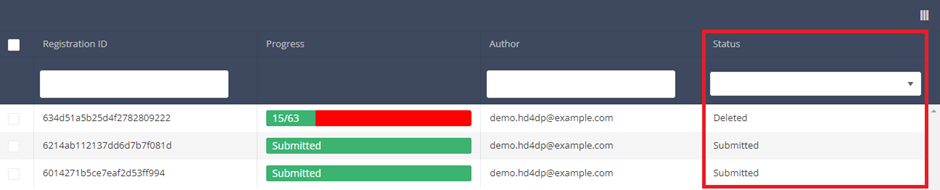
You can select the columns you want to display via the menu Select visible columns located in the top-right corner:

Select the columns you want to display and click on Apply.
Description of the statuses:
Open: Registration is created and stored. It has not been submitted
Deleted: Registration has been deleted.
Submitted: Registration has been submitted and sent to Healthdata.be.
Reset password for HD4DP v2
Reset password for HD4DP v2After having received your credentials to login to the HD4DP v2.0 application, you may consider resetting the password to one which is easier for you to remember.
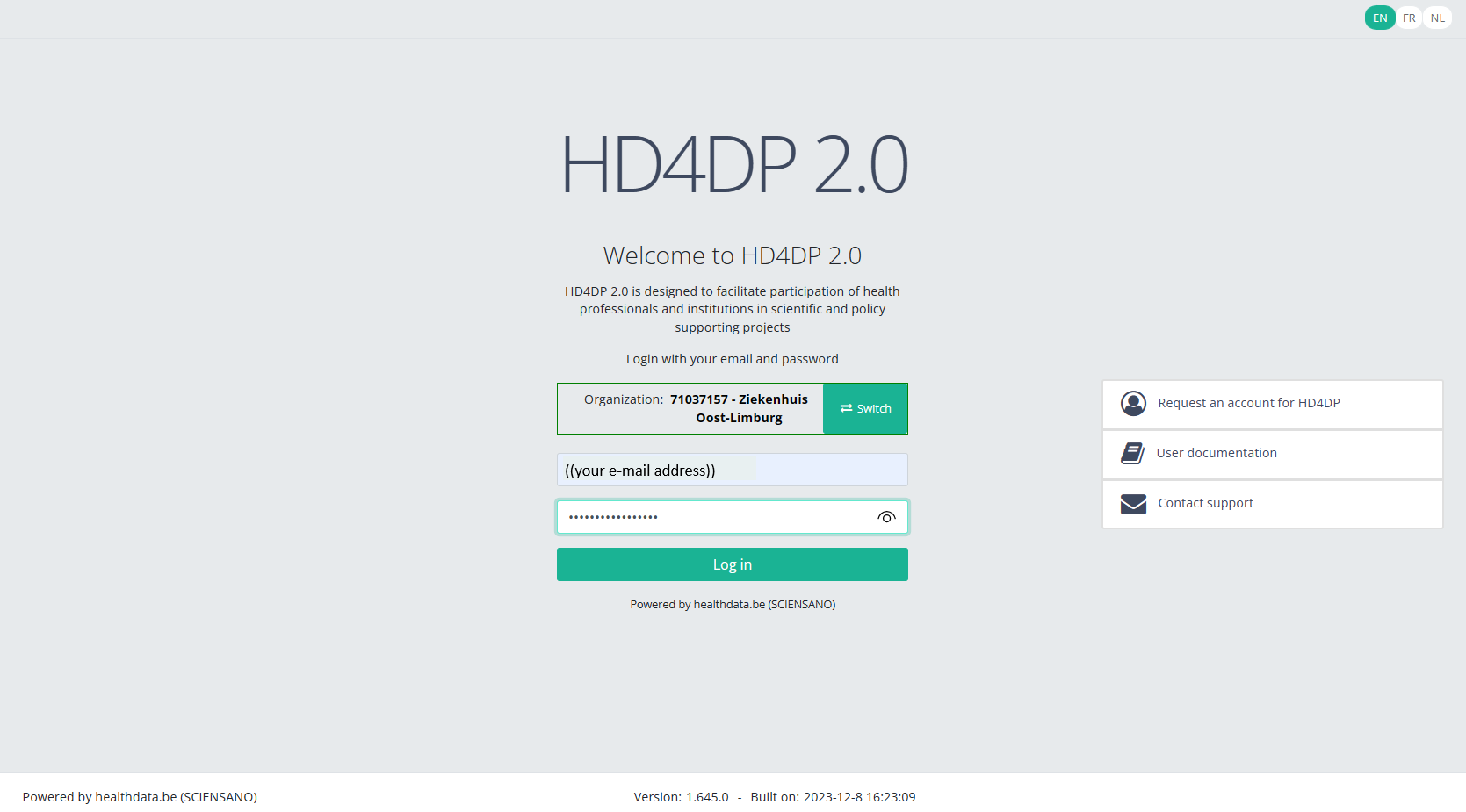
Go to URL https://hd4dp.healthdata.be, select your organization and click on the Next button.

Fill in your e-mail address and the password you received. Click on the Log in button.
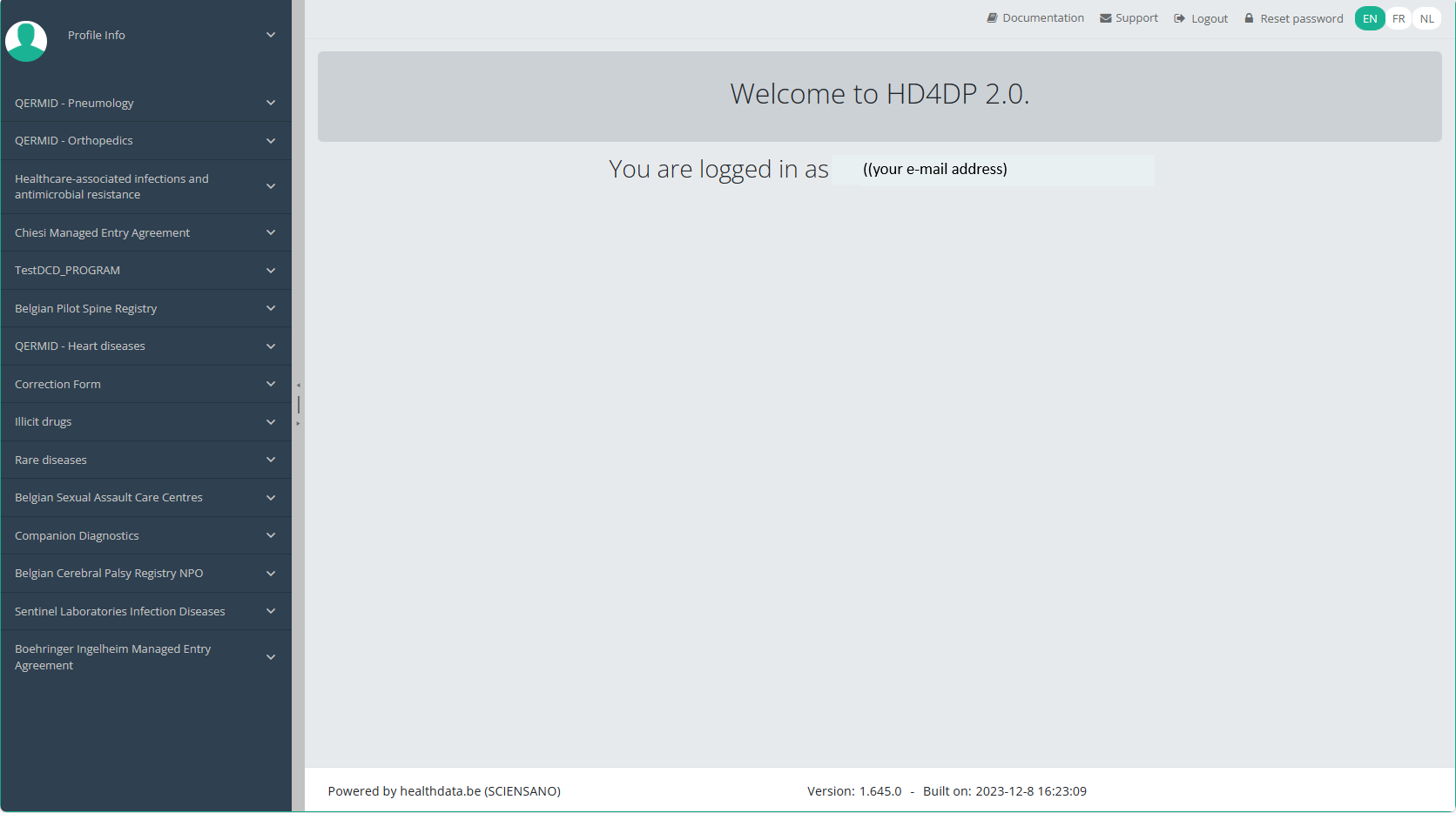
The main HD4DP v2.0 application screen appears. On the left you can see the menu of study programmes and study projects, on the right you have the section in which the relevant registrations will become available.
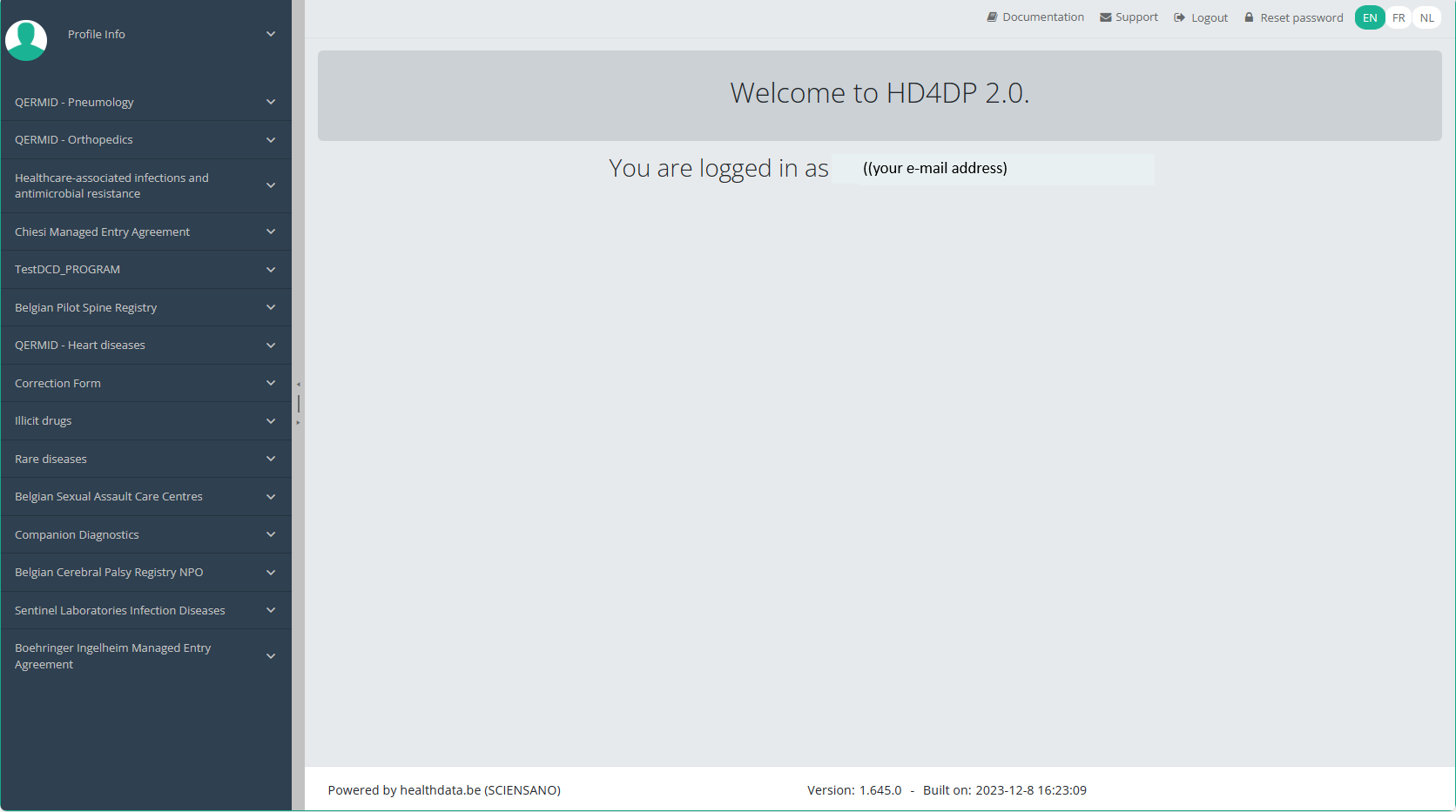
Click on the Reset password link button on the top right-hand corner of the screen.

Reset the password you have received by filling in the password of your preference. Repeat the new password in the verification field and click on the Submit button.

You will be redirected to the main screen, and the password will be automatically reset in the background. You don't need to log in again now.
When logging back in for a next registration session you will have to use your new password.