HD Service and Support portal
HD Service and Support portal manager Fri, 02/20/2026 - 11:32User manual of the Jira Service Management portal
User manual of the Jira Service Management portalIn the following sections we will provide the user the information below:
- Access the Jira Service Management portal
- How to create an account
- How to set default language
- How to create a ticket
- How to follow up a ticket
- How to delete my account
- How to submit a question or complaint
Access the Jira Service Management portal
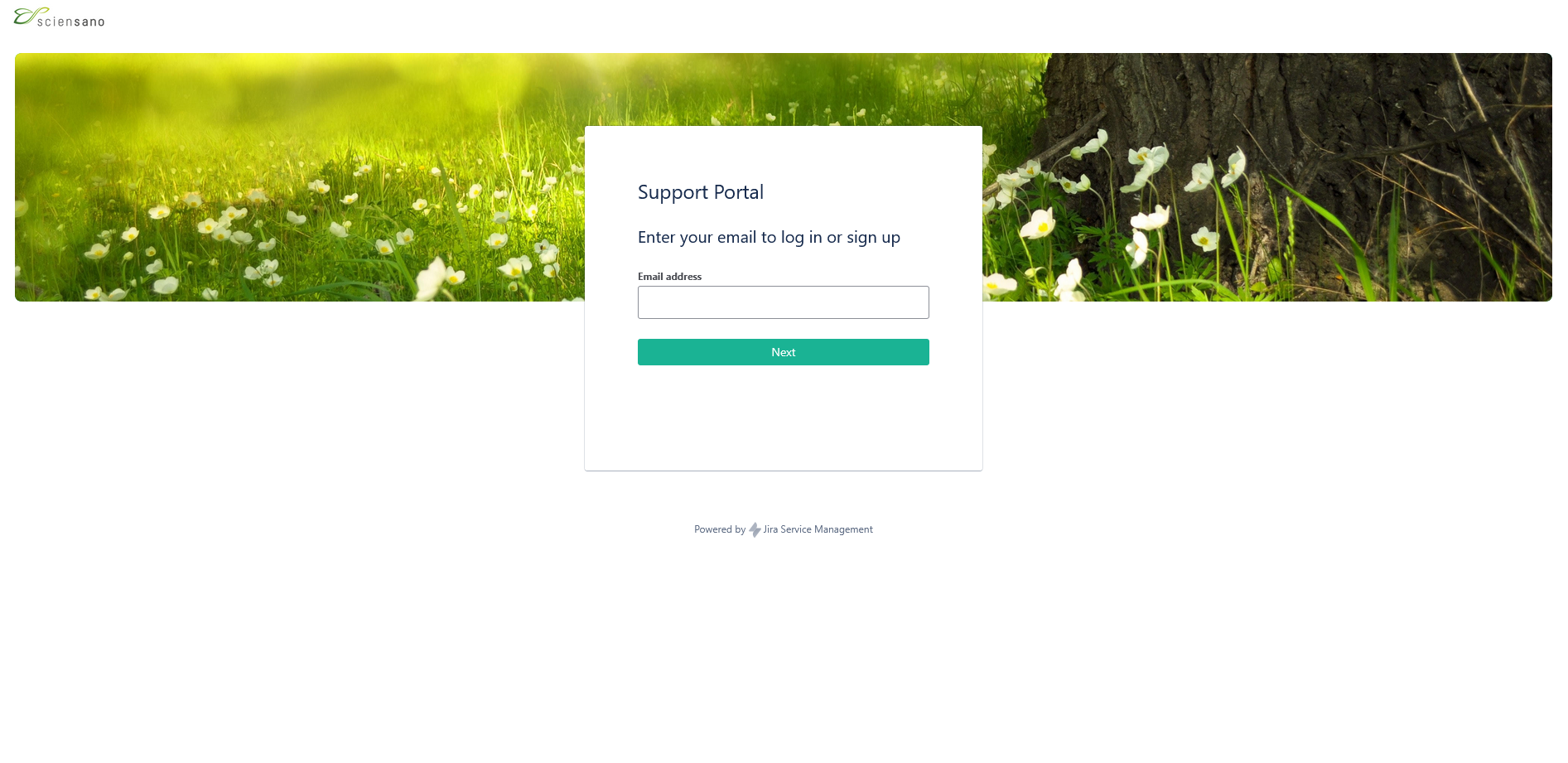
Access the Jira Service Management portalBrowse to the public main page of the HD Service and Support portal: Jira Service Management portal.
Enter your e-mail address and click on "Next". This will lead you to the next step, which is "How to create an account".
How to create an account
How to create an accountTo use the Jira Service Management portal, you need to create an account. To do so, enter your email address and click on "Sign Up".

You will then receive an e-mail to set your password.

Once you have set your password, you will be able to log in to the Jira Service Management portal.
To use the Jira Service Management portal, you need to create an account. To do so, enter your email address and click on "Sign Up".
You will then receive an e-mail to set your password.
Once you have set your password, you will be able to log in to the Jira Service Management portal.
How to set default language
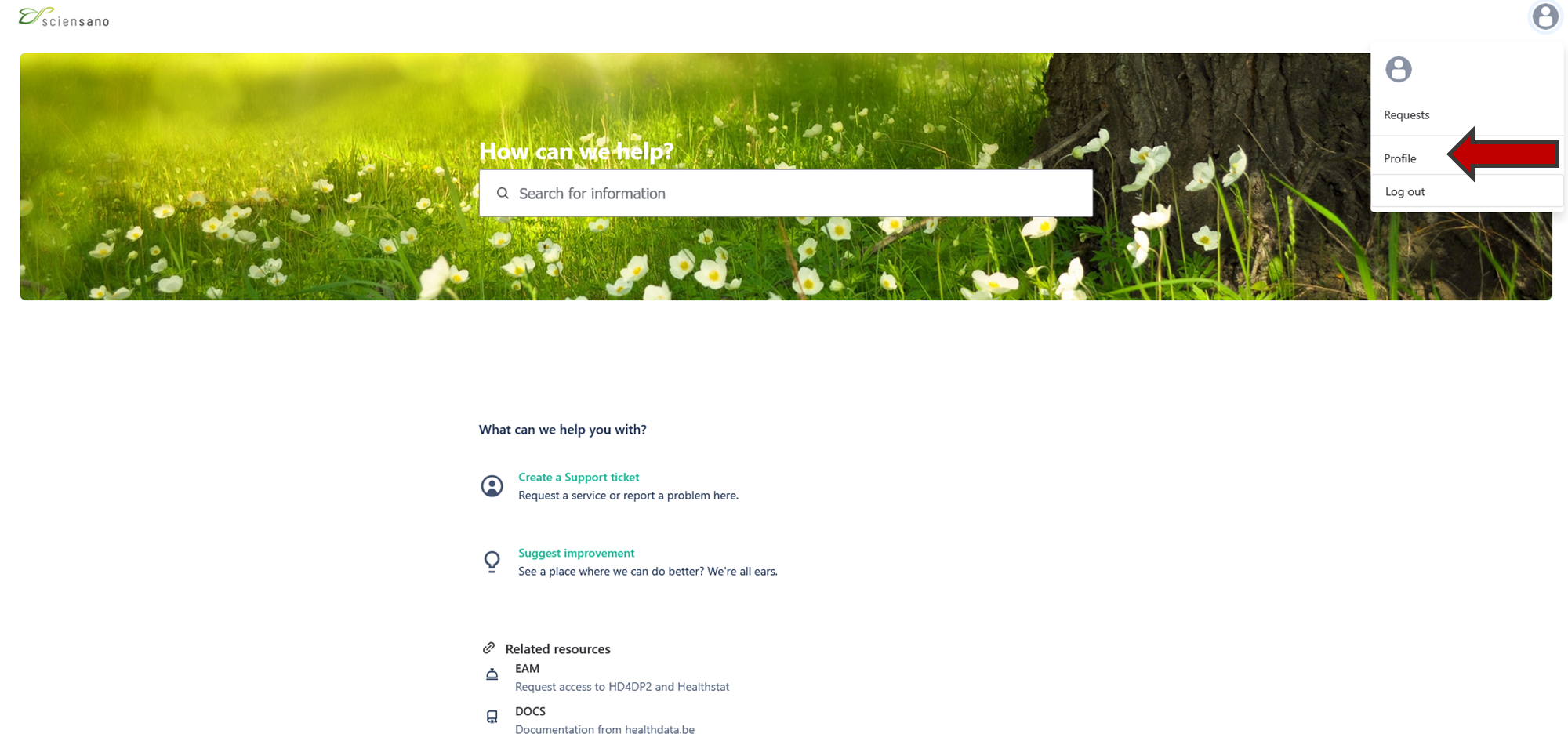
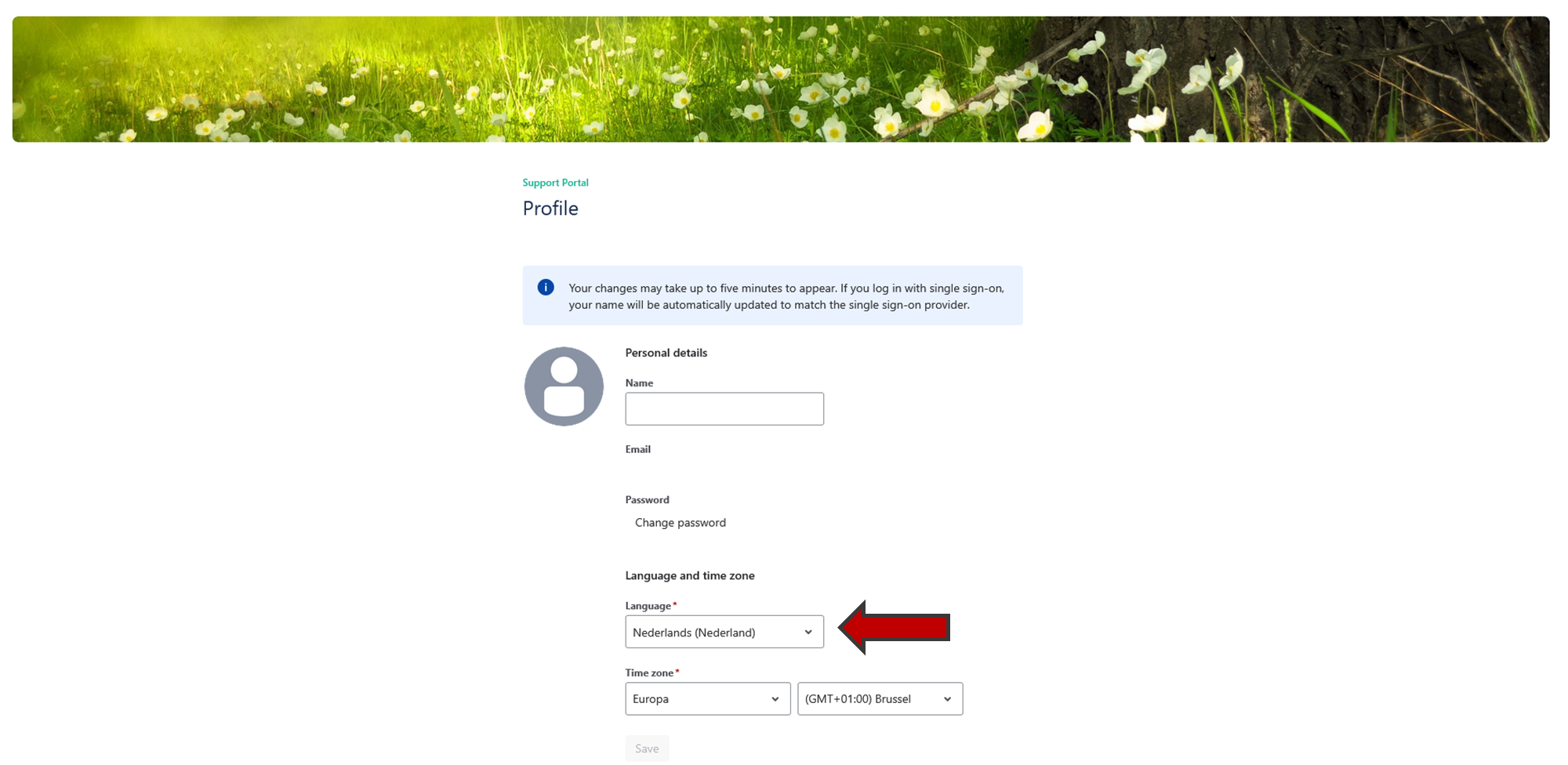
How to set default languageOnce you are logged in the Jira Service Management portal, you can modify the default language of the portal.
Go to your profile page on the top right of your screen.

Click on "Profile" and edit the language.
How to create a ticket
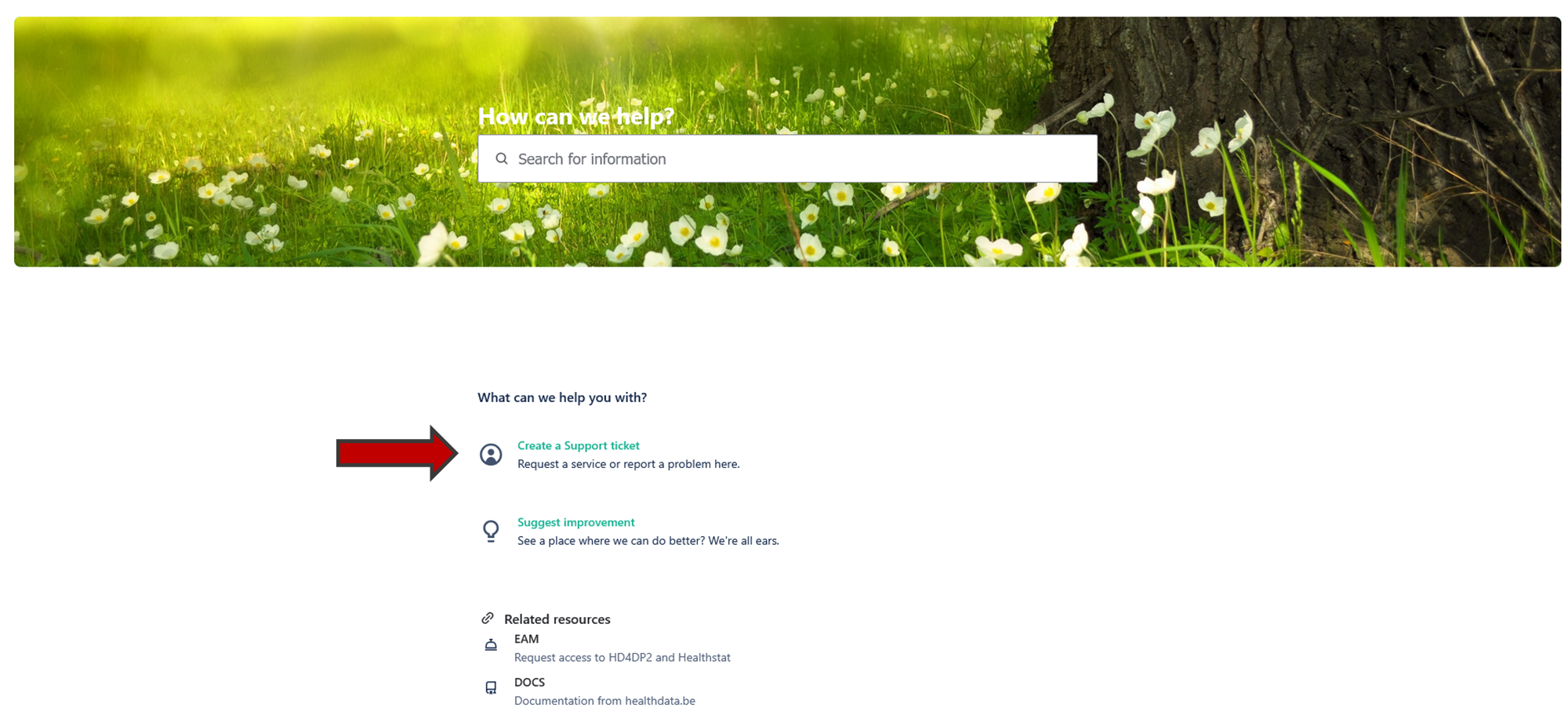
How to create a ticketTo create a ticket click on "Create a Support ticket"' on the main page.
You will see the page below. Once you have filled in all the mandatory fields, click on "Send".
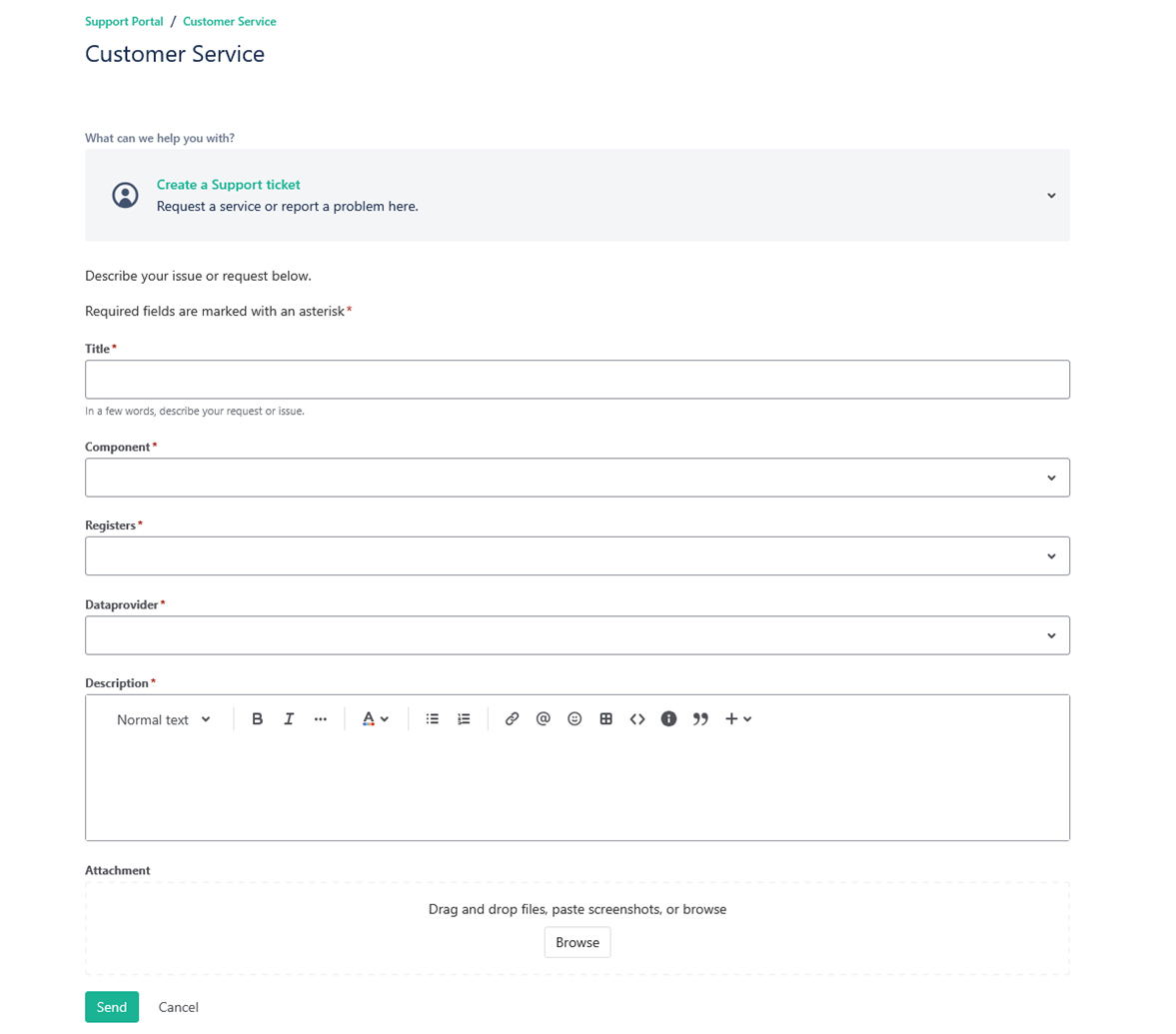
To create a ticket click on "Create a Support ticket"' on the main page.
You will see the page below. Once you have filled in all the mandatory fields, click on "Send".
How to follow up a ticket
How to follow up a ticketTo follow up a ticket, go to your profile page and click on "Requests".

You will see the following page with all the requests you submitted.
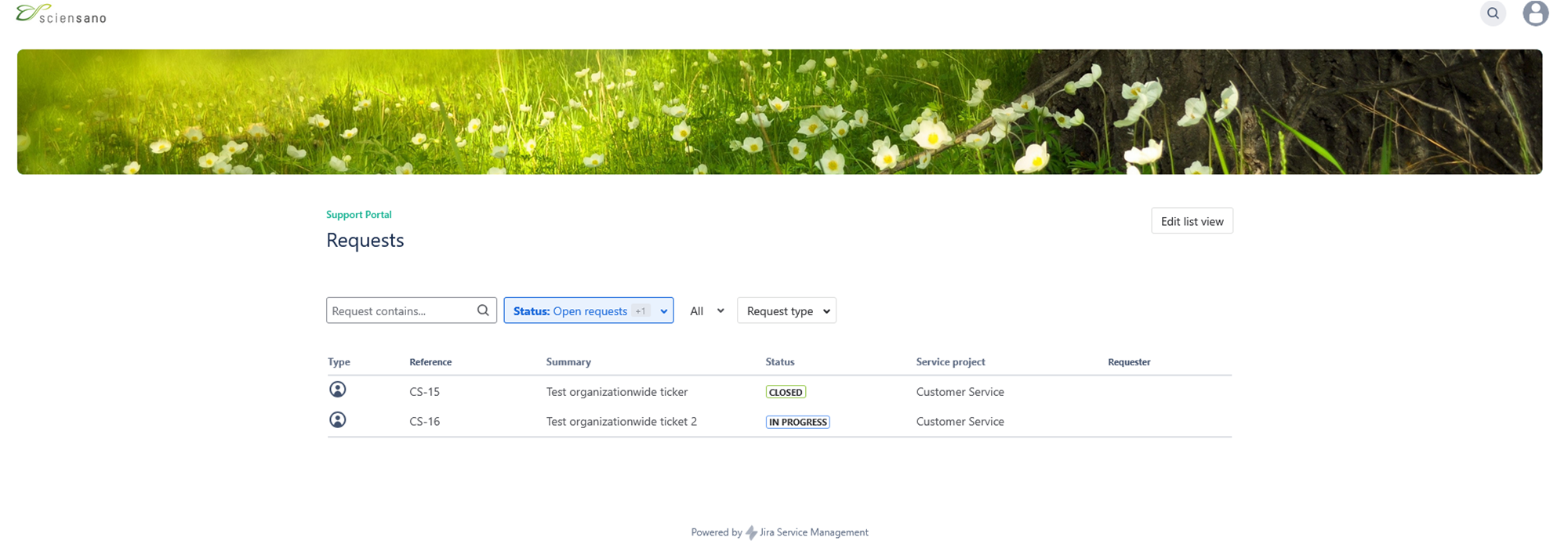
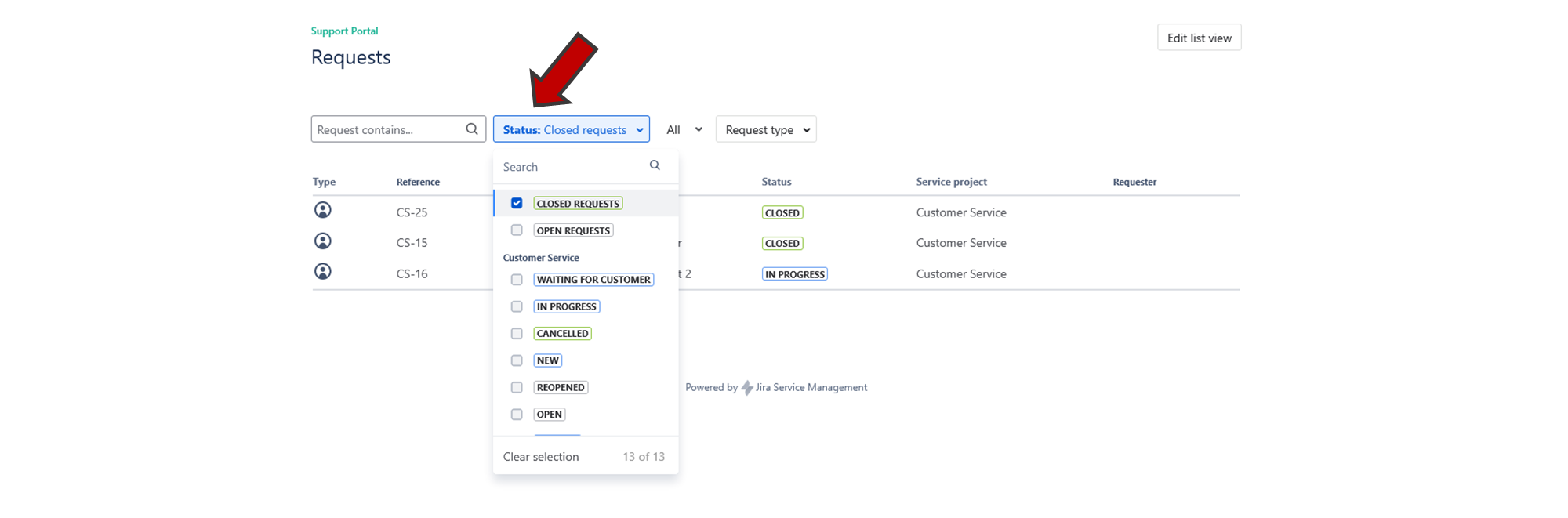
You can filter your requests by clicking on the "Status" button.
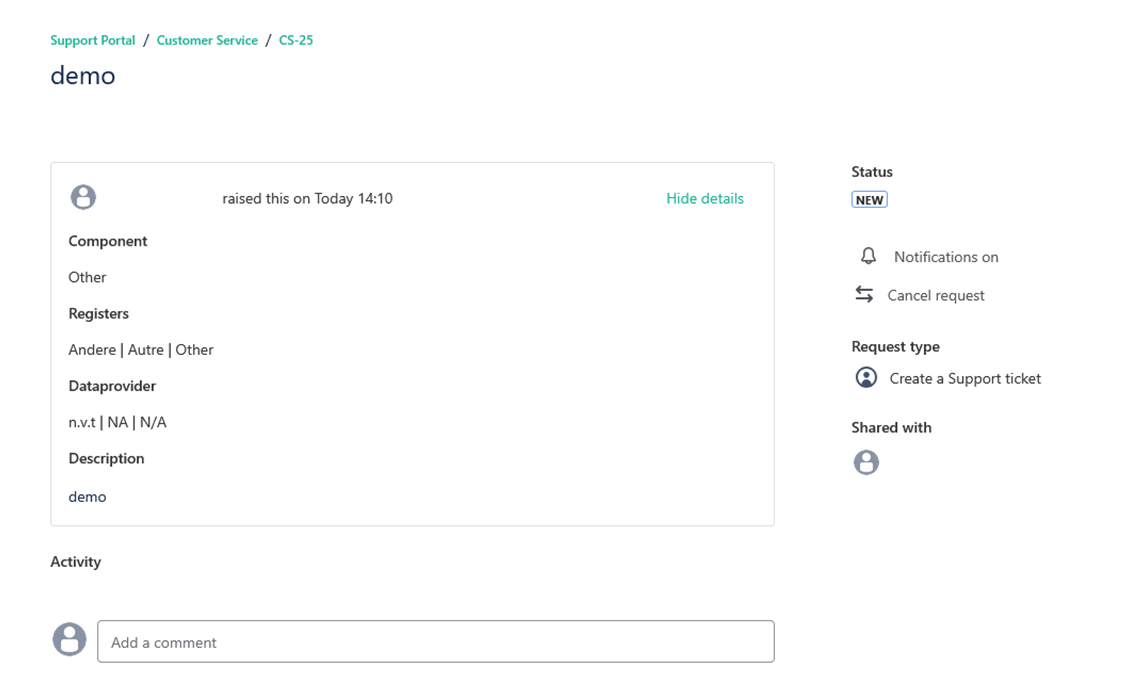
If you click on one of your requests, you will get an overview of the request you submitted.
To follow up a ticket, go to your profile page and click on "Requests".
You will see the following page with all the requests you submitted.
You can filter your requests by clicking on the "Status" button.
If you click on one of your requests, you will get an overview of the request you submitted.
How to delete your account
How to delete your accountTo delete your account your need to create a Support ticket.
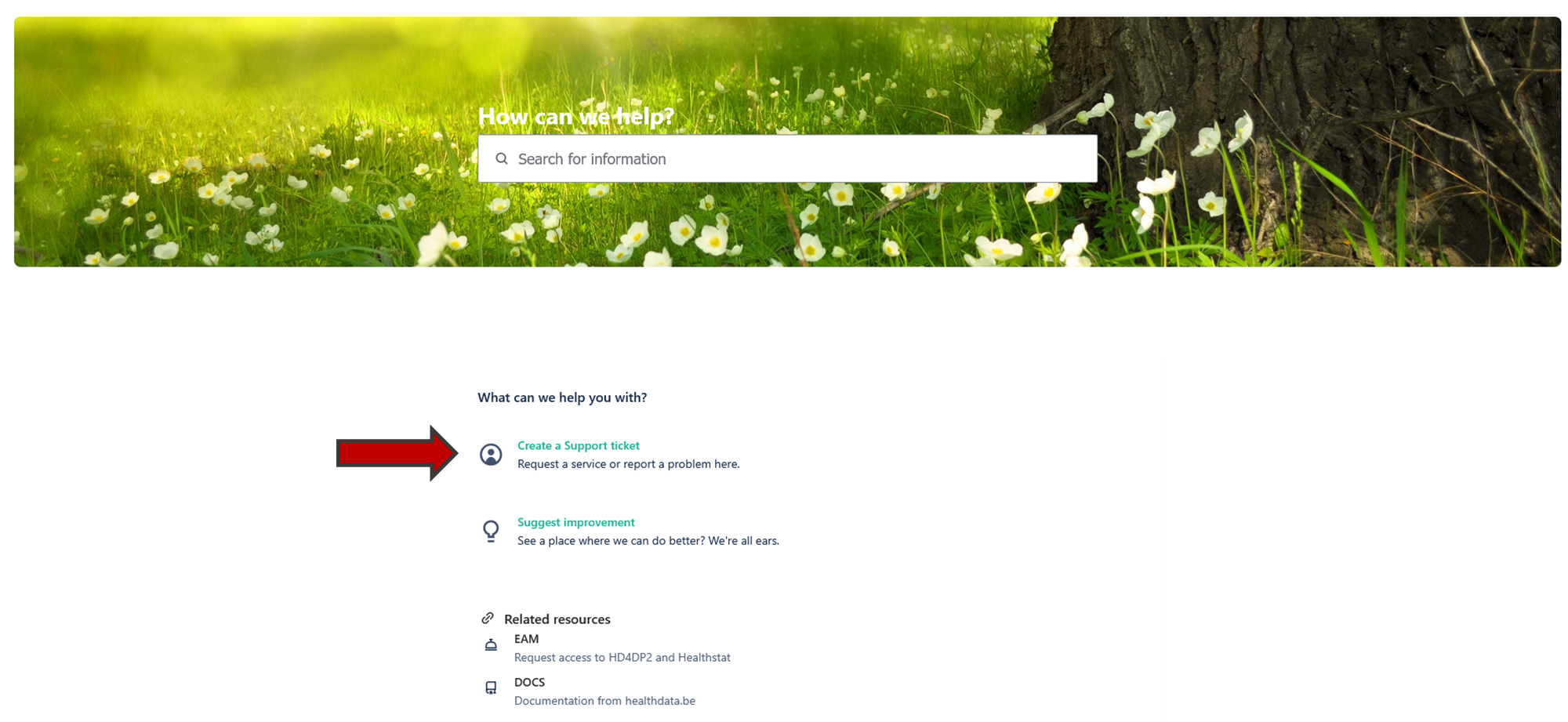
To delete your account your need to create a Support ticket.
How to submit a question or complaint
How to submit a question or complaintIf you have questions, remarks or if you would like to submit a complaint, you can do so by clicking on the "Suggest improvement" button on the main page of the Jira Service Management portal.
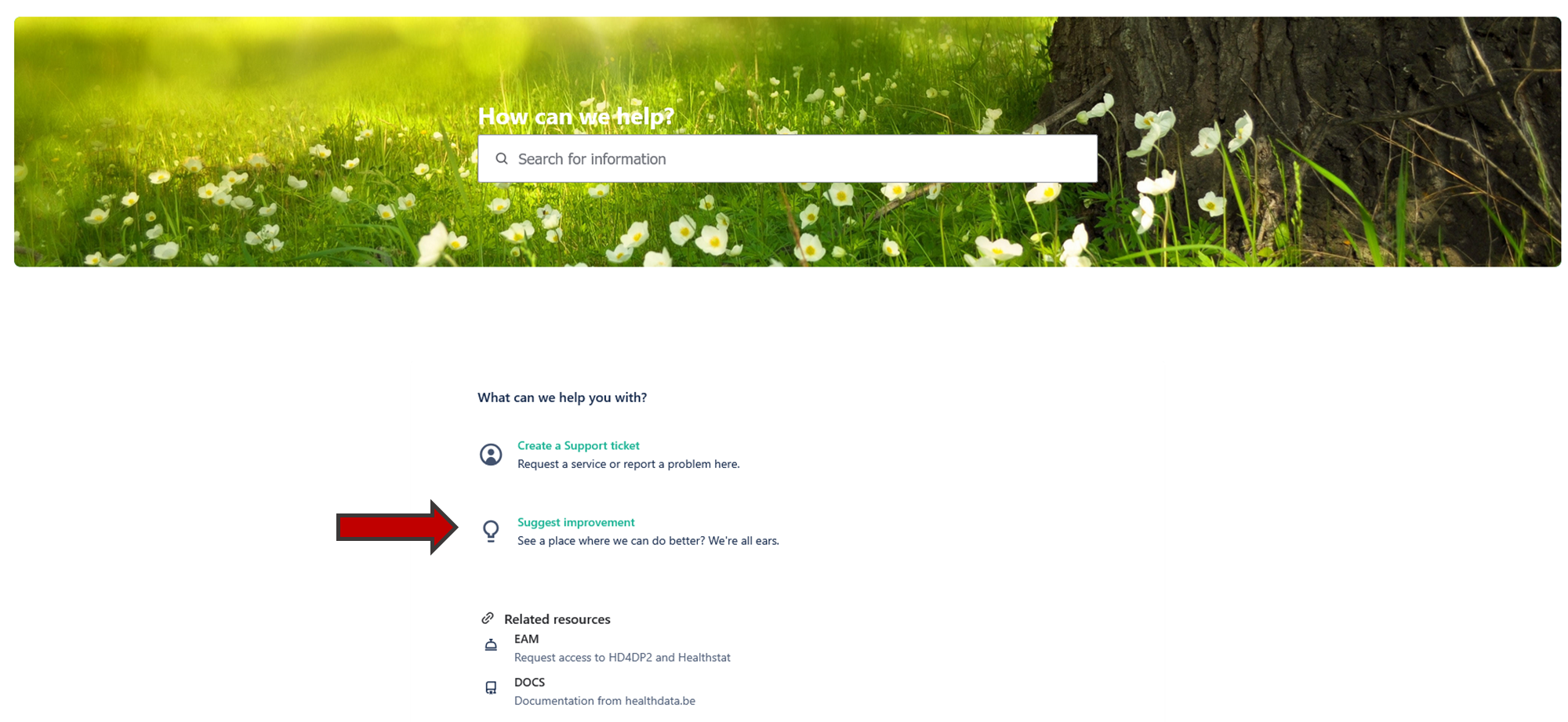
On this page you need to fill in all the mandatory fields and click on "Send".
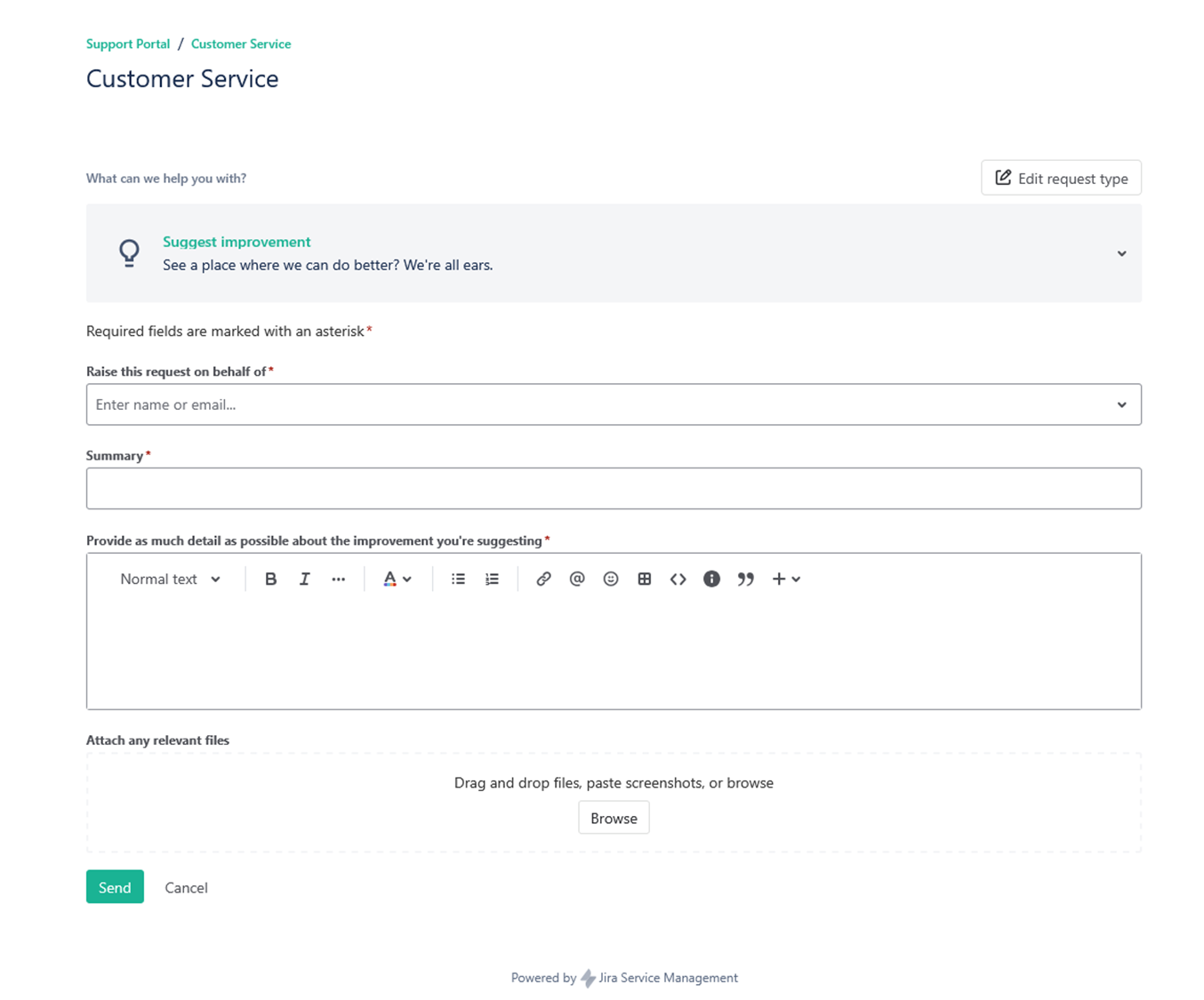
If you have questions, remarks or if you would like to submit a complaint, you can do so by clicking on the "Suggest improvement" button on the main page of the Jira Service Management portal.
On this page you need to fill in all the mandatory fields and click on "Send".